Running a User Billing Report in
Learn how to generate a list of billable users in Bullhorn ATS. Use the Billing Report to view, export, and review which user accounts in your system were billed for within a given month. This is useful for auditing your user count or checking your billable users before adding someone new. Billing is based on your contracted minimum user licenses — if your active user count exceeds that minimum, additional charges may apply depending on your contract type.
You'll need Admin-level access to run a User Billing Report. To enable access to the report, contact Bullhorn Support.
What's Included in the Billing Report
When you generate a Billing Report, you'll see two summary counts for the selected month:
-
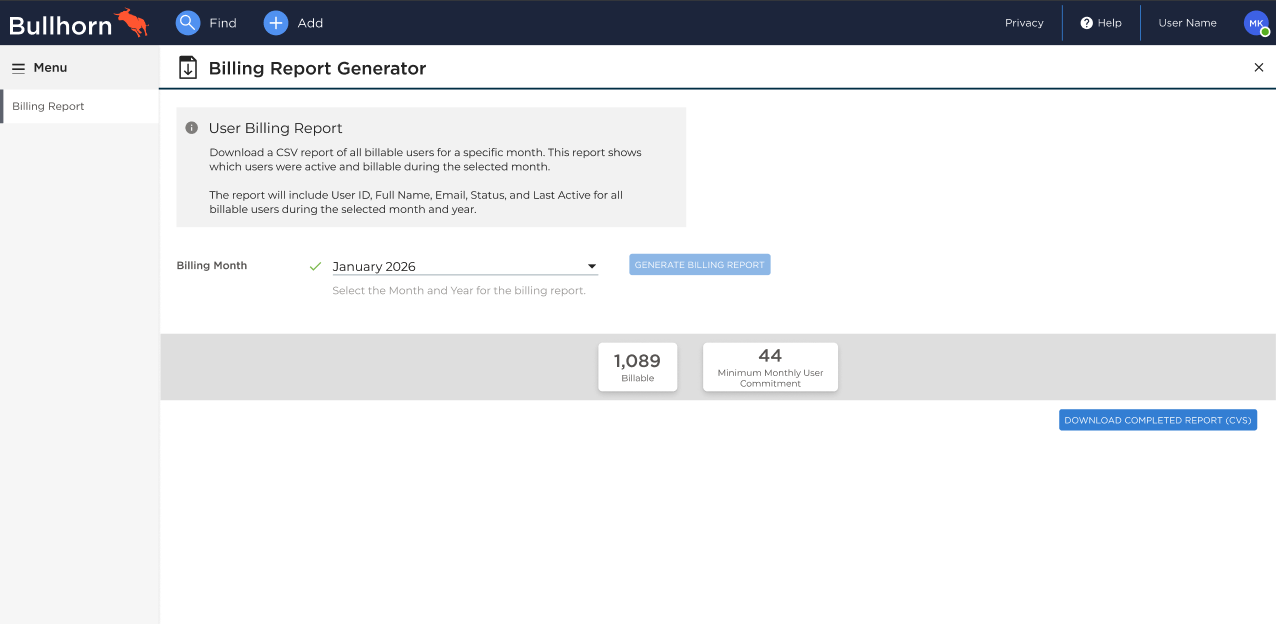
Billable Users: The total number of enabled users your organization is billed for during the selected billing period. Hover over this figure to see a tooltip: "Represents the total count of billable, enabled users for the selected billing period."
-
Minimum Monthly User Count: The minimum number of contracted users for your account.
You can also download a CSV file containing the full list of billable users for that period, including their User ID, Full Name, Email, Status, and Last Active date.
Steps
Admin-level access is required to access the User Billing Report. If the report does not appear under Menu > Admin, contact Support to enable the User Billing Report menu entitlement.
-
Go to Menu > Admin > User Billing Report.
-
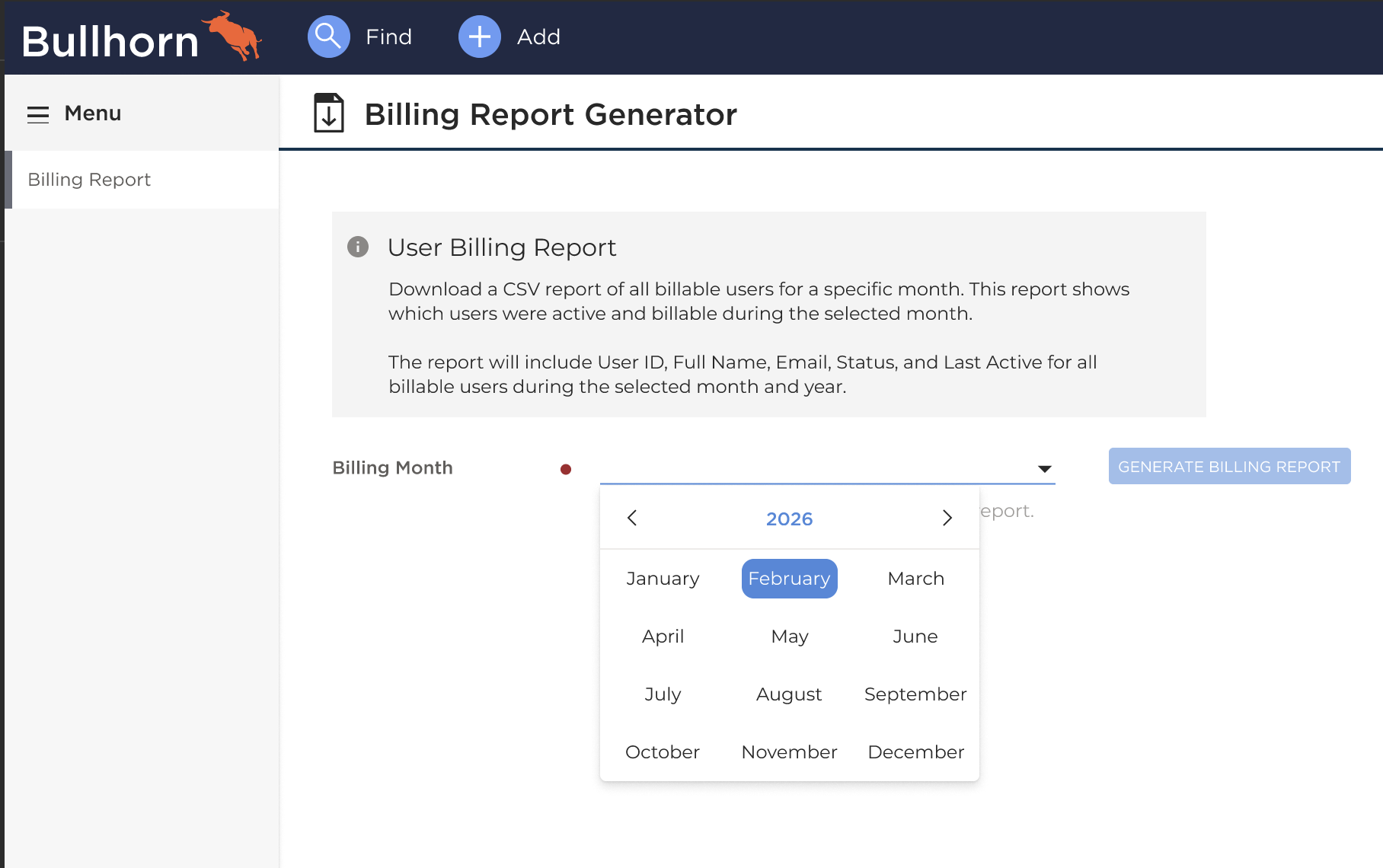
On the Billing Report Generator page, select a Month and Year for the report.
-
Click Generate Billing Report.
The Generate Billing Report button is only active once both a month and year have been selected.
-
Review the Billable Users and Minimum Monthly User Count figures displayed on screen.
-
Click Download Billing Report (CSV) to download a CSV file containing your billable user data.