How to Get Help With Billing and Invoices
If you have a question about your billing information, an invoice, a payment link, or first-time billing access, the Bullhorn Billing Support team is here to help. Use the options on this page to contact the right team quickly and get the answers you need.
Ways to Contact Billing Support
You can contact the Bullhorn Billing Support team in any of the following ways.
Email Billing Support
Email is a good option if you have a question about an invoice, billing information, or payment.
Bullhorn US and APAC
billingsupport@bullhorn.com
Bullhorn EMEA
ukbillingsupport@bullhorn.com
Create a Billing Case through Bullhorn Hub
If you are a Named Support Contact, you can create a billing case directly in Bullhorn Hub. Email and Hub cases both go to the same Billing Support team.
- In Bullhorn Hub, select Cases from the top left of the page.
- On the right side of the screen, select Create New Case.
- In Inquiry Type, select I need help with my company’s Bullhorn Bill / Invoice (Bullhorn Finance Billing Support Team).
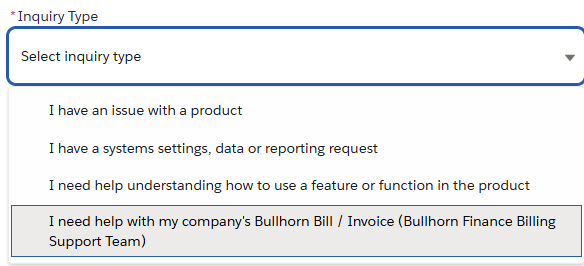
Important: Make sure Inquiry Type is set to I need help with my company's Bullhorn Bill / Invoice (Bullhorn Finance Billing Support Team) so your case reaches the correct team, as seen in the screenshot above.
- Select the Product related to your issue, if applicable.
- Choose your Preferred Contact Method.
- Enter a Subject and Description for your billing question.
As you enter a subject, Bullhorn Hub may display related articles and resources in the right panel. Review those resources to see if they answer your question before submitting.
- Select Create Case.
A success message confirms that your case was created. Your new case appears at the top of the Cases page.
Call Billing Support
Use phone support if you want to speak with someone directly about a billing or invoice question.
US or APAC
617-478-9100, option 6
EMEA
(+44) 020 3617 6262, option 3
New Customers: Get Billing Access for the First Time
If you are a new customer, follow these steps to get started.
The steps below set up access to the Bullhorn Billing Portal, which is separate from Bullhorn Hub.
-
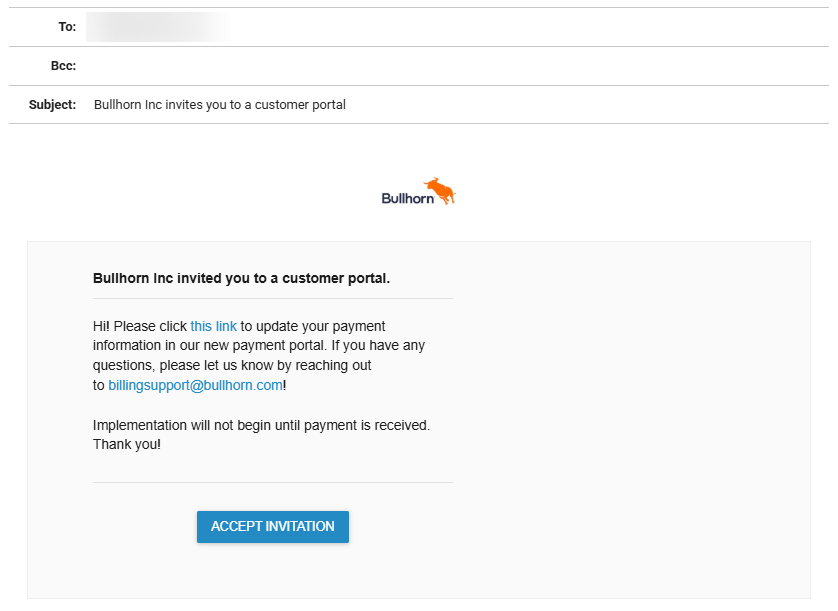
Check your welcome email.
-
Select Accept Invitation.
Selecting Accept Invitation opens the Bullhorn Billing Portal, where you will create your password.
-
Follow the instructions in that email to set up access and make your first payment.
If you cannot find the email or still cannot access your billing information, contact Billing Support for help.
Tips for Faster Help
To help the Billing Support team answer your question more quickly, include:
- Your company name
- Your invoice number, if available
- A short description of your question
- Any relevant dates, such as the invoice date or due date
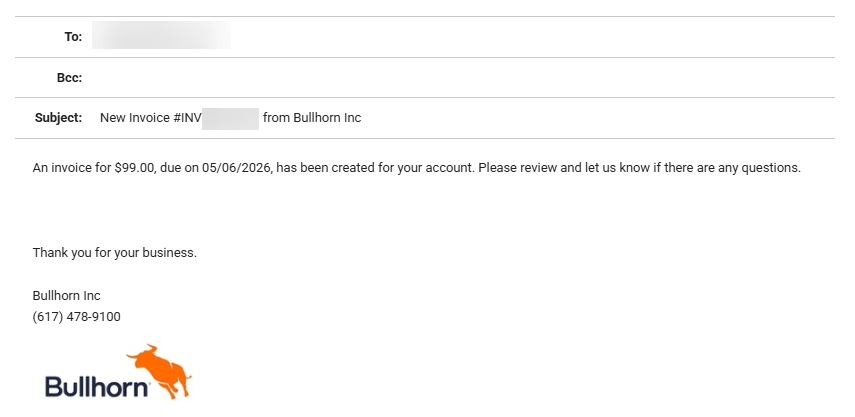
- A screenshot or copy of the invoice email if your question is about the payment link
FAQs
Who should I contact for questions about my Bullhorn billing or invoices?
Contact the Bullhorn Billing Support team directly. Billing Support handles billing and invoicing questions.
Should I contact regular Bullhorn Support for billing help?
No. For billing and invoice questions, contact Billing Support directly via email, Bullhorn Hub, or phone to help you reach the right team faster.
Where can I find my payment link?
Your payment link is not on the invoice itself. It is included in the email that is sent with your invoice. It can also be accessed by logging in at bullhorn.armatic.com.
Why is there not one payment link for everyone?
Payment links can vary depending on the legal entity associated with the contract, so you should use the payment link provided in your invoice email.
I cannot find my invoice email. What should I do?
If you cannot find the email that included your invoice and payment link, contact Billing Support by email, create a billing case in Bullhorn Hub, or call the Billing Support team.
What if I am not a Named Support Contact?
If you are not a Named Support Contact, you will not be able to create a case in Bullhorn Hub. One of the Named Support Contacts at your organization can create the case. Emailing Billing Support will automatically create a case.