Creating and managing playlists
Playlists in Bullhorn Launch let you organize existing courses and channel assets to watch yourself or share with others. Use a playlist to build a customized learning path for new hires, a specific role, or a project.
Create a playlist
-
Navigate to a course or channel asset you want to add to the playlist. You can change the order later.
-
Add the item to a new playlist:
-
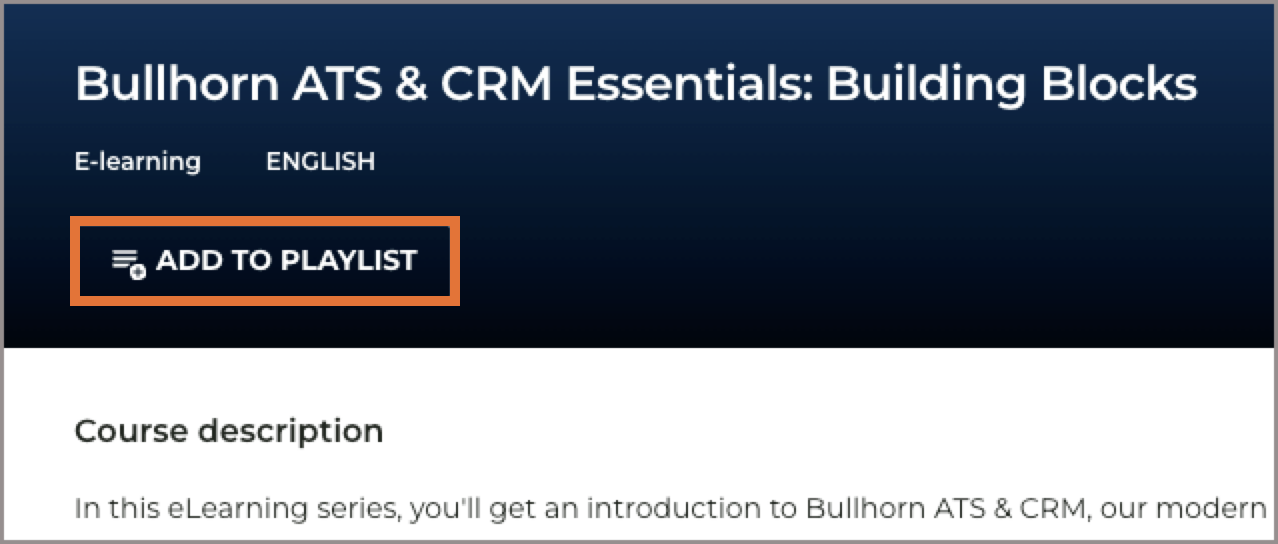
If you are viewing a course, click ADD TO PLAYLIST at the top of the page.
-
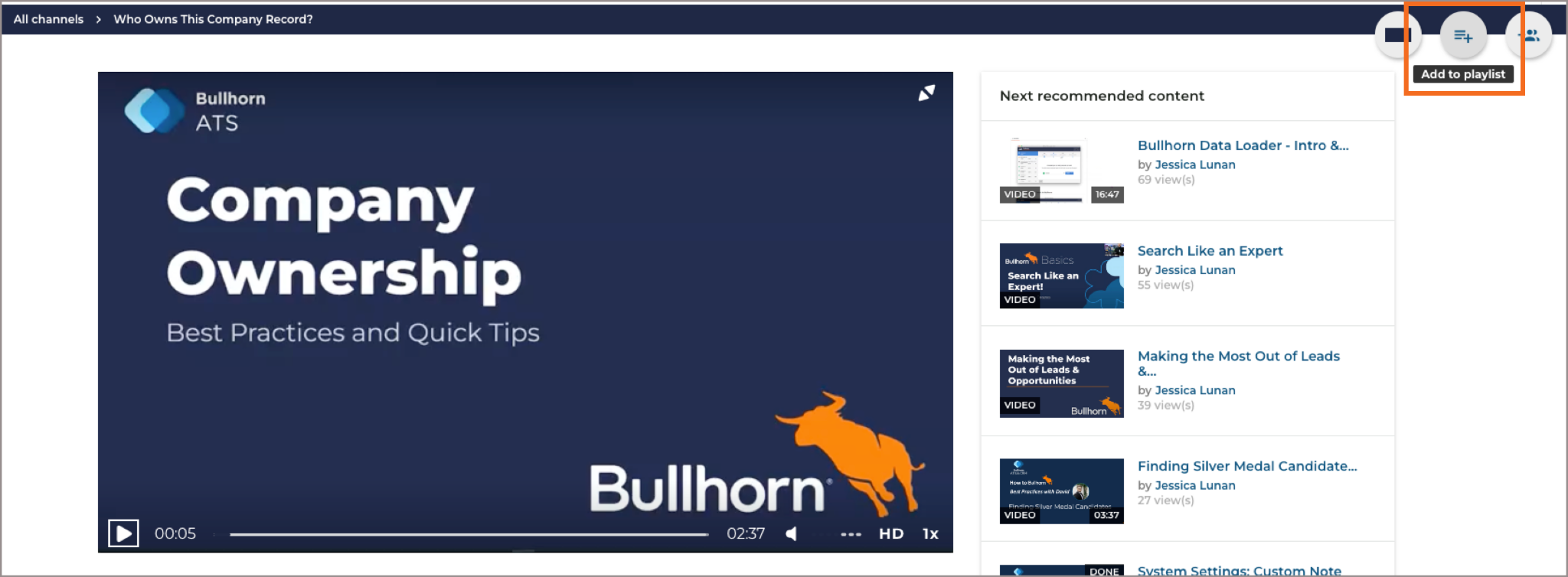
If you are viewing a channel asset, click Add to playlist in the upper-right corner.
-
-
Select the Create new playlist radio button.
-
In the Title field, enter a title (for example, New Hire Training).
-
In the Description field, enter a description (for example, This series of courses is designed for new hires to get up to speed on the most important Bullhorn ATS & CRM functionality).
-
Click Create Playlist.
Add or remove content
From the playlist page:
-
Click the + button to search for and add more content.
-
Drag and drop a row to change the order of content.
-
Click the remove icon on a row to remove content from the playlist.
Share a playlist
-
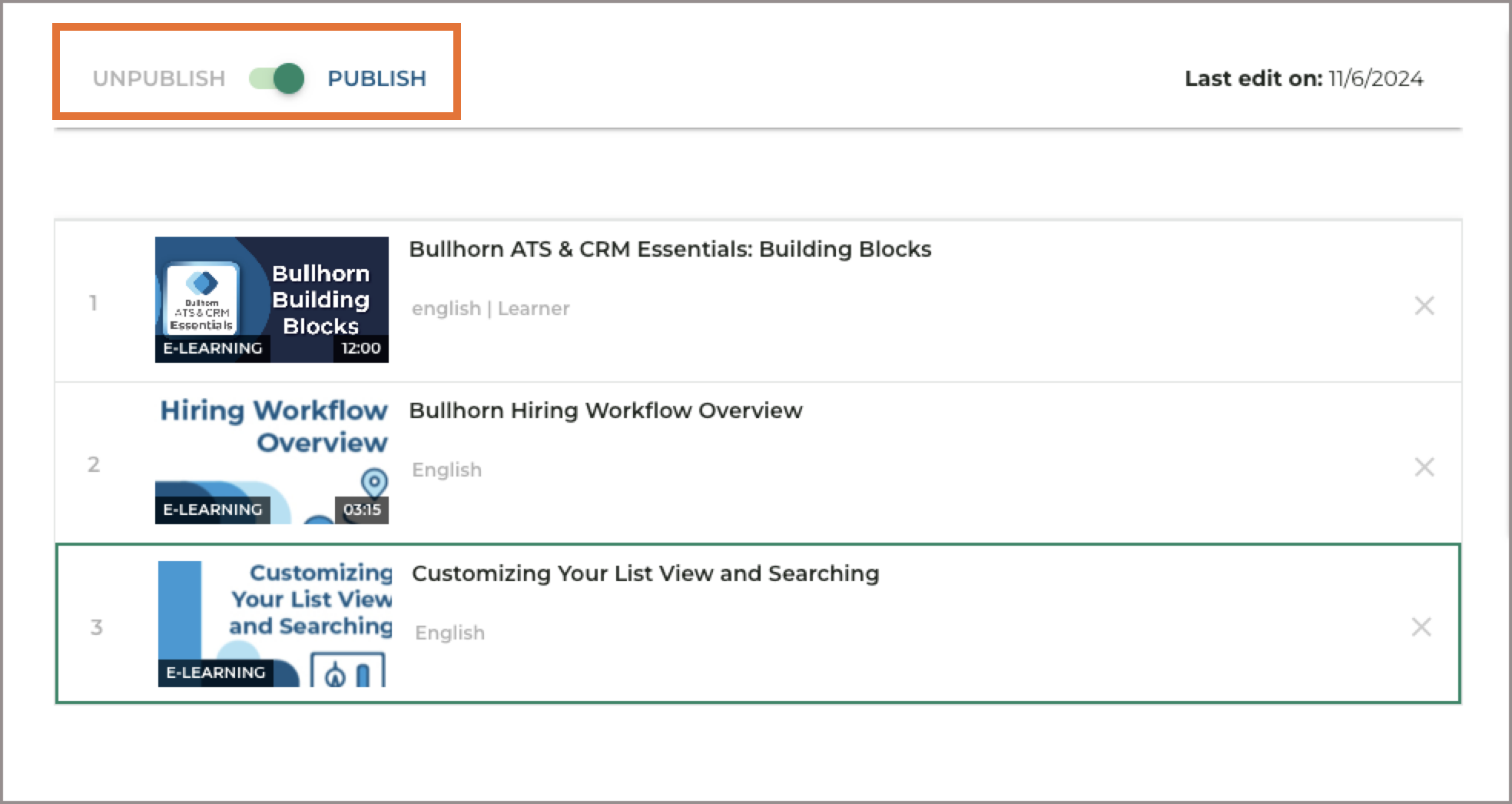
Toggle the Publish setting on.
-
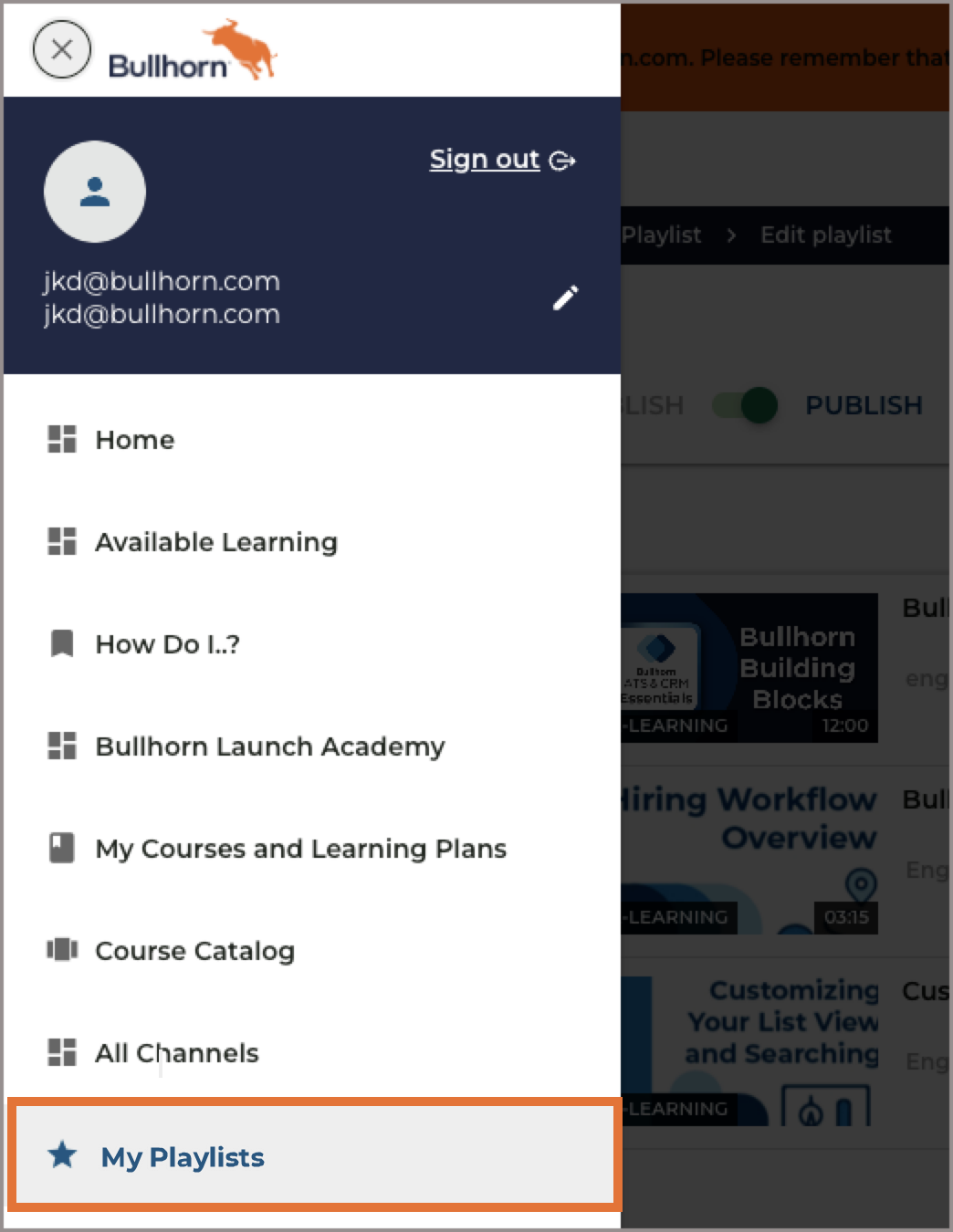
From the menu, go to My Playlists. This page shows all of your playlists.
-
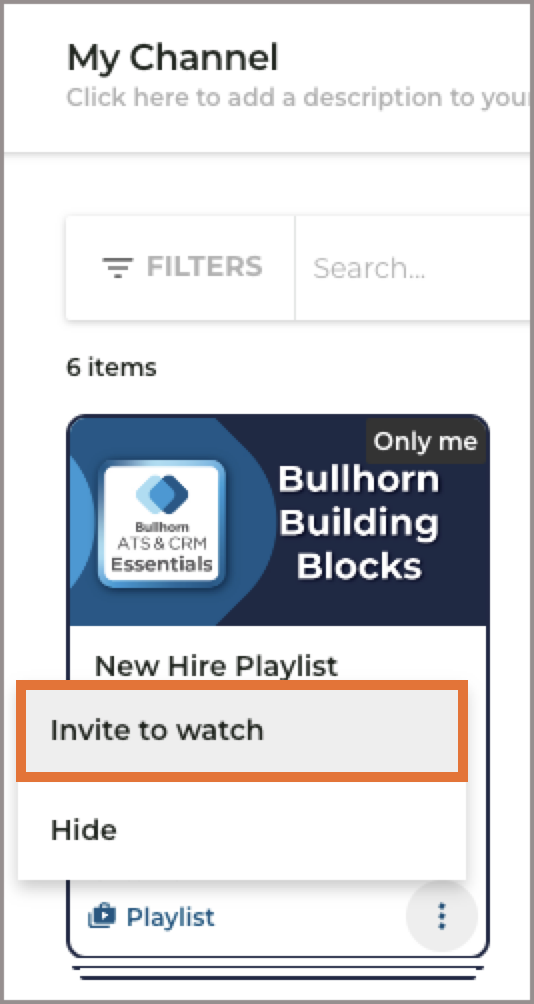
Click the three dots on the playlist card and select Invite to Watch.
-
In the search for usernames to invite field, type the names or email addresses of the users you want to invite. This field searches across the Bullhorn client base, so confirm you are inviting the correct people before sending.
-
Click Invite.
Invited users receive an email notification and can then search for and view the playlist.
Playlist visibility is always set to private. A playlist is only visible to you and the people you share it with.