Quick Submit
Quick Submit optimizes VMS candidate submission workflows by enabling recruiters to submit candidates to VMS jobs in seconds — without opening submission forms or manually entering data. This streamlined feature lets recruiters to submit multiple candidates rapidly from a single interface. The Quick Submit button appears on the Create VMS Submittal modal Draft list, transforming what used to take minutes of form-filling into a single click. For high-volume VMS workflows where speed determines placement success, Quick Submit gives agencies a competitive advantage by dramatically reducing time-to-submit.
Key Benefits:
-
Maintain workflow momentum without context-switching between forms and lists
-
Increase daily submission volumes with reduced recruiter effort
-
Preserve data accuracy through automated field population
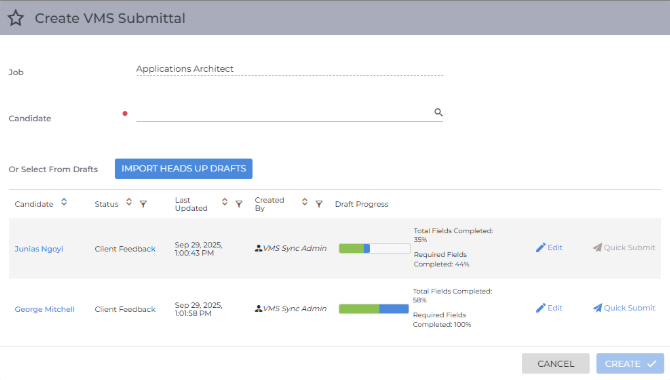
Feature Components
Quick Submit Button
-
Location: Create VMS Submittal modal Draft list
-
Visual Indicator: Button with paper plane icon and "Quick Submit" text
-
Availability: VMS Jobs with at least one draft submittal
-
Tooltips: Enabled = Submit Candidate to VMS

Quick Submit Status Indicators
-
In Progress: “Dot Line” Novo elements animation.

-
Success: Draft disappears from list and green success toast appears.
-
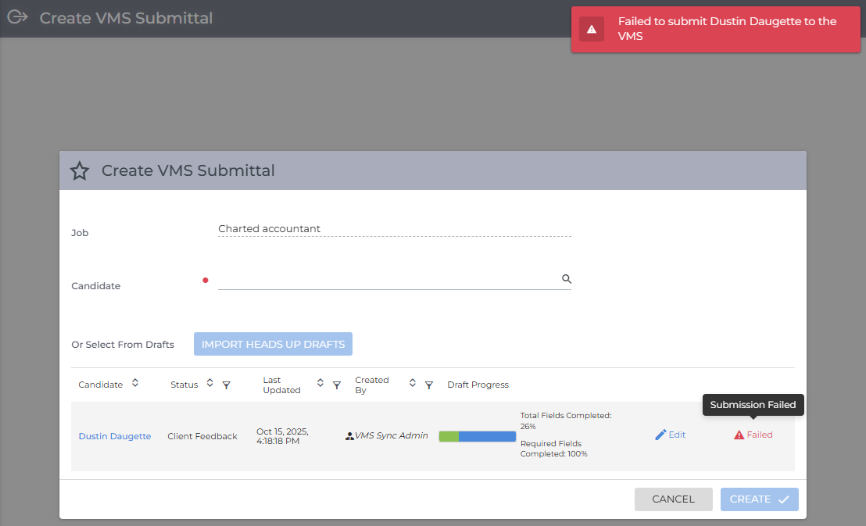
Failed: Quick Submit button text changes red “Failed” and button is no longer clickable. Red danger toast appears.
-
Hovering over button displays tooltip: “Submission Failed”
-
Edit Button
-
Location: On VMS Draft list next to Quick Submit
-
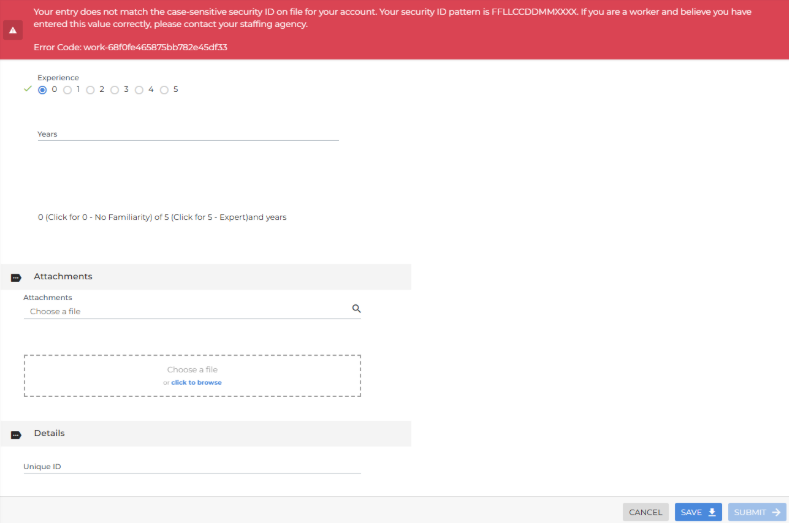
Function: Opens draft submittal so user can update values or review error details/correct issues
-
Error Display: Shows specific VMS error message
-
Ex: "Invalid security ID", "Total file size exceeds limit” etc
-
Toast Notifications
-
Trigger: Display Quick Submit results (success or failed)
-
Duration: Persists until dismissed or form is closed
-
Examples:
-
Success: “Success! [Candidate Name] was submitted successfully"

-
Failed: “Failed to submit [Candidate Name] to the VMS”

-
How It Works
Prerequisites
-
VMS Sync Admin Tools
-
Account
-
Status = Active
-
Submittals Enabled = ON
-
Submittals Draft Save = ON
-
-
Credential
-
Status = Active
-
Submittals Enabled = ON
-
-
-
ATS Job
-
Created by VMS Sync
-
Has at least one Draft submittal
-
Includes imported Heads Up Drafts
-
-
-
VMS Job
-
Processed by VMS Sync
-
ATS Job above will contain matching Req ID
-
-
In a “submittable state”
-
Active status, available openings and max submissions > 0
-
Can validate within VMS - navigate to Req and load submission form
-
-
-
ATS User Type/Profile configured to access VMS Sync Submittals
-
BH Custom Menu Action, SF Permissions etc
-
Error Handling
When Quick Submit fails:
-
Submission status changes to "Failed" with error icon
-
Email sent to submitting ATS user with
-
Hyperlinks to ATS Job/Candidate
-
VMS error details
-
Steps to resolve error(s) + resubmit Candidate

-
-
Clicking Edit from Draft list opens submission form with error message(s) preserved
-
User can correct errors and click Submit on form to retry submittal
Validation
Successful Quick Submit
-
Navigate to an ATS Job created by VMS Sync.
-
Launch Create VMS Submission modal.
-
Bullhorn = Click Actions > Submit to VMS
-
Salesforce = Click VMS Submit
-
Expected: Create VMS Submittal modal opens with VMS Draft list displaying Quick Submit button.
-
If Draft list is not displayed, choose either of the following options:
-
Retry on a VMS Job with Draft submittals.
-
Create a draft = search for Candidate, click Create then click Save.
-
-
-
Hover over Quick Submit button to view tooltip
-
Expected: If Required Fields = 100%, Quick Submit button is enabled with tooltip “Submit Candidate to VMS”
-
Expected: If Required Fields > 100%, Quick Submit button is disabled with tooltip “Complete all required fields to submit”
-
-
Click Quick Submit
-
Expected: Button changes to animated dot line.
-
-
Observe success toast.
-
Expected: Draft disappears from list and green success toast displays “Success! [Candidate Name] was submitted successfully"
-
-
Verify ATS Submission moves from Internal Submission to Client Submission.
-
Expected: [Bullhorn] Submission Status changed to the value configured for Sendout Created in Admin Tools Account Submittal Status Mapping.
Requires Account Feature Create Sendouts for Submittals = ON
-
-
Verify VMS Submission created
-
Expected: ATS note added confirming submission and containing VMS submission link (if available).
-
Clicking link navigates to VMS Submission record.
-
-
Failed Quick Submit
-
Repeat Succesful Quick Submit steps 1-4.
-
Observe submission failure
-
Expected: Quick Submit button is disabled with red “Warning Failed” text.
-
Expected: Red failure toast displays “Failed to submit [Candidate Name] to the VMS”.
-
Expected: Email sent to submitting user with hyperlinks to ATS Candidate/Job, VMS error details and steps to resolve/resubmit.
-
-
Click Edit.
-
Expected: Submission form opens with red error message displayed.
-
-
Fill in missing/invalid required field values.
-
Expected: Submit button enables when Required Fields = 100%.
-
-
Click Submit.
-
Expected: Successful standard submission process.
-
Troubleshooting
| Issue | Root Cause | Resolution Steps |
|---|---|---|
|
Quick Submit button not visible |
Job was not created by VMS Sync |
|
|
Quick Submit shows "In Progress" indefinitely (no indication of success/failure) |
Sync Submittals may have encountered a VMS timeout |
|
|
Quick Submit succeeds but ATS Client Submission not created |
[BH] Account Mapping Setting Create Sendouts for Submittals = OFF [SF] Flow is missing/misconfigured, record type mismatch |
|
|
Quick Submit unavailable for Heads Up Draft |
Quick Submit is intentionally disabled for imported Heads Up Drafts |
|
|
Wrong error message displayed after correcting first error |
System caching previous error state |
|
|
Candidate selection cleared when Quick Submit in progress |
UI state management issue when searching and clearing candidate picker during submission |
|