Add Previous Employment
Use these instructions to add a prior work history record to a candidate’s record. The previous employment record can also be added to the Adapt generated resume.
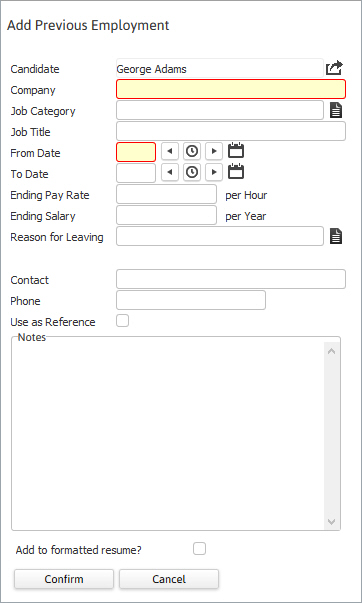
- Select Add Previous Employment from the Candidate Activities menu.
- The Add Previous Employment workflow will open in a new window.
- Update the form with the new information; fields marked in red are required to complete the workflow.
- By clicking on the buttons to the right of certain fields, a new window will open, allowing you to search and select options related to that specific field, or choose a date.
-
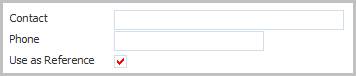
Select Use as Reference option to add a reference record from the prior employer contact.
This option is not available with Supplier Candidates, who do not use the References segment.
-
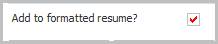
Select Add to formatted resume? option to add this record as part of the work history section of the Adapt generated resume.
In order to add this record to the Adapt generated resume run the Create Formatted Resume workflow once this one is complete.
-
Click Confirm to complete the workflow.
- Once the workflow is confirmed the segment will refresh to display the new record in the Previous Employment list box on the Experience segment.
-
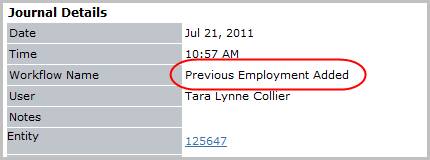
Verify the Previous Employment Added entry and notes from workflow posted to the journal.