Bank Accounts
The bank account segment lists the accounts available for the financial component to pull funds from for the payroll processing and accounts receivables workflows. You must have at least one bank account set up to run any payroll related process.
Permission for this component is granted via the manage corporation permission under the general administration category.
- Select Bank Accounts in the segments drop-list.
-
The segment displays a list box of available bank accounts.
- The Direct Deposit column indicates whether direct deposit is enabled.
- Click on the account name to view the account details.

-
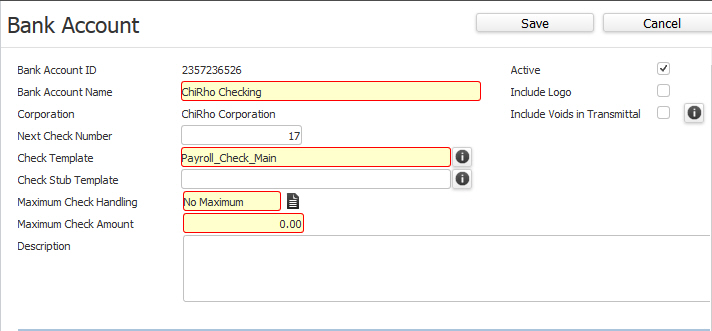
The top portion of the bank account summary segment displays the general account details.
- Description is a free text box.
- The name typed in the Check Template and Check Stub Template (as well as Advice Template and Advice Stub Template) must EXACTLY match the check/advice report name you created.
- Including Voids in the transmittal means that negative transactions will be included in the Direct Deposit transmittal and a negative value can result in funds being withdrawn from the Candidate account. If this flag is not checked, negative amounts will not be included in the Direct Deposit transmittal.
-
Click on the Edit button to modify the bank account general details.
- While updating the form, fields marked in red are required to complete the workflow. Click on the buttons to the right of certain fields to open a new window which will allow you to search and select options related to that specific field.
-
Click Save to keep changes or Cancel to discard.

-
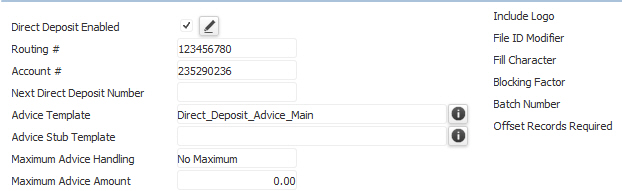
The bottom of the segment displays the financial institution and direct deposit details.
-
While the segment is in view mode click the workflow icon to the right of the Direct Deposit Enabled field to edit the direct deposit details (except for Advice Template, Advice Stub Template, Next Direct Deposit Number and Include Logo...they are updated via the Edit button).

-
The Edit Direct Deposit workflow will open in a new window.
- While updating the form, fields marked in red are required to complete the workflow. Click on the buttons to the right of certain fields to open a new window which will allow you to search and select options related to that specific field.
- Click confirm to complete the workflow and return to the segment.
- Maximum Advice Amount - enter the maximum allowed for the Advice
- Trace # - is a 15 digit number, assigned in ascending sequence to each entry detail record by the originator. The first eight digits of the number for every detail record must contain the transit/routing number of the originating financial institution.
- File ID Modified – enter the letter or number that distinguishes multiple files created on the same date and between the same participants.
- Fill Character – indicate the character used to fill records to create a complete block of records.
- Batch Number – select whether the bank wants a Process Id or a sequential number entered into the Company/Batch Header record.
- Offset Records Required – select the box if offset records are needed by your bank. If this is the case, per requests from banks, the system will create one offset record, associated to the checking account, regardless of the number of accounts set up for the employee. If they are not needed, leave the box empty.