Fees
The Fees segment allows you to specify the fee paybill codes you want associated with the corporation. Any fee added here will also populate the associated client, job order and assignment record. Thus, fees added here should be those that apply to the corporation as a whole, rather than to a specific client, job order or assignment.
For more information on the cascading nature of Fees, click here.
For an overview on Fees, click here.
Accessing the Fee Segment
-
Access Administration > Administration > Manage Corporation.
-
From the Manage Corporation page, click on the Corporation Name link.
-
From the Corporation page, click the Fees segment.
-
The Fees page displays.
The Fee Page
The Fee Page displays the following information in the grid:
- Fee: This is the name of the fee paybill code associated with the corporation record. You can click on the fee name to link to the fee record. For more information on the fee record, click here.
- Type: Indicates whether the rate is a percentage (Percentage) or an amount per hour/unit (Rate).
- Rate: The amount of the fee. The Type column determines whether this amount is a percentage or a rate per hour/unit.
- Added From: Indicates the highest level at which the fee paybill code was added. Levels are (from highest to lowest) Corporation, Client, Job Order and Assignment. Fee paybill codes may only be deleted at the level in the Added From column.
- Created Dt: Date on which the fee was added to this record.
- Updated Dt: Last date on which the fee information was updated.
The following actions can be taken on the Fee page:
- Add: Add a fee at the corporation level.
- Edit: Edit an existing fee at the corporation level.
- Delete: Delete a fee at the corporation level.
Adding a Fee
- To add a fee, click the Add button below the grid on the Fees page.
-
The following window displays:
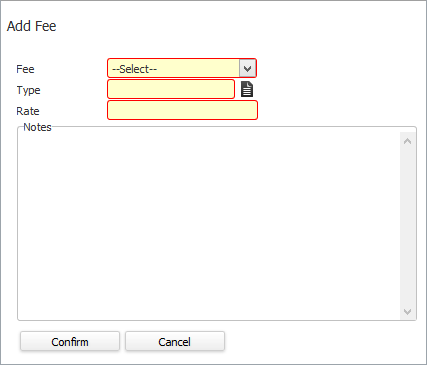
- In the Fee field, use the droplist to select the fee paybill code you want to add to the corporation record. Any fee already added at the corporation level and any inactive fee will not show up on the list. You may add fees already applied at the client, job order or assignment level. (REQUIRED)
- In the Type field, use the Code Selection icon to select whether the rate will be a percentage of the billing amount (Percentage) or a rate per billed hour/unit (Rate). (REQUIRED)
- In the Rate field, type the rate of the fee. The rate allows up to three decimal places. The way the rate is applied (e.g. as a percentage or amount per hour/unit) is determined by the Type field. (REQUIRED)
- In the Notes field, enter any other information you want to include about the fee. This is optional.
- When you are satisfied with your selections, click Confirm.
Editing a Fee
- To edit a fee, select the radio button of the fee on the Fees page and click Edit.
- The Edit page looks exactly like the Add page above, except that the Fee Code is non-editable and Rate is not required. You can, however, use the Jump icon to move to the fee paybill code record.
- Make whatever changes are needed to the Type, Rate and/or Notes field and then click Confirm to save your changes.
Deleting a Fee
- To delete a fee, select the radio button of the fee on the Fees page and click Delete.
- A message displays asking if you are sure. Click Confirm.
- The fee is deleted.
If the fee is also present at the client, job order and/or assignment level, deleting it at the Corporation level does not delete the fee at the other levels. However, it does change the Added From field to the next highest level where the fee is present. For example, if a Fee existed at the Corporation, Client and Job Order levels and you delete the Fee at the Corporation level, the Added From field on the Client record will change from Corporation to Client (since Client is the next highest level containing the fee).