Managing Roles for Amplify
Roles help guide how Amplify Assistant and Amplify Chat respond to your custom prompts by defining the point of view or voice it should use. Think of it as telling the AI who to write as. Roles add valuable context to your prompt, helping the LLM An AI language model (or LLM) is a system trained on large amounts of text that can read, interpret, and generate human-sounding language. Amplify uses one to read your Bullhorn records and produce output based on the prompts you configure. It does not search the internet or access outside data on is own. It only works with what you give it. to tailor its responses more effectively to your intended audience or use case.
When creating a prompt in the Amplify Prompt Studio, you can select a role from the Role dropdown. These roles are managed on the Data Management tab.
-
Default roles are provided by Bullhorn and can’t be edited or removed.
-
You can also create up to five custom roles to suit your unique workflows.
When creating a new role, be specific and consider the context in which the role will be used. Roles should be relevant to the task or question being asked.
Access the Data Management Tab
To complete the steps below, you must be an Amplify Admin.
-
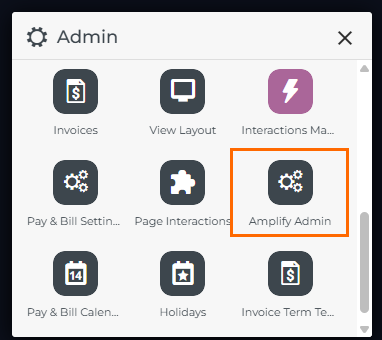
From your Bullhorn ATS menu, select Admin > Amplify Admin.
-
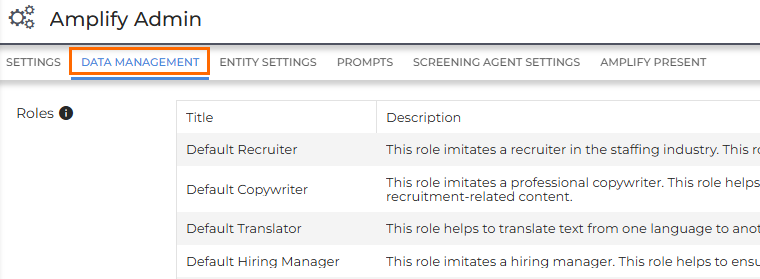
Click on the Data Management tab.
Add Custom Roles
You can add up to five custom roles. To add a new role:
-
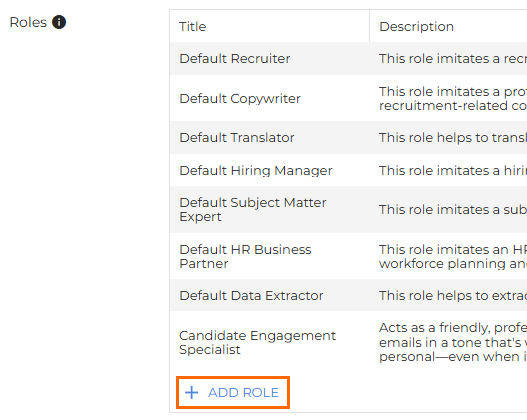
Click Add Role at the bottom of the list.
-
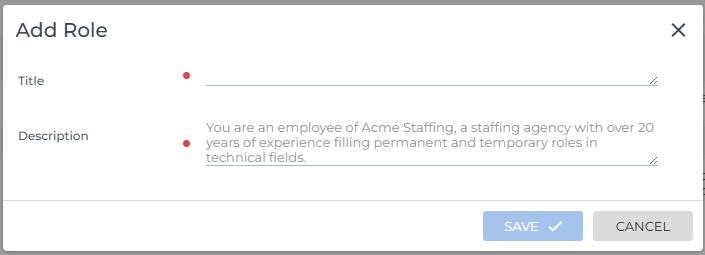
Enter a title and description for the new role.
-
Click Save.
-
You can add a maximum of five custom roles. If you have already added five custom roles, the Add Role button will be greyed out, and you will not be able to add any more.
-
Custom roles cannot be deleted. This is because they may be associated with specific prompts.