Using Amplify Assistant
You need Bullhorn Amplify Edition to use this feature.
On October 16, 2026, Bullhorn is upgrading the language model that powers Amplify. After the upgrade, your prompts may produce slightly different results. See Amplify LLM Model Upgrade: October 2026 to learn how to test and adjust your prompts before then.
Amplify Assistant is an embedded assistant that helps you generate content, surface insights, and take quick actions directly from a record.
With Amplify Assistant, you can:
-
Generate content using existing or custom prompts
-
Get recommendations for jobs or candidates
-
Start screenings or add people to Outreach campaigns
-
Receive suggested next actions tailored to the record you’re viewing
Amplify Assistant is ideal for tasks focused on a single record, such as summarizing a candidate, drafting a client message, or improving a job description. If your question spans multiple records or data sources, use Amplify Chat instead.
How to Access Amplify Assistant
Amplify Assistant is available on the following record types:
-
Candidate
-
Contact
-
Job
-
Company
-
Opportunity
-
Lead
-
Placement
To open the Amplify Assistant, click the Amplify button at the top right of the record.

Amplify Assistant opens in a docked side panel next to your record, pushing the record content to the side rather than covering it. The panel stays open as you move between tabs on the same record, so your chat history is always there when you need it. Click Scroll up for previous conversation to return to earlier chats.
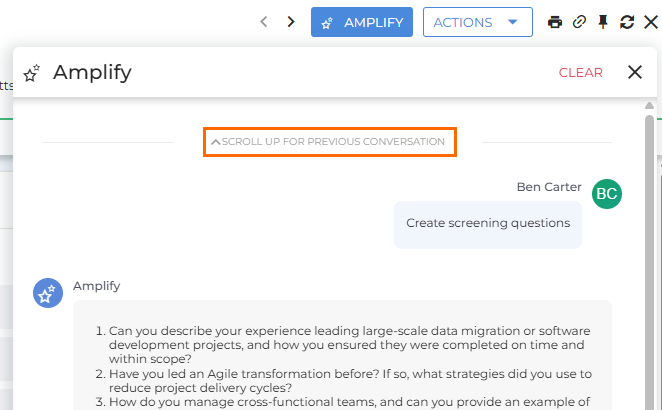
To switch between the docked panel and a pop-out window, use the toggle within the panel. In pop-out view, you can drag the window anywhere on your screen. Your view preference is saved and applied across all records.
-
When in docked view, click the pop-out icon (
 ) to open the pop-out view.
 -
When in pop-out view, click the dock icon (
 ) to return to docked view.
Amplify Summary Cards
Amplify also surfaces AI-generated summaries in several places across the ATS, without needing to open the Assistant directly. Summary cards are available on Candidate, Contact, and Job records on the Overview, Notes, and Emails tabs, and an additional summary card appears on the candidate slideout.
Using Amplify Assistant on Candidates, Contacts, and Jobs
In Amplify Assistant on Candidate, Contact, and Job records, you can take the following actions:
Saved and Custom Prompts
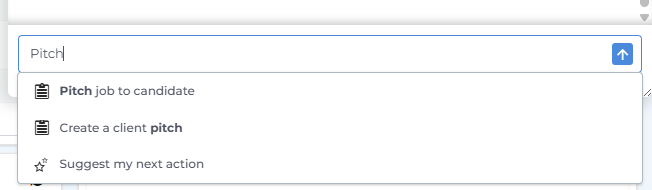
Start typing to search for existing prompts, or enter a custom prompt.
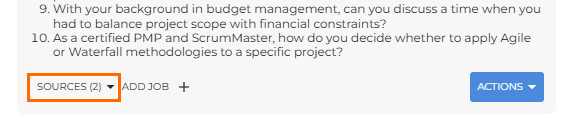
Click the Sources dropdown under the Assistant’s response to review and adjust which data points are used to generate your content. After making changes, click Apply to resend the prompt.
See Managing Prompt Sources in Amplify Assistant for more information.
Use the Actions dropdown to copy content, insert it into a record field, add as a note, or send it as an email.
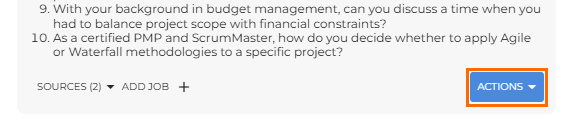
Available actions depend on how the prompt is configured. An action will only show if an admin has added it to that prompt.
Recommend Jobs/Candidates
Use the Recommend Jobs/Candidates option to quickly grab recommendations powered by Bullhorn’s Search and Match.
-
From a Job record, choose Recommend Candidates to see a list filtered to recommended candidates
-
From a Candidate record, choose Recommend Jobs to view the top five matching jobs.
Send Screener
From a Candidate record, select Send Screener to open a new submission page and enter the candidate into the Amplify Screen workflow for a job. Screening questions appear on the right side of the page.
Add to Outreach
From a Candidate or Contact record, select Add to Outreach to open the Amplify tab and enroll them in an Outreach campaign.
Suggest My Next Action
Amplify Assistant will periodically recommend actions based on the state of the record. You can also request suggestions anytime by selecting this option.
Workflow Shortcuts
Amplify Assistant can help you create Notes, Tasks, and Tearsheets without leaving the chat window. Examples:
-
“Create a note for this candidate”
-
“Add this record to a tearsheet"“
-
"Remind me to follow up tomorrow.”
See Adding Notes, Tasks, and Tearsheets with Amplify Chat for more information.
Using Amplify Assistant on Companies, Opportunities, Leads, and Placements
Amplify Assistant works a little differently on Company, Opportunity, Lead, and Placement records, but it’s still a powerful tool for gathering insights quickly. Instead of using saved prompts, you can ask custom questions and Amplify will pull together relevant information from your Bullhorn database and the web. This makes it especially useful for preparing for client conversations, researching market activity, or understanding the history of a relationship without digging through multiple screens.
Custom Prompts
When you enter a custom prompt on these record types, Amplify can pull from:
-
Bullhorn data, such as placement history, past submissions, job orders, notes, and activity.
-
External web sources, such as recent news about the company, industry trends, hiring patterns, and competitive updates.
This combination gives you a fuller picture before client calls or sales outreach. You can understand your relationship history in Bullhorn and what is happening in the client’s world right now, all in one place.
If Amplify includes results from the web, you'll see source links so you can verify details or dig deeper.
To save or share the information, click Actions > Copy to Clipboard to paste the response into an email, a document, or anywhere else you need it.
Here are a few example prompts to help you get started with each record type:
Company Records:
-
“Show me recent news about this company from the last 30 days.”
-
“Summarize our last few touchpoints with this client.”
Opportunity Records:
-
“Summarize this opportunity, including key stakeholders and next steps.”
-
“Help me prepare for a follow-up call about this opportunity.”
Lead Records:
-
“Are there any related companies or contacts we have already worked with?”
-
“Find recent news about this lead’s company or industry.”
Placement Records:
-
“Summarize this placement and highlight any important details or risks.”
-
“Has this client had any other placements recently? What were the outcomes?”