Adding Notes, Tasks, and Tearsheets with Amplify Chat
Amplify Chat and record-level Amplify Assistant can now help you create Notes, Tasks, and Tearsheets without leaving the chat window. Just tell Amplify what you want to do, and it will draft the item for you to review. You’ll always get a preview first, so you can accept or decline before anything is saved.
This is especially useful if you’re already working with a list of records in Amplify Chat and want to take action on them right away, without breaking your workflow.
Add a Tearsheet
Amplify can create a brand-new tearsheet or add records to an existing one.
When Amplify generates a list of records (for example, "candidates without notes logged in the last 30 days"), it may recommend creating a tearsheet based on the results. You can also directly ask Amplify to create a tearsheet or add records to one. For example, if you are using the Amplify Assistant on a candidate record, you can say “add this candidate to a tearsheet”.
Amplify will suggest a name and show how many records will be included. Click Create Tearsheet to continue or Decline if you do not want to take action.
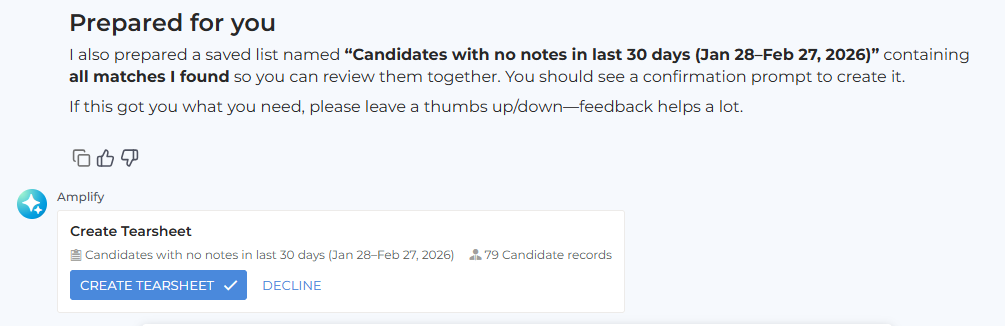
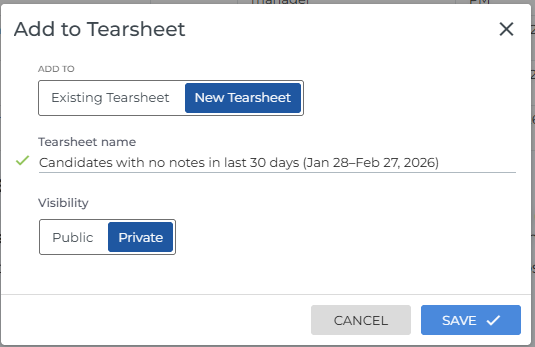
If you proceed, Amplify opens the standard tearsheet dialog where you can choose to create a new tearsheet or add the records to an existing one. You can rename it, adjust visibility (Private by default), and save your changes.
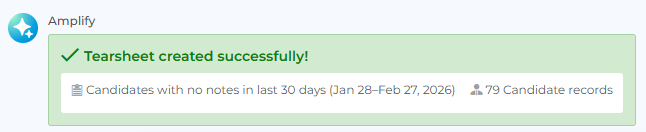
When the tearsheet is created you'll see a confirmation message.
Add a Task
To create a task, just ask Amplify something like “add a task” or “remind me to review this tearsheet tomorrow”.
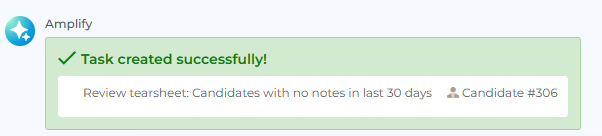
Amplify will draft the task and show you a preview of the details. Take a moment to review everything, then accept or decline.
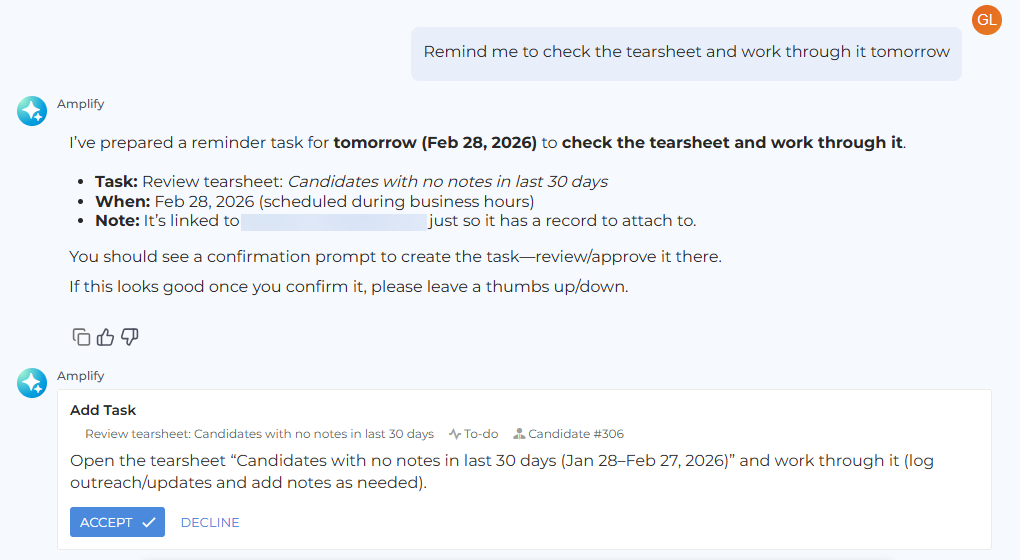
If you accept, you’ll see a confirmation message once the task has been created.
Add a Note
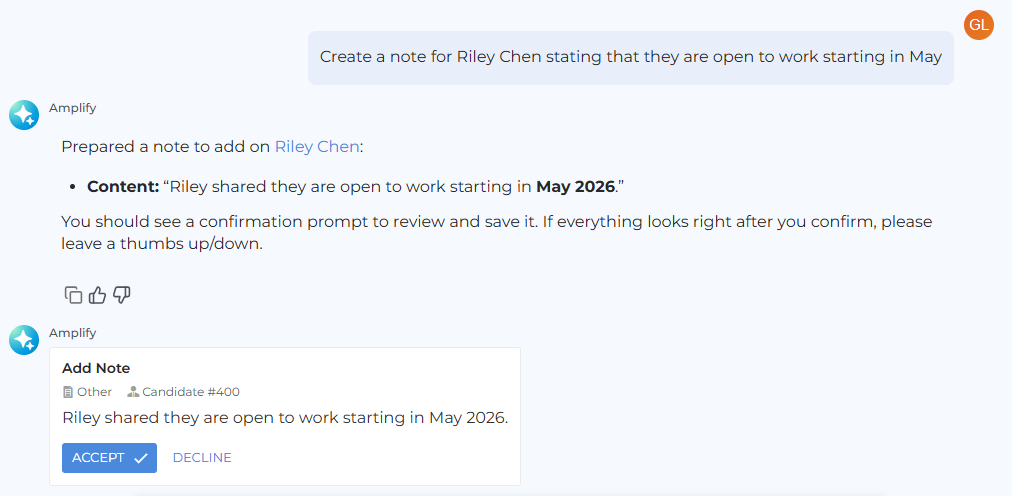
To add a Note, tell Amplify what you want to record and for which person or record. For example: “Create a note for this candidate stating that they are open to work starting in May.”
Amplify will prepare the note and show you how it will look before it’s saved.
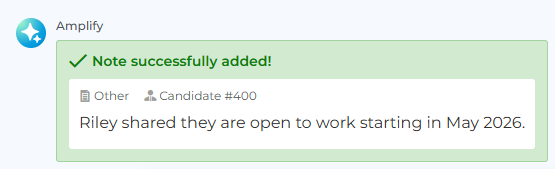
After you confirm, you’ll see a message letting you know the note has been added to the record.
FAQ
Can I add records to an existing tearsheet instead of creating a new one?
Yes. In the tearsheet dialog, switch to Existing Tearsheet and choose the tearsheet you want to add records to.
Can Amplify Chat create a task for another user?
No. Tasks created through Amplify Chat are always assigned to the user who created the request.
Does Amplify always suggest a tearsheet when it generates a list?
Not always, but Amplify may recommend a tearsheet when it believes it is a helpful next step. You can choose to accept or decline the suggestion.
Can I edit a note, task, or tearsheet after it’s created?
Yes. Once Amplify creates a note, task, or tearsheet, it behaves like any item you create manually in Bullhorn. You can edit or delete it using your usual workflows.