| Edition: Enterprise | Audience: OneView Page Admin |
Customizing a OneView Page
This article explains how to customize OneView pages by adding sections, metrics, and ratios. For help adding a new OneView page, see Creating a OneView Page.
Accessing the Edit Screen
Go to Admin > OneView Pages, then click the Edit ( ) icon next to a OneView page to open a screen where you can add/edit sections and ratios. Each OneView page can have any number of sections and ratios.
When you have finished adding sections, metrics, and ratios, click Save to lock in all changes on the page.
Adding Sections
Click Add Section to create a new section at the bottom of the page. You can enter a name for the section in the Display Name field.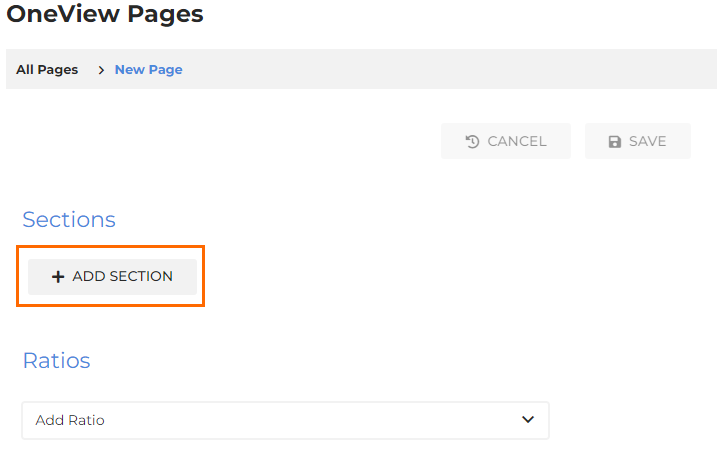
The options along the top of each section allow you to hide, edit, and reorder sections:
- Click the green eye icon (
 ) to hide a section from the OneView page. This icon will turn red when a section is hidden.
 - Click the trash can icon (
 ) to remove the entire section.
 - Use the up and down arrows to change the position of the metric sections on the OneView page.
Adding Metrics
Click the Add Metric(s) dropdown in a section to select a metric to add.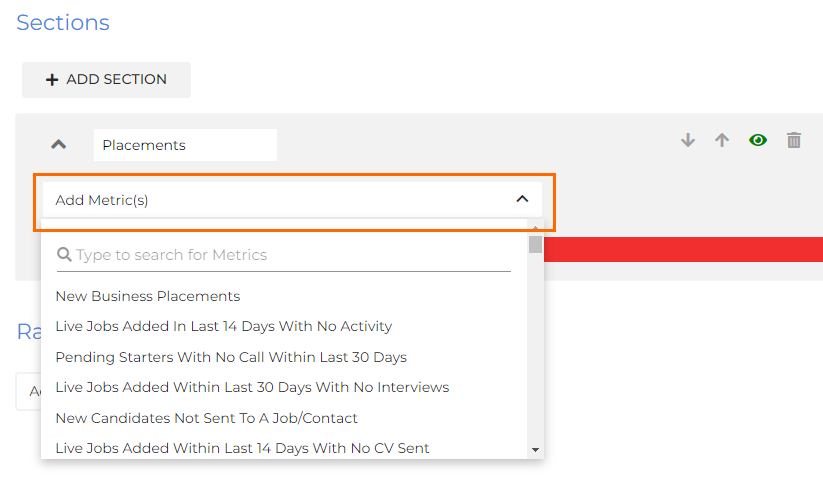
Metrics can be reordered by clicking the crossroads icon ( ) next to each metric and dragging and dropping it into position. Metrics in this area work on a sliding scale, so each metric will move across and down to make room for the new metrics position.
Click the X icon to remove a metric from the section.
Selecting Top Metrics
Each section can hold any number of metrics. Sections containing six or fewer metrics will display all metrics on the OneView Page without needing to be expanded. Sections containing over six metrics will be minimized and will display the four most important metrics.
Hover over the number to the right of a metric to display a scale of 1-4, which allows you to select the top four metrics for each section.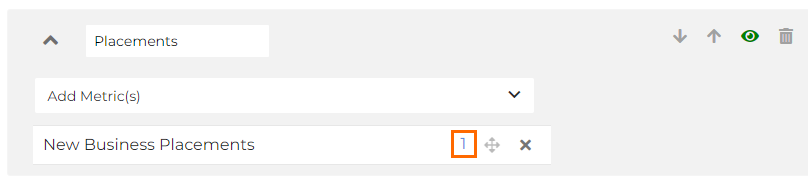
Adding Ratios
- Under the Ratios section, select the ratio you want to add from the Add Ratio dropdown menu.
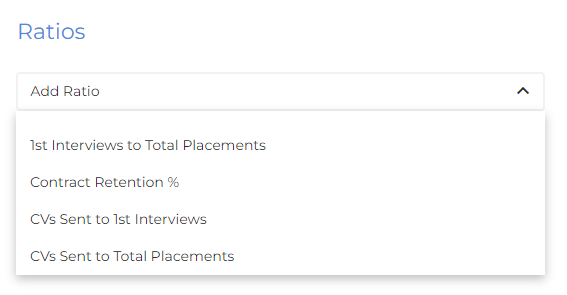
- Use the arrow icons to re-order ratios, and click the bin icon to delete any unwanted ratios.
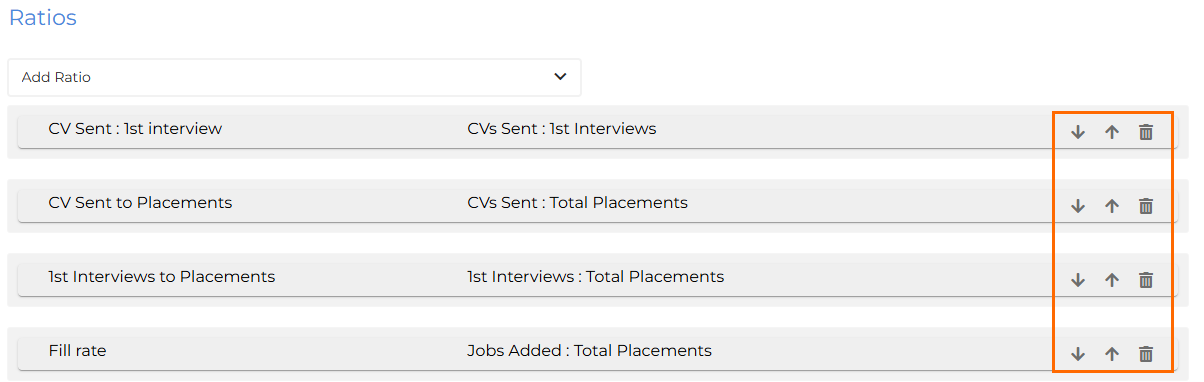
- Click Save at the top of the page when finished.
The ratios must have been created in Ratios Admin in order for you to add them to a OneView Page.