2020 Email Editor: Filter Template Folders
This document contains instructions on how to set up filtering folders within the BH4SF Email Editor.
Prerequisites
- The email provider is set up.
- To have the necessary permissions to administer email template folders and email page types, make sure your admin user has the Message Channels Admin permission set assigned.
- To have the necessary permissions to use the BH4SF Email Editor with the ability to filter template folders, make sure your users have the Email Editor User permission set assigned.
-
Update page layouts as necessary by completing the following steps:
-
Go to .
-
Open the Email Page Type object, then open Page Layouts.
-
Open Email Page Type Layout.
-
Drag and drop the Email Page Type Name, Page Type, Email Type, and Email Template Folders fields into the information section.
- Click Save to overwrite the layout changes.
-
-
If leveraging Campaigns for email sending, open the Campaign Template Mapping object, then open Page Layouts.
-
Open Campaign Template Mapping Layout.
- Drag and drop the following fields into the information section: Available Languages, Campaign Unique Name, Email Template Folders, Email Editor Template Name, Email Editor Template Label, Email Template Unique Name, and Use Personalization Strings.
- Click Save to overwrite the layout changes.
-
-
- Verify Email Page Types:
- Go to .
- Confirm the following email page types exist:
- ATSv2 - Internal Interview (API Name: InternalInterview)
- ATSv2 - Send Email (API Name: SendEmail)
- ATSv2 - SendOut Schedule (API Name: SendOutSchedule)
- ATSv2 - Submit With Email (API Name: SubmitWithEmail)
- CV Manager - Share CV (API Name: ShareCV)
- Call List - Candidate Marketing (API Name: MarketingCallList)
- Call List - Standard (API Name: StandardCallList)
- Job Lead Email (API Name: JobLeadEmail)
- Long List (API Name: LongList)
- Registration Interview (API Name: RegistrationInterview)
- Rejection Email (API Name: Rejection)
- TextKernel Sam Email (API Name: TextKernelSamEmail)
- Unrejection Email (API Name: Unrejection)
If some of the default email page types are missing, run the following Apex script in the Developer Console:
TR1.Utility.createDefaultEmailPageTypes();
After refreshing the list of email page types, the missing records for the main OOTB email page types should appear.
Set Up Filtering Template Folders
Customize the Folder List
The Email Template Folders fields on Email Page Type and Campaign Template Mapping refer to the same global picklist value set called Email Template Folders. To manage its picklist values and add new folder options according to business needs:
- Go to .
- Find and open Email Template Folders.
- Add new values as needed.
Important:
- For AWS/Salesforce/SFMC (BH4SF preview based on Salesforce Classic Email Templates), the added picklist value for the new folder must equal the API Name of the Salesforce Folder where the Classic Email Templates are stored.
- To avoid breaking filtering of the OOTB default email page types, do not edit these OOTB picklist values:
- My Personal Email Templates
- Unfiled Public Email Templates
- Closing Report Email Templates
- Job Manager Templates
- Talent Rover Email Templates.
Specify Email Folders for Email Templates
For AWS/Salesforce/SFMC (BH4SF preview based on Salesforce Classic Email Templates)
The folder filtering relies on Salesforce Email Folders. Complete these steps:
- Go to .
- Click New Folder if new folder options should be created.
- Modify existing email templates by specifying the Folder field.
For SFMC Message Preview
- Go to .
- Click on any record representing an email template that needs to be configured.
- Edit the Email Template Folders field and select the folders under which the current email template should appear. Typically, a template exists within only one folder.
- Click Save to save the Campaign Template Mapping record.
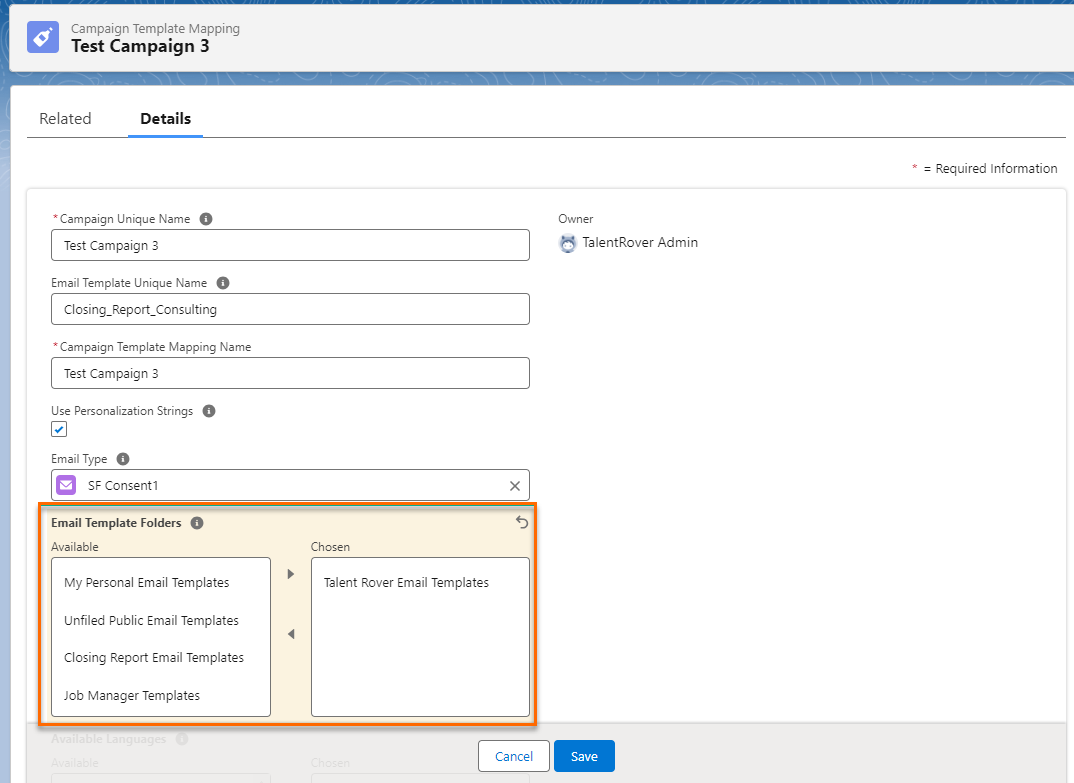
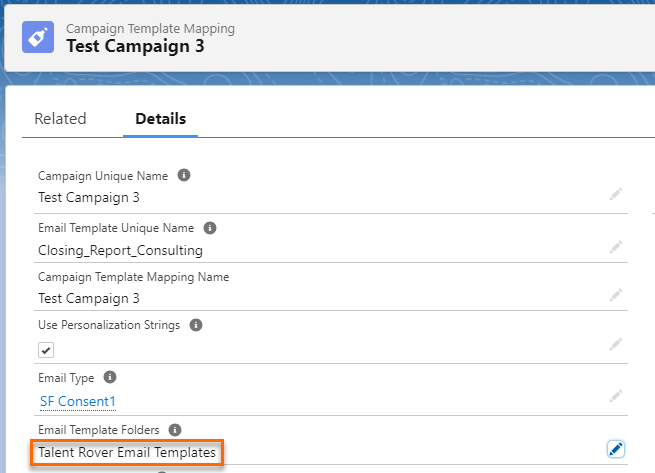
Make sure that Campaign Template Mapping records corresponding to the affected email templates exist and are linked to the desired folders.
How the folder filtering is applied within the BH4SF Email Editor (for SFMC email provider):
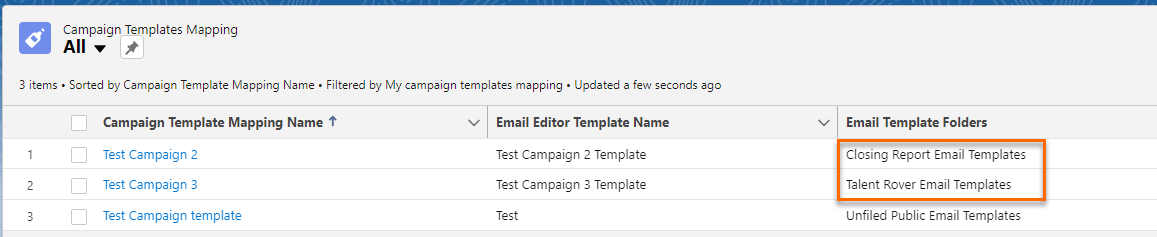
Enable Folder Filtering Per Email Page Type
To enable the filtering template folders per email page types:
- Go to .
- Click on any record that needs to be configured.
- Edit the Email Template Folders field and select the folders under which email templates related to the current email page type should appear.
- Click Save to save the email page type record.
If everything is configured correctly, the BH4SF Email Editor will display within the Template selector only those email templates that are part of the defined template folders specified for the configured email page type.
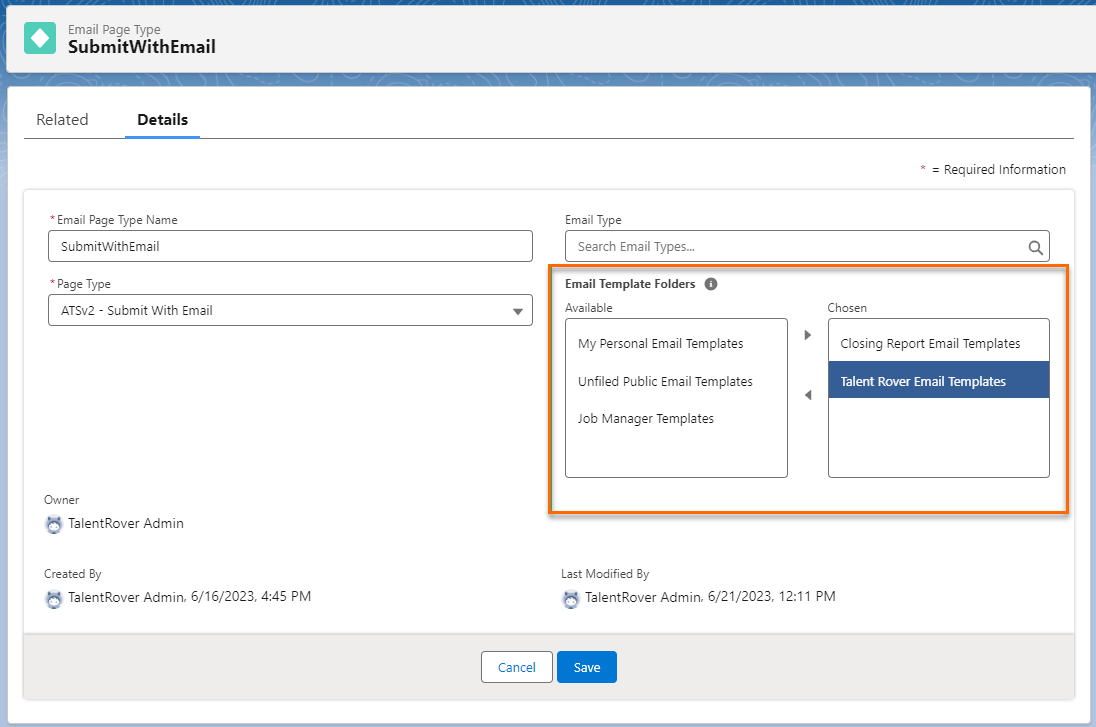
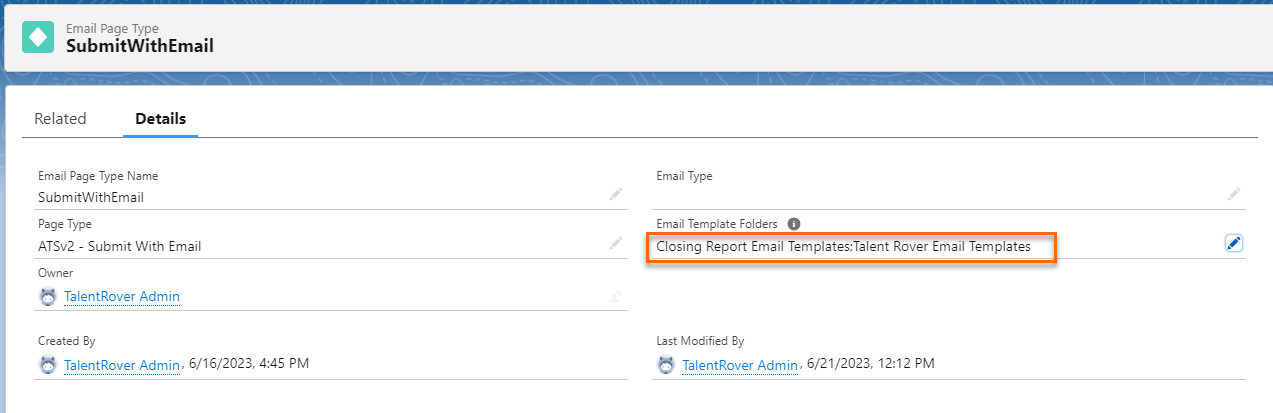
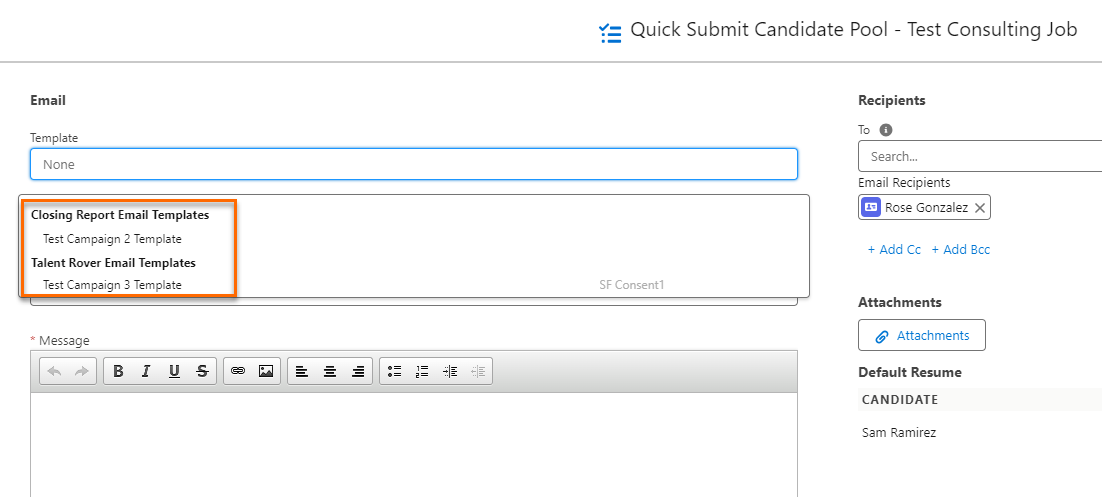
If the Email Template Folders field on the Email Page Type record is empty, folder filtering is disabled within the BH4SF Email Editor for this email page type.
Use Custom Email Page Types
If the BH4SF Email Editor is used outside of the BH4SF package (e.g., via the exposed component), you can pass any standard or custom email page type name through an attribute by setting the value of the emailPageType attribute. Examples include:
- TR1:eML_Email LWC component
- TR1:GlobalEmailEditor Visualforce component
- GlobalEmailEditor Lightning component available for app pages
In this case, the BH4SF Email Editor will apply folder filtering based on settings defined at the passed Email Page Type record. To create a custom email page type with custom folder filtering:
- Go to (API Name: TR1__Email_Page_Type__c).
- Click Fields & Relationships.
- Open the Page Type field.
- Add a new picklist value and click Save.
- Go to .
- Click New.
- Enter the Email Page Type Name.
- Select the Page Type (the new value added in the previous step).
- Select folders on the Email Template Folders field.
- Optionally, populate the Email Type field if the record should be linked to a specific email type.
- Click Save.
- Optional, for SFMC email provider only.
- Go to .
- Create a new or update an existing record's Email Template Folders field with one of the same folders specified on the new custom Email Page Type record in Step 2.
- When instantiating the TR1:eML_Email LWC component, pass the value of the newly added Page Type (API name of new picklist value added in Step 1) to the emailPageType attribute.