Click-To-Dial
Overview
In Salesforce, when Computer Telephony Integration (CTI) is enabled for an Org, then click-to-dial functionality is supported and users can initiate calls by clicking phone numbers in records.
With a small configuration effort it is possible to add support for click-to-dial for BHRC components
What this means is that when phone numbers are added to BHRC components (as listed below), if the logged-in user is connected to a Call Center, clicking those phone numbers will start an outgoing call through the softphone. If the logged-in user is not connected to a Call Center, the phone number is shown as a normal tel: link without the dialing behavior.
Below is the list of places in the BHRC product where phone fields render as clickable tel: links (in some cases depending on configuration)
-
Tables (ATS v2, Omnitable, PowerNotes Table View)
-
Packaged and custom phone columns in ATS v2 table, Omnitable, and PowerNotes Table View.
-
Custom phone fields added to tables inherit click-to-dial automatically if they are defined as a Phone data type.
-
-
Forms (CDV & Record Detail Modals)
-
Packaged Form components (CDV, ATSv2 record detail modals) automatically support tel: links for phone fields.
-
Packaged Contextual Data Viewer instances using related lists for their tabs don’t support click-to-dial. Switch to the version updated to use Omnitable instead of related list to avail of click-to-dial (more details in the Configuration section).
-
-
Formula Fields
-
Click-to-dial is not supported for formula fields.
-
-
i-icon Detail View (smgl_recordDetail)
-
Once the i-icon detail view component (in ATSv2) has been replaced with a Screen Flow, phone fields become clickable. If Call Center is enabled, they render as click-to-dial.
-
Admins can configure which fields appear in the view using Salesforce Flow Builder, including designating phone fields.
-
-
Record Detail Popover (recordDetailPopover) - if configured, as this popover is not an out-of-the-box feature
-
Once the record detail popover (in ATSv2) has been replaced with a Screen Flow, phone fields become clickable. If Call Center is enabled, they render as click-to-dial.
-
Admin configuration mirrors the i-icon detail view — use Flow Builder to manage field layout.
-
How It Works
If the current user has CallCenter enabled, then the Phone fields are rendered as click-to-dial:
-
If CTI adapter is enabled, then click-to-dial is active and clickable.
-
If CTI adapter is disabled, then click-to-dial is disabled and not clickable.
If the current user has CallCenter disabled, then the Phone fields are rendered as tel: links
The behavior is consistent across all supported components. Fields that are not typed as Phone (e.g., text fields containing numbers) will not be made clickable automatically.
Setup
Most of the click-to-dial capability works out of the box for packaged components. The steps below cover prerequisites and specify the components that require admin action.
Prerequisite
Ensure Call Center is enabled in your Salesforce org. Click-to-dial requires an active CTI adapter (e.g., Open CTI or a third-party dialer). Without this, clicking a number will fall back to the Operating System default telephony app.
Tables
No additional configuration is needed for packaged Table components. Custom phone fields added to tables should be verified to have the Phone data type mapped in the component's column metadata. If not, update the field type in the component configuration.
If you include formula fields in Table’s columns, Salesforce formula fields exposing a parent's phone value have a Display Type of STRING, not PHONE, so those will still render as text. If you want click-to-dial on those then you should reference the relationship path (e.g. Applicant__r.Phone) directly in the Field Set.
Forms
Packaged Form components (CDV, ATSv2 record detail modals) automatically support tel: links for phone fields.
Formula Fields
Click-to-dial and tel: are not supported for formula fields.
i-icon Detail
See Configuration below.
Record Popover
See Configuration below.
Packaged CDV Using Related List
See Configuration below.
Configuration
i-icon Detail
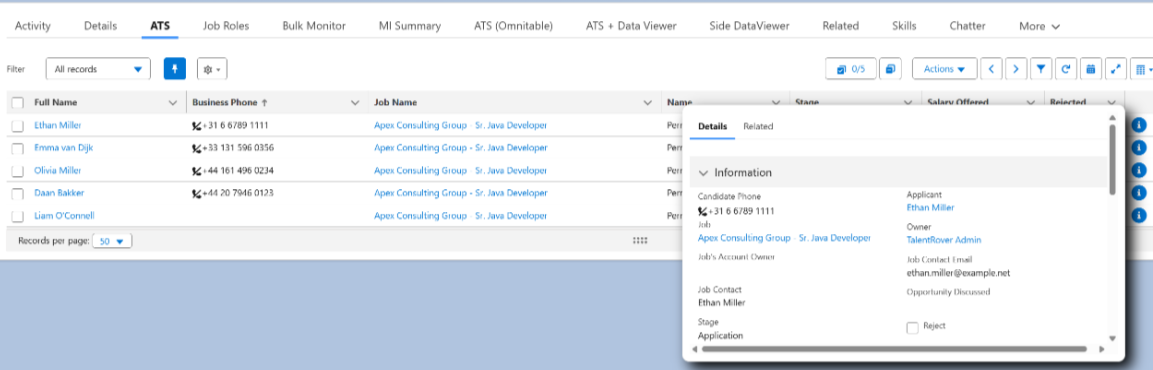
The out of the box ‘i’ popup leverages a lightning-record-form (page-layout-based) that does not support Click-To-Dial, so you need to replace it with a Screen Flow if you want the phone numbers in the popup to be clickable.
-
Go to .
-
Select the Enable Screen Flow - ATS v2 checkbox. The ‘i’ pop-up form is now rendered by the Record Detail View - Application V2 packaged Flow (TR1__Record_Detail_View_Application_V2).
Record Popover
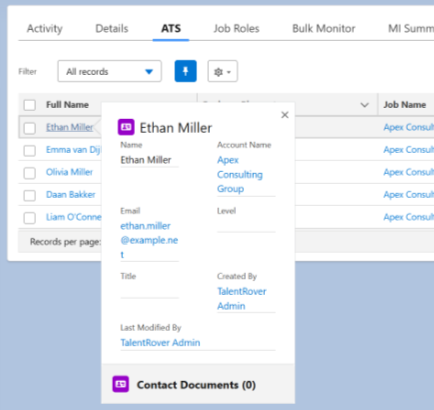
This is only relevant if you have this pop-up configured in your Org - it is not on ATSv2 UI out of the box.
The Candidate Details pop-up leverages a static lightning-record-form (page-layout-based) that does not support click-to-dial. You need to replace it with a Screen Flow if you want the phone numbers in the pop-up to be clickable:
-
Go to .
-
Select the Enable Screen Flow - ATS v2 Popover checkbox. The ‘Candidate Details' pop-up form is now rendered by the Record Detail View - Contact Popover packaged Flow (TR1__Record_Detail_View_Contact_Popover).
Packaged Contextual Data Viewer (CDV) Flows
-
After the package upgrade, go to and activate the latest version of the Contextual Data Viewer (CDV) Flow if you want to enable click-to-dial.
-
If you have previously overridden the packaged Contextual Data Viewer (CDV) Flows, you will need to reconcile the changes from the override with the updates added to the packaged flow.
The section below is for informational purposes only, to provide details of what we changed in the package for this functionality. If click-to-dial is not relevant to you, you can continue using your current CDV Flows without any changes. If you want to use click-to-dial in your CDV Flows after the upgrade to 2026.06, just follow the configuration steps above.
Prior to package version 2026.06, the following packaged Contextual Data Viewer Flows used related lists for their tabs and did not support click-to-dial:
- ATS_Contact_Contextual_Data_Viewer_Below_ATS
- ATS_Contact_Contextual_Data_Viewer_Right_Of_ATS
- ATS_Job_Contextual_Data_Viewer_Below_ATS
- ATS_Job_Contextual_Data_Viewer_Right_Of_ATS
- Omnitable_Contact_Contextual_Data_Viewer_Below_Omnitable
- Omnitable_Contact_Contextual_Data_Viewer_Right_Of_Omnitable
- Omnitable_Job_Contextual_Data_Viewer_Below_Omnitable
- Omnitable_Job_Contextual_Data_Viewer_Right_Of_Omnitable
To enable click-to-dial on phone number fields in these Flows, the related lists have to be replaced with Omnitable instances.
To support this change, the following have been added to the package:
-
Omnitable instances (replacing the related lists, found under
-
Omnitable_CDVApplicationHistory
-
Omnitable_CDVEmpHistory
-
Omnitable_CDVEduHistory
-
Omnitable_CDVContactDocuments
-
-
Field sets (used to customize the columns shown in each Omnitable — pre-configured out of the box, but editable by admins):
-
TR1__CDV_Application_History (Applicationv2 object)
-
TR1__CDV_Emp_History (Employment History object)
-
TR1__CDV_Edu_History (Education History object)
-
TR1__CDV_Contact_Documents (Contact Document object)
-
contact Bullhorn Support