| Edition: All Editions | Audience: All Users |
Metrics: Understanding KPI Values
Key Performance Indicator (KPI) Values are the single, default numerical result shown for every metric you track in Bullhorn Analytics. They summarize performance at a glance and are the basis for the underlying metric calculation.
Where a metric like Live Jobs displays "28", the number 28 is the KPI Value.
How KPI Values Are Determined
A metric's numerical result (the KPI Value) is determined by its definition, which consists of two components initially set during implementation:
-
Aggregation Type: The mathematical function applied (how the data is processed, e.g., Sum, Average, Count)
-
Aggregation Value: The data field being measured (what data is being processed e.g., Sales, Billing Value, Placement Duration in Days).
Because they are dynamic, the format and information displayed by KPI Values will vary depending on the type of metric being analyzed.
Metric Definitions & Visibility
KPI Values are the numerical component of a metric, visible across all modules within Bullhorn Analytics.
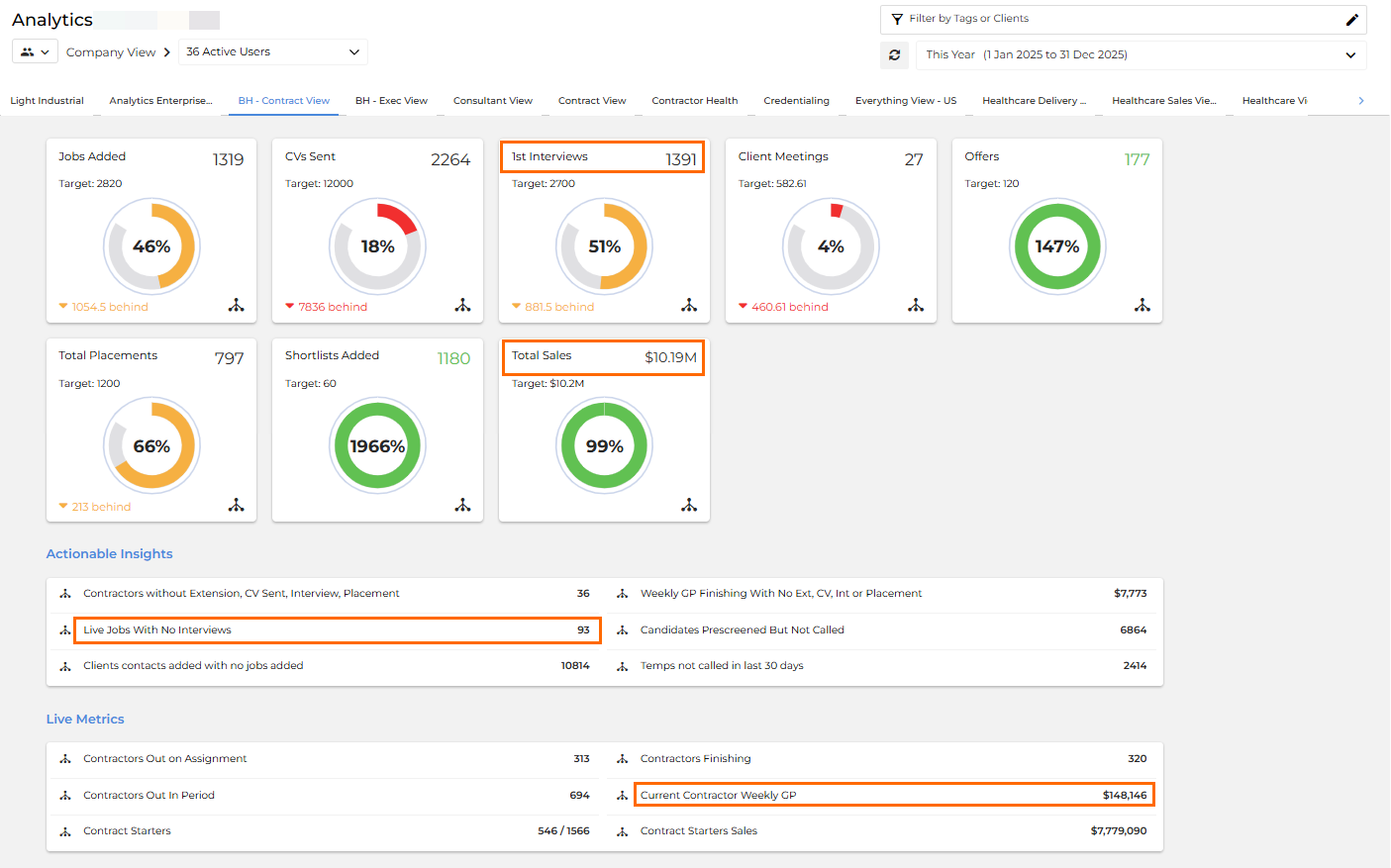
To help you understand how KPI Value is calculated for existing standard metrics, check your Metric Explanations or look at definition in your metrics dictionary:
For Enterprise users with custom metrics, you will need to check them via the Metric Editor. Where definitions are unclear, please contact Bullhorn Support.
Types of KPI Values
The format of a KPI Value adapts to the type of metric being measured.
Activity or Record Counts
Metrics that track activity or records (such as Total Placements or Candidates Added)) display KPI Values as a number count.
6 placements or 10 candidates added.
Financial Results
Metrics that track revenue or monetary values, such as Total Sales or Average Deal, display the KPI Value as a monetary amount. These values are typically based on placements, though sometimes they derive from jobs.
£20,000 in revenue or an average deal worth $30,000.
If your business makes placements in multiple currencies, you need to understand how Bullhorn Analytics manages currency conversions. If you only make placements in one currency, you can skip this section.
Currency Conversion for Financial Metrics
The process for applying currency conversion to financial metrics is standardized to ensure consistent reporting across Bullhorn Analytics. This involves distinguishing between the record's Source Currency and your viewing group's Display Currency.
-
Source Currency (Bullhorn ATS Currency):
-
The source currency is set by the client in a specific field within the Bullhorn ATS/CRM. This value, which can be a descriptive text (e.g., "US Dollar") or a currency code, directly determines the currency of the monetary value that feeds into Bullhorn Analytics.
-
For Analytics to correctly process this data, the source currency field must be mapped to a standard currency format within the Analytics system.
-
For your Analytics system to be able to read and utilize this currency, the specific currency code must be added to your Bullhorn Analytics system.
If you add or update currency values in your ATS/CRM, you must notify Bullhorn Support to map them to Analytics. If this mapping is not updated, the system will not perform the necessary currency conversion and will instead report the data using your primary default currency.
-
-
Display Currency (Bullhorn Analytics Group Level Currency):
-
The display currency ensures a unified view of all financial data by converting source values (which may be in multiple currencies) into a single, consistent currency for viewing and aggregating all financial metrics in Bullhorn Analytics.
-
A company-wide default currency is set when your Analytics system is initially set up. This is controlled by and displayed in the highest-level Group within your Bullhorn Analytics structure.
-
A Group display currency can be defined for your specific Group level (set in the Groups Admin menu). If this is not explicitly set, it will inherit the currency of the group in the next level up in your Bullhorn Analytics structure.
-
When you view financial metrics, all values are automatically converted from their source currency into the currency of the group you are viewing. This ensures consistent, comparable reporting. For example, if you look at a UK-based Group, all their financial metrics will display in GBP, regardless of whether a team member makes placements in the US.
Exchange Rates Used
The exchange rates used for currency conversions are updated on the 1st of every month from xe.com, using the mid-market rates at 16:00 UTC. Those rates apply to all records created during that month. This monthly lock-in ensures consistency in historical reporting and year-over-year comparisons.
For June 2019, we would use these rates: https://www.xe.com/currencytables/?from=GBP&date=2019-06-01.
Multiple Currencies
If your business makes placements in multiple currencies, Bullhorn Analytics will display three columns in your financial metrics. These columns represent monetary values at different organizational levels:
| Metric Column Displayed | Currency Basis (Value) | Definition |
|---|---|---|
| Source Monetary Value (e.g., Billing Value, Job Value etc.) | Source currency (Bullhorn ATS/CRM) | The monetary value using the original currency from the Bullhorn ATS record. |
| Local Value | Local display currency (Your Bullhorn Analytics Group Level) | The monetary value converted into your Bullhorn Analytics Group's default currency. This is used primarily for local team reporting. |
| HQ Value | Company-wide display currency (Highest Group Level in Bullhorn Analytics) | The monetary value converted into the highest-level Group's default currency within Bullhorn Analytics. This is used for company-wide aggregation and consolidated reporting. |
In a single placement record, the Billing Value might be set as USD (Source), the Local Value is converted to JPY (Local Group Display), and the HQ Value is converted to GBP (Highest Group Display).

If your organization does not use multiple currencies but you see these three columns in your reports, please contact Bullhorn Support to have them removed from your configuration.
Performance Ratios
Metrics that measure ratios or percentages (such as Average Fee Percentage) display KPI Values as a percentage.
Average fee percentage of 25%.
Adjusting and Configuring KPI Value
You may want to change a metric's default calculation, for instance, switching from simply counting placements to calculating the average time to fill placements.
Your ability to change a metric's KPI Value, either permanently or temporarily, is restricted by your Bullhorn Analytics edition, as detailed in the table below.
| Edition | Can Permanently Change Default KPI Value? | Can Temporarily Change KPI Value in Reports? |
|---|---|---|
|
Starter |
No |
No |
|
Growth / Corporate |
No, it is set during implementation. Contact Bullhorn Support to check if you can update any KPI Values. |
No |
|
Enterprise |
Yes, using the metric editor in Metrics Admin. Note: Changes made here apply system wide. |
Yes, by toggling the view in Slice & Dice reports and Dashboard data grids (in pivot mode)*. Note: This does not alter the metric's default system-wide calculation. |
* For Enterprise edition users, the KPI Values of some metrics in Slice & Dice reports & Dashboards are flexible and can be adjusted to highlight the results you want to analyze.
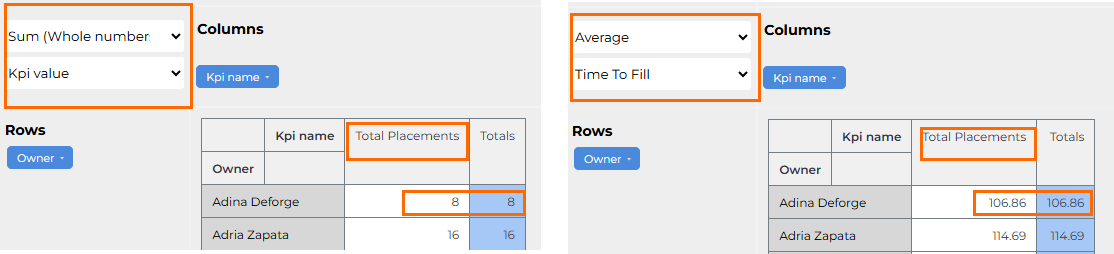
In a Slice & Dice report, the Total Placements metric defaults to the Sum Aggregation Type.
-
If you’d rather focus on Average Time to Fill, you can change the aggregation settings from Sum and KPI Value to Average and Time To Fill. The report will then calculate the average number of days to fill, instead of the total count.
If a report includes multiple metrics with different KPI Value formats, you may notice some formatting inconsistencies.
FAQ
What defines a metric's KPI Value?
A metric's KPI Value is formally defined by its Aggregation Type (e.g., Sum, Average, Count) and the specific Value being aggregated (e.g., Sales, Billing Value, Records).
Can I permanently change a metric's default calculation if I am a Growth or Corporate edition client?
No. The default KPI Value is set during implementation and cannot be permanently changed by Growth or Corporate users. This ability is restricted to Enterprise edition users via the Metric Editor.
Why do my KPI values show in a different currency?
The Bullhorn Analytics display currency is defined in the Groups Admin menu and applies to all users in your group.
How is Revenue set for my team?
The revenue shown in your metrics is defined for your team during implementation. For Enterprise edition Metric Admin users, it can be defined through metrics created in the Metric Editor.
How often are exchange rates updated?
Exchange rates refresh monthly on the 1st of the month. Once set, the same rate applies to all data for that calendar month.
How can I change a metric, like Total Sales, from summing the value to showing the average value?
You can permanently change a metric's aggregation type (e.g., from Sum to Average) if you are an Enterprise Edition user, by editing the metric's KPI Value in the Metric Editor within Metrics Admin.