| Edition:Growth, Corporate, Enterprise | Audience: Metrics Admin |
Metric Explanations
Metric Explanations provide a bridge between your business logic and the technical configuration of your system. By documenting the specific context for your KPIs, you ensure data transparency across your organization and allow Bullhorn Support to troubleshoot your setup faster. These descriptions act as a "Source of Truth," helping recruiters understand exactly what their numbers represent while providing Support with the immediate context needed to identify configuration gaps without extensive back-and-forth.
-
Managing Metric Explanations requires Metrics Admin permission. This is set in Users Admin by your Bullhorn Analytics administrator. For detailed instructions, see Setting App and Admin Permissions.
-
Metrics Admin permission is available only for users of Growth, Corporate, and Enterprise editions of Bullhorn Analytics. It is not included in the Starter edition. To verify your edition, please contact your Bullhorn Account Manager.
Why Use Metric Explanations?
You may want to use Metrics Explanations to:
-
Clarify Internal Business Logic by defining company-specific rules, such as whether a "Placement" is credited on the offer date or the start date.
-
Accelerate Onboarding by providing new hires with an instant, self-service guide to your agency’s reporting language and expectations.
-
Build Data Confidence by showing the "math" and the filters behind the numbers, reducing confusion or skepticism regarding how activity is tracked.
-
Improve Support Efficiency by maintaining a clear record of your configuration, making it faster for Bullhorn Support to assist with technical adjustments.
Setting Metric Explanations
Any user with Metrics Admin permissions can set or update explanations using two different methods:
Method 1: The Admin Menu (Best for bulk updates)
- Go to Admin > Metrics > Metric Explanations.
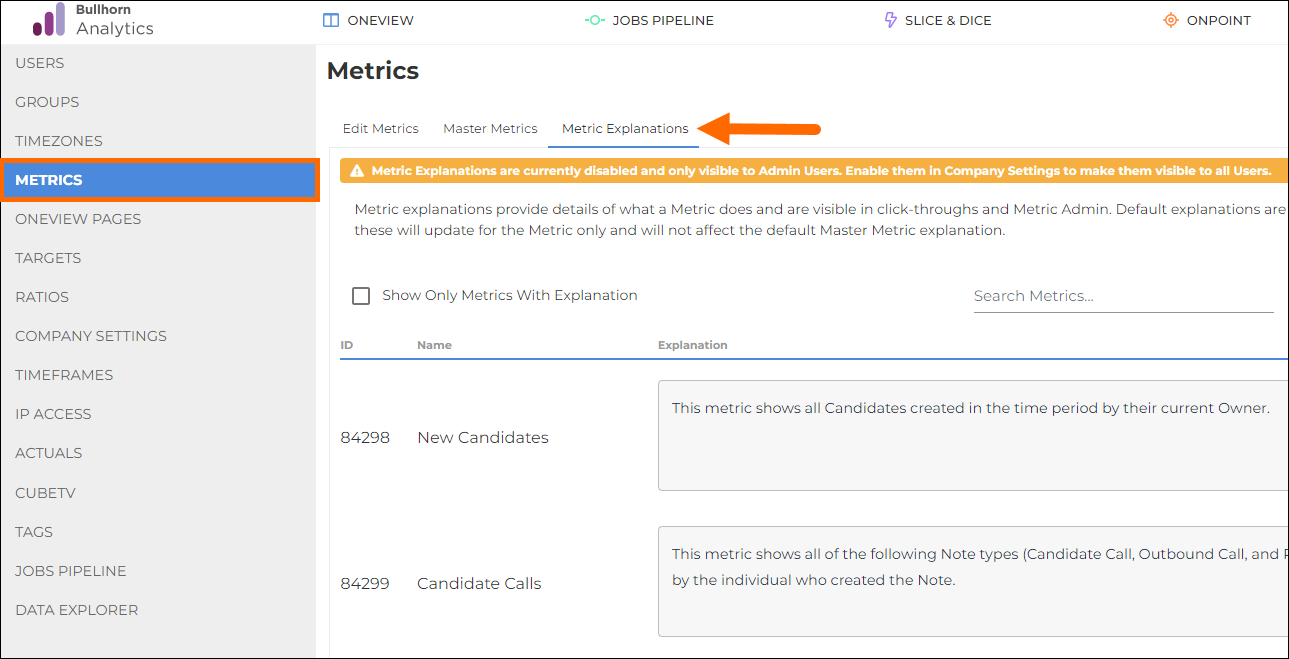
- Search for the metric you wish to describe.
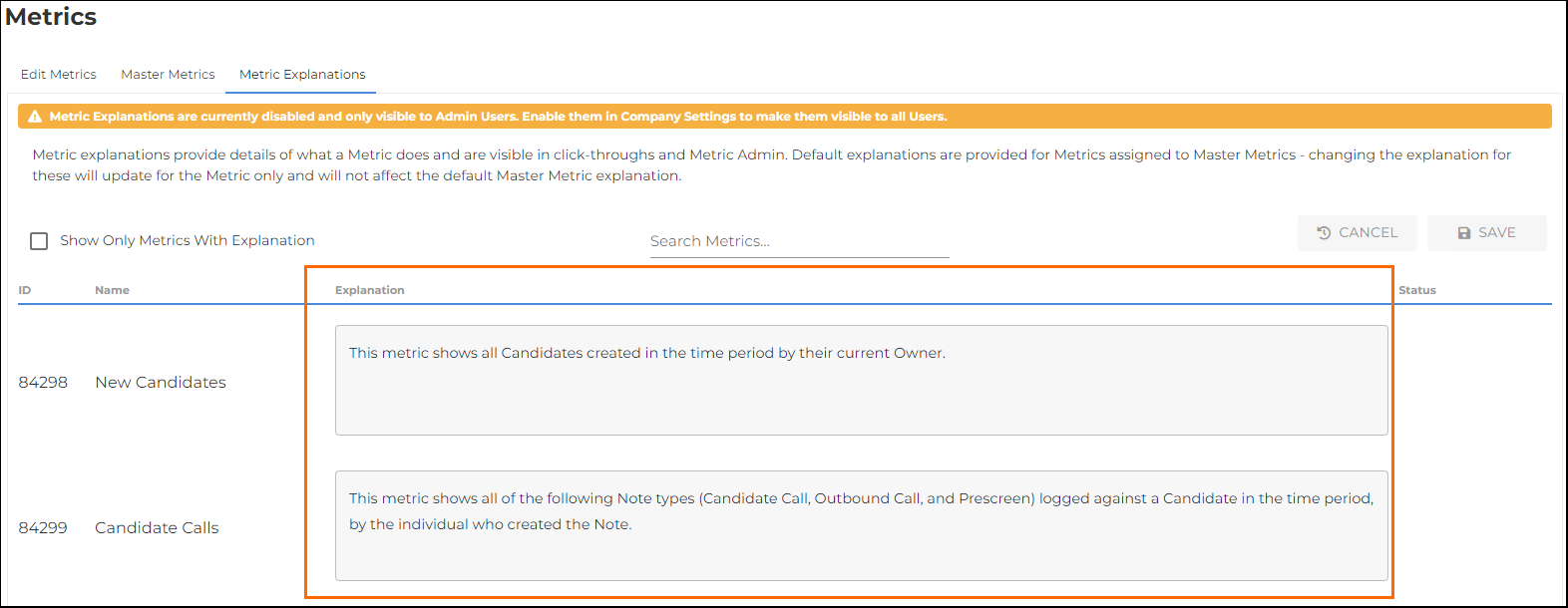
- Type your description into the Explanation field. You are free to overwrite any pre-populated text from Bullhorn Support to better suit your workflow.
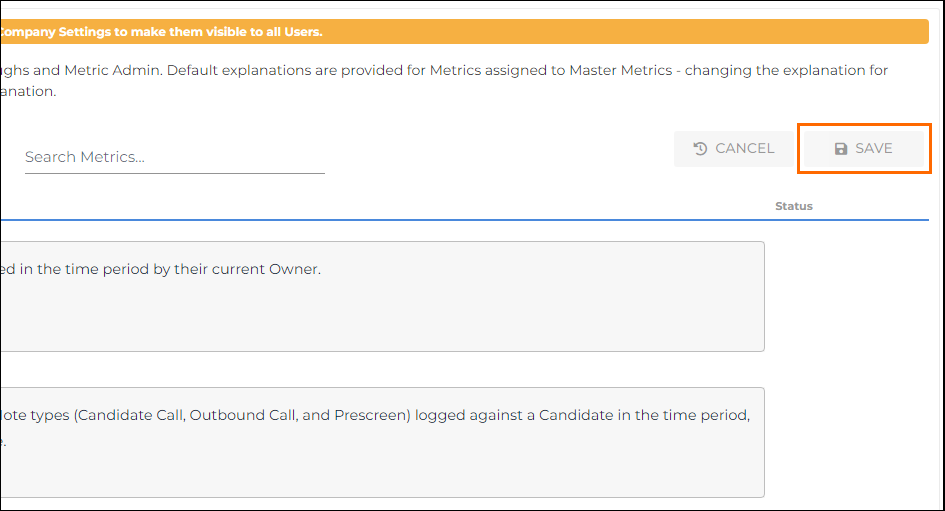
- Click Save to save your changes.
Method 2: Via OneView or Edit Metrics (Best for quick edits)
-
Click on a specific metric within OneView to open the click-through slideout or select a metric from the Edit Metrics tab.
-
Select the ? Explanation tab.
-
Enter or edit the text directly in the field provided.
-
Click Save.

You may need to refresh your browser after saving for the changes to appear immediately on clickthroughs.
Enabling Visibility for All Users
By default, Metric Explanations are only visible on clickthroughs to Metrics Admin users. To make them visible for all users:
- Go to Menu > Admin > Company Settings, then open the Metric Explanations sub tab.
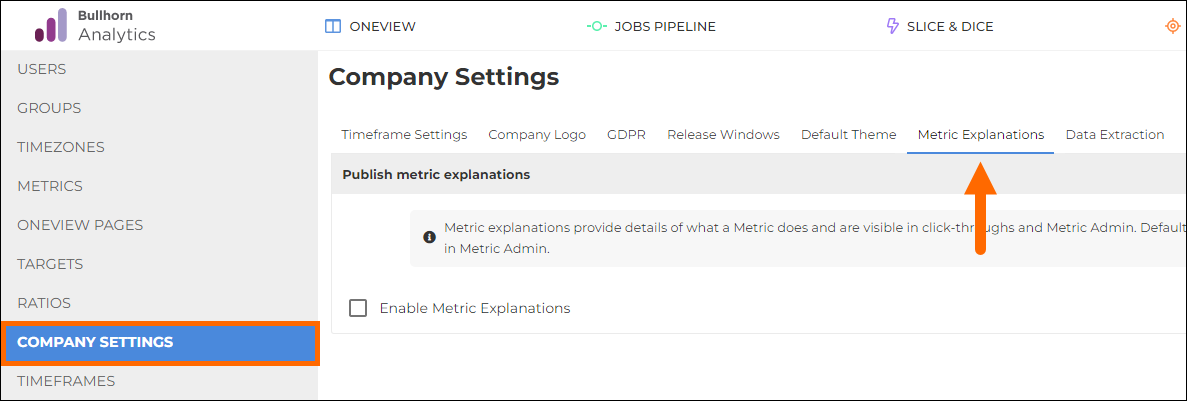
- Check the Enable Metric Explanations checkbox.
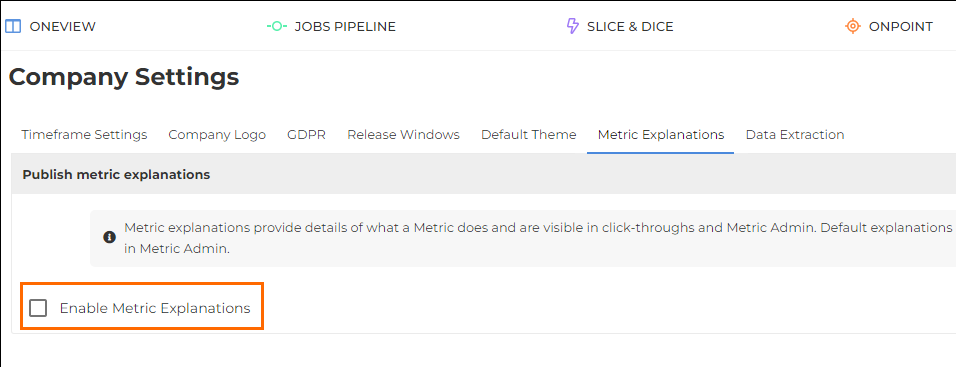
Once enabled, your team members may need to perform a hard refresh of their browser (Ctrl+F5 or Cmd+Shift+R) to see the ? Explanation tab when they next click into a metric.
Viewing Metric Explanations
Once the feature is enabled:
-
Standard Users: Can view the explanation by clicking any metric and selecting the ? Explanation tab.
-
Metric Admins: Can both view and update the explanation directly from within the tab allowing for immediate updates.
