| Edition: Enterprise | Audience: All Users |
Sharing a Slice & Dice Report
When you've created a report that you feel has value for your team, you can share it with some or all of your team members.
Steps
- Click the Saved Reports button in the bottom left corner of the screen.
- Click the share (
 ) icon next to the report you want to share.
 - In the newly opened window, use the search field or the company dropdown to select the group or user(s) you want to share the report with.
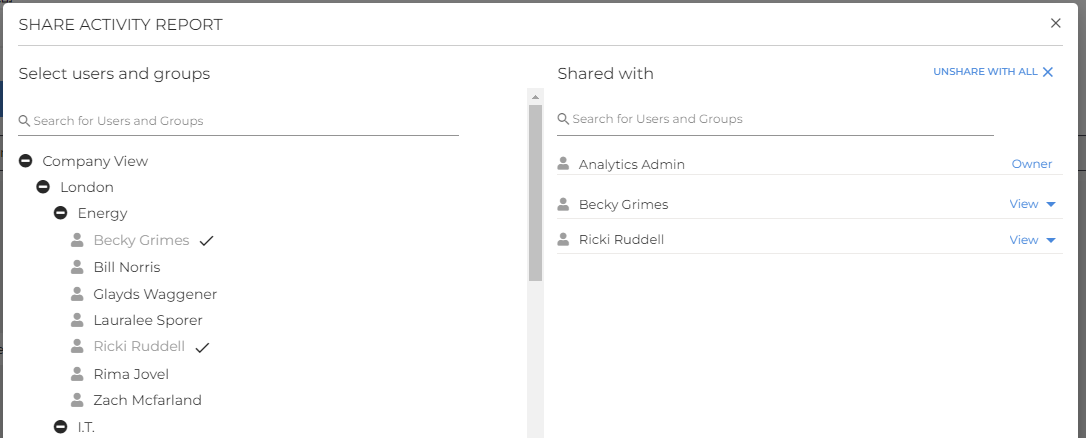
- When you click on a group or user, a black check mark will appear next to the name, and the group/user will be displayed on the right side of the screen under Shared with.
- When you click on a group or user, a black check mark will appear next to the name, and the group/user will be displayed on the right side of the screen under Shared with.
- Once you have selected the users and groups you want to share with, click the Save button.
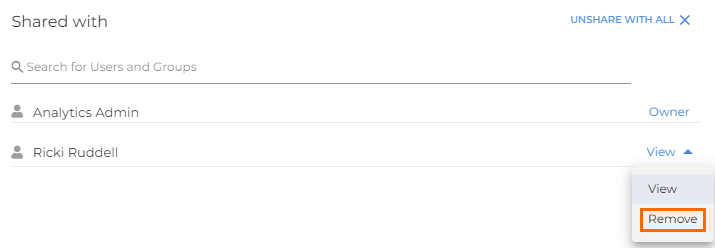
- To remove users from the Shared with list, click the dropdown arrow next to the user and select Remove. You can also click Unshare with all in the top right corner to remove all users from the shared list.
- To remove users from the Shared with list, click the dropdown arrow next to the user and select Remove. You can also click Unshare with all in the top right corner to remove all users from the shared list.
Was this helpful?