| Edition: All Editions | Audience: User Admin |
Applying Core Permissions
This article provides instructions on how to give users additional permissions
Default Permissions
Once a user has been activated you can edit permissions or add additional permissions if required.
The following options will be set as default for users with Permission: Full Users:
- Visible: A user who has a direct login to their own data in Bullhorn Analytics
- Can Login: A user who can access their Bullhorn Analytics account
- Data Details Clickthrough: Enables access to the data details behind the metrics in Bullhorn Analytics
- Quickview Clickthrough: Enables access to the Quickview tab in the metric Clickthrough and provides instant access to the tab via the
 icon which is present against every metric in OneView
 - Leaderboard Clickthrough: Enables access to the Leaderboard tab in the metric Clickthrough
- Target Clickthrough: Enables access to the Targets tab in the metric Clickthrough
Observers have the same permissions as Full Users with the exception of Visible. Check the Visible box to make an Observer a Full User.
Additional Permissions
The following additional permissions requiring activation by the User Admin:
- IP Restricted Access: Activating this option will mean the user can only access their account from specified IP addresses. This is set in the IP Restriction Admin.
- Export to File: This allows the user to download data directly from their Bullhorn Analytics account (into a CSV), including data details, Slice & Dice Reports and Trends images.
- Share Slice & Dice, Trends, OnPoint & Dashboards: These options will let users share any Slice & Dice, Trends, OnPoint and Dashboards reports they have created with other internal Bullhorn Analytics users.
- OneView Super User: This feature will allow users to switch between all OneView Pages that have been created.
- Share Client Sets: This option allows users to share any of the client sets they have created in their user account, in a similar way to how the Share Slice & Dice option works.
- Schedule Reports: This options allows users to schedule email reports from any Dashboard that they can see.
Steps
- Go to Admin > Users > Manage Activated Users and click on a name to access the user’s profile.
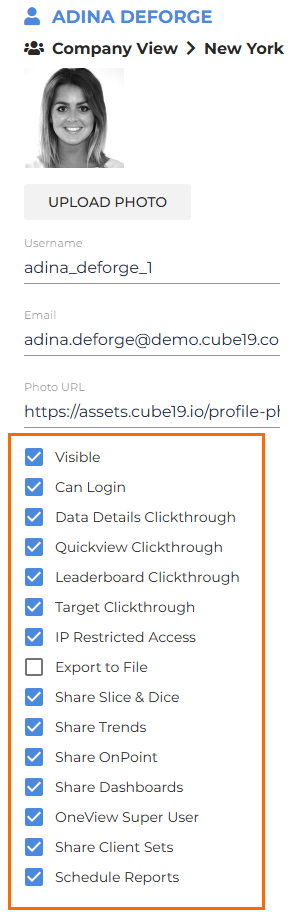
- Check the appropriate box to apply permissions as required.
All settings will automatically save.
Was this helpful?