| Edition: Enterprise & Corporate | Audience: Timeframe Admin, Gamification Admin |
Using Timeframes for Gamification Incentives
Adding a custom timeframe means that any incentives running in the business can be used within Gamification. This article shows you how to use a custom timeframe for an incentive on a Leaderboard slide.
Steps
- Add a custom timeframe.
- Open Gamification (Admin > Gamification) and create a Leaderboard slide.
- Build the Leaderboard slide with your chosen metric, and select the newly added timeframe from the Timeframe dropdown menu.
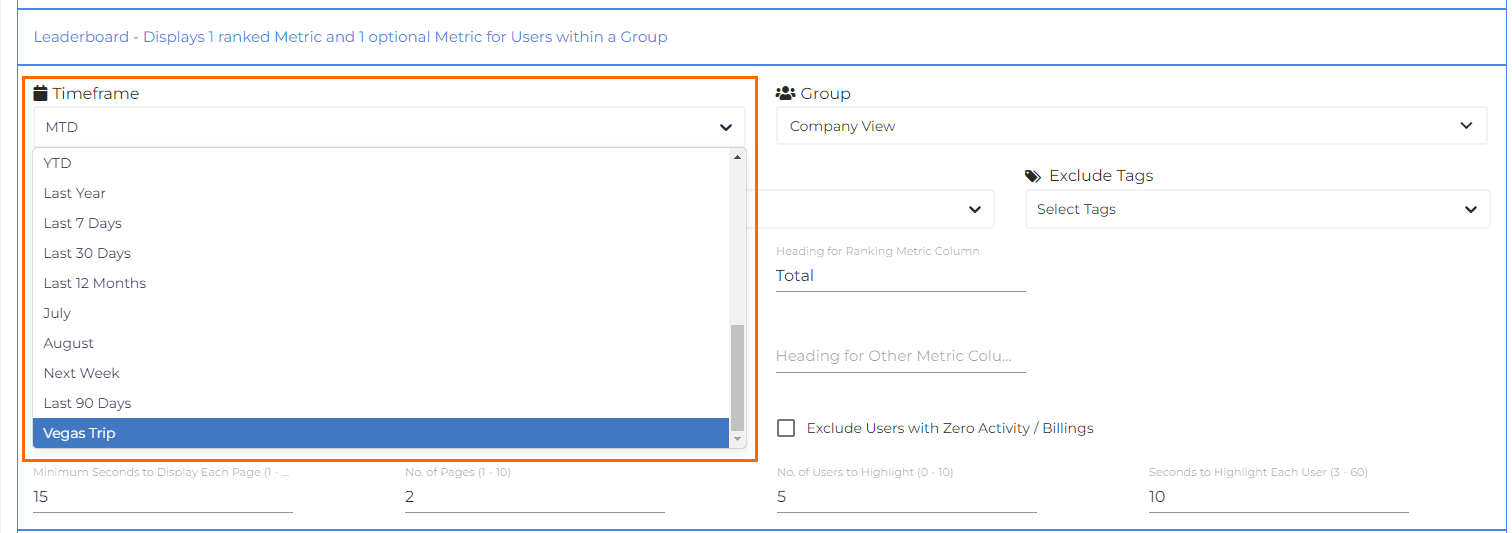
- Once you've saved this slide, you can go back into Timeframes (Admin > Timeframes) and uncheck the Visible checkbox for this timeframe.

- This will prevent this timeframe from being visible in any timeframe dropdown in Bullhorn Analytics, but it will remain on the Gamification Leaderboard slide you have set up.
Was this helpful?