Invite candidates to screen
When a submission reaches the right status, Amplify automatically sends the candidate an invitation to complete a screening, with optional follow-up reminders, so every eligible candidate gets the chance to screen without recruiters having to send invitations manually.
How it runs
What you'll need
- Amplify enabled on your account
- A screener engagement set up and ready to use. See Creating a Screener Engagement for a walkthrough.
Build it
Tip
To save time, you can use the BH Screening Agent - Invite to Screen blueprint instead of building this automation from scratch. See Using Automation Blueprints for details.
- 1
Create a submission-based standard automation
In the Automations tab, click + Add Automation and select Blank Automation. Choose Submission as the entity type and select Standard. Give the automation a name and save.
- 2
Build an enrollment list
Set the list to Always Updated with a Contact type of Candidates and a Submission type of Bullhorn Submissions. Add the following conditions:
- Submission Status - Is - [eligible status]. When a recruiter sets a submission to this status, the candidate enters the automation and is sent a screening invitation. Consider creating a dedicated submission status for this purpose, so recruiters have precise control over which candidates receive an invitation to screen.
- Submission Date Added - Less Than - 3 Days Ago. This ensures only recent submissions trigger an invitation, preventing a backlog of older submissions from all receiving invitations the first time the automation is switched on. Adjust the timeframe to suit your needs.
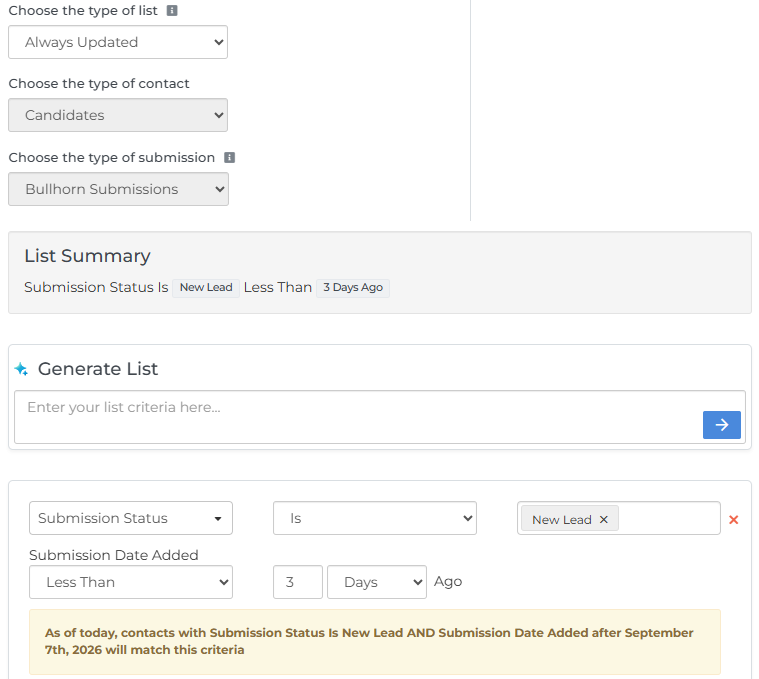
Once the list is built, set it as an enrollment list in the automation.
- 3
Build a suppression list
Set the list to Always Updated with a Contact type of Candidates and a Submission type of Bullhorn Submissions. Add the following condition:
- Submission Screening Status - Is - Complete. Once a candidate completes their screening, they are suppressed from receiving any further invitations or reminders for that submission. They can still re-enter the automation for any subsequent new submissions.
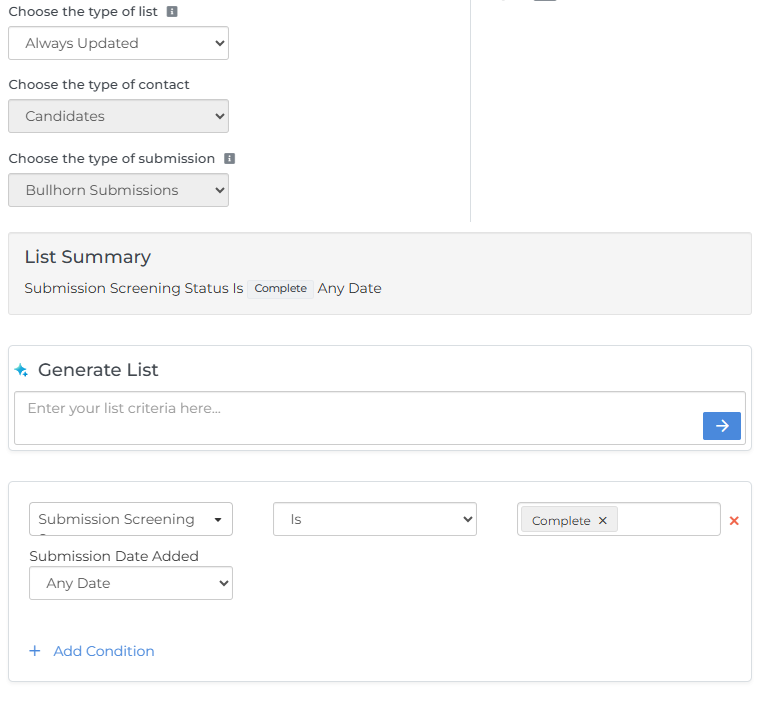
Once the list is built, set it as a suppression list in the automation.
- 4
Add a Send Engagement step
For the Engagement Type, select Screener. From the Screener drop-down, choose the screener engagement you want to invite candidates to. Choose a delivery method — email or text message — and write your invitation using an existing message, a template, or from scratch.
The system will automatically insert a Start Chat button (for drag-and-drop emails) or a Screener URL (for plain text emails or text messages). Do not edit or remove this, as it is the link candidates use to access and complete the screening.
Text message delivery typically results in higher engagement rates for screener invitations. If your workflow allows it, consider sending screener invitations by text message.
- 5
Optional: add follow-up reminder steps
Add one or more additional Send Engagement steps to remind candidates who have not yet completed the screening. Separate each reminder with a Wait step of at least one day to avoid over-messaging. If a candidate completes the screening after the initial invitation, your suppression list will remove them from the automation at that point, so they will not receive any subsequent follow-up reminders.
- 6
Add an End step
Once the invitation and any follow-up reminders have been sent, the candidate exits the automation. They can re-enter if they are submitted to another job and the new submission meets the enrollment list criteria.
Settings checklist
Before activating the automation, confirm the following settings are configured:
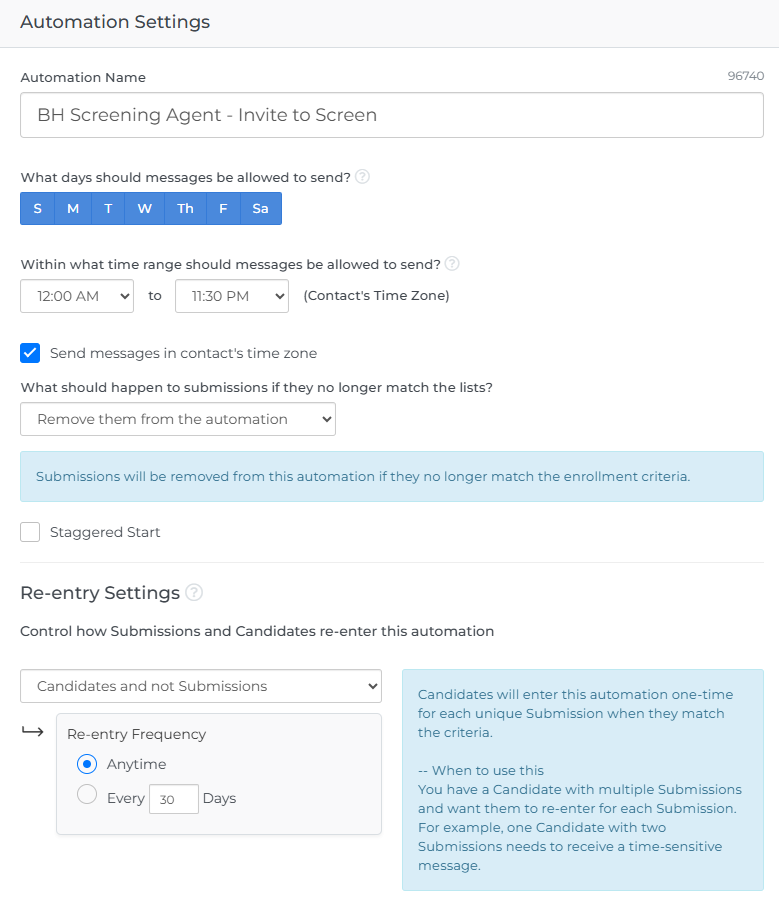
- Re-entry Settings: Set to Candidates and not Submissions, Anytime. This allows the same candidate to receive screening invitations for different jobs, but prevents them from being invited to screen more than once for the same submission.
- What days should messages be allowed to send? Configure this to your company's preferences. Sending every day is recommended to ensure candidates receive invitations promptly.
- Within what time range should messages be allowed to send? Set the window during which invitations can be sent to candidates.
- Send messages in contact's time zone: Enable this to ensure invitations are sent at an appropriate local time for candidates in different regions.
- What should happen to submissions if they no longer match the lists? Set to Remove them from the automation.