Enrich candidates from file (historic)
Use this automation to bulk-enrich your existing candidate database. Amplify scans your existing candidate records, parses any resumes or CVs added in the past six months, and uses them to populate each candidate's ATS record — including their main profile, work history, and education.
Keep your database fresh going forwards
Once you have used this automation to bulk-enrich your existing candidate database, you can set up Enrich candidates from file (ongoing) to automatically enrich candidate records as new resumes are added, keeping your data current over time.
How it runs
What you'll need
- Amplify Enrich enabled on your account
Build it
Tip
To save time, you can use the Amplify Enrich From File - Candidate blueprint instead of building this automation from scratch. See Using Automation Blueprints for details.
- 1
Create a candidate-based standard automation
In the Automations tab, click + Add Automation and select Blank Automation. Choose Candidate as the entity type and select Standard. Give the automation a name and save.
- 2
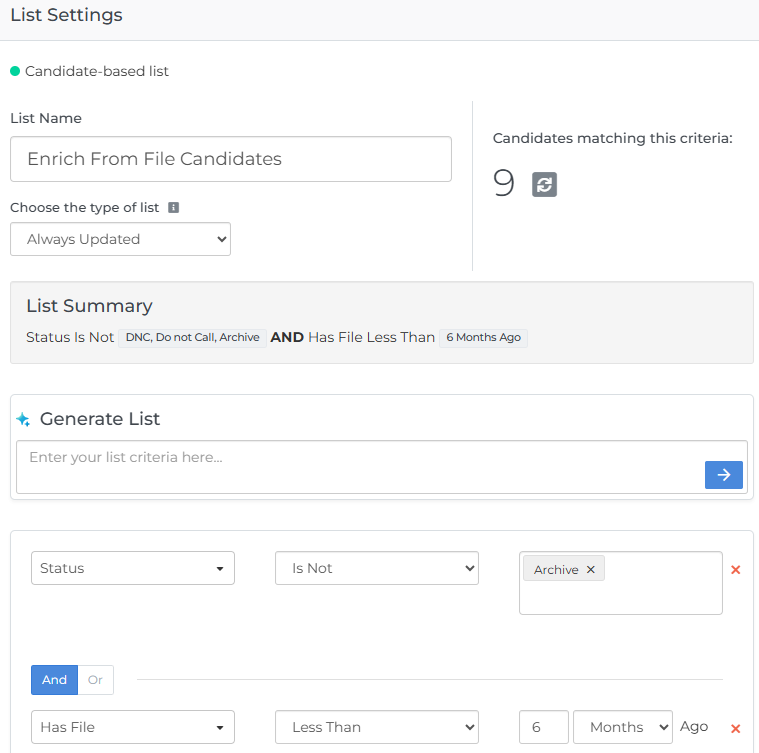
Build an Always Updated list
Set the list to Always Updated. Add the following conditions:
- Status - Is Not - [excluded statuses]. Add any statuses that should prevent a candidate from entering the automation, such as Archive or any other statuses your company uses for inactive or ineligible candidates.
- Has File - Less Than - 6 Months Ago. This ensures only recently added files are parsed, preventing old resumes from overwriting existing, valid candidate data. Adjust the timeframe to suit your company's preferences.
- 3
Add an Enrich Candidate from File step
Click into the step to configure the following settings:
- Enrich From: Select Candidate File to parse an attached file. In the File Type(s) field, add the file types you want to include. The default is Resume, but your company may also use CV or another file type. If multiple file types are selected, Amplify uses the most recently added matching file.
- Save To: Check Resume Field if you also want the parsed content to be written to the candidate's Resume field.
- Field Mapping: Select which candidate fields Amplify should update. You can select Update All to update all eligible fields, or expand each section to deselect any fields you do not want the automation to overwrite.
- Only Update When Empty: When enabled, Amplify only updates fields that are currently empty.
For full details on each setting, see Enrich From File Automation Step.
- 4
Add an End step
Once a candidate has had their record enriched from file, they exit the automation.
Settings checklist
Before activating the automation, confirm the following settings are configured
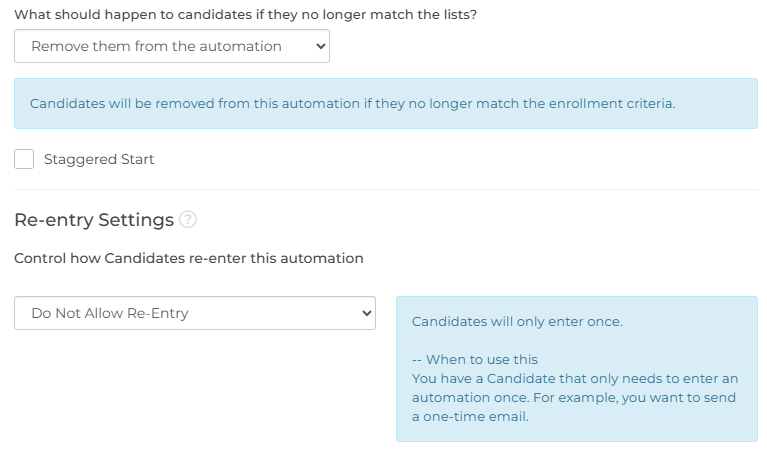
- What should happen to candidates if they no longer match the lists? Set to Remove them from the automation.
- Re-entry Settings: Set to Do Not Allow Re-Entry. This prevents candidates from repeatedly going through the automation and having their record overwritten each time