Generate screening questions
When a job is ready for screening, Amplify uses AI to generate tailored questions based on the job description, so every active role has relevant screening questions in place before candidates start applying.
How it runs
What you'll need
- Amplify enabled for your account
- Job descriptions populated in the Public Description field in Bullhorn ATS — Amplify uses this field to generate relevant, tailored questions
Build it
Tip
To save time, you can use the BH Screening Agent - Generate Screening Questions blueprint instead of building this automation from scratch. See Using Automation Blueprints for details.
- 1
Create a job-based standard automation
In the Automations tab, click + Add Automation and select Blank Automation. Choose Job as the entity type and select Standard. Give the automation a name and save.
- 2
Build an Always Updated list
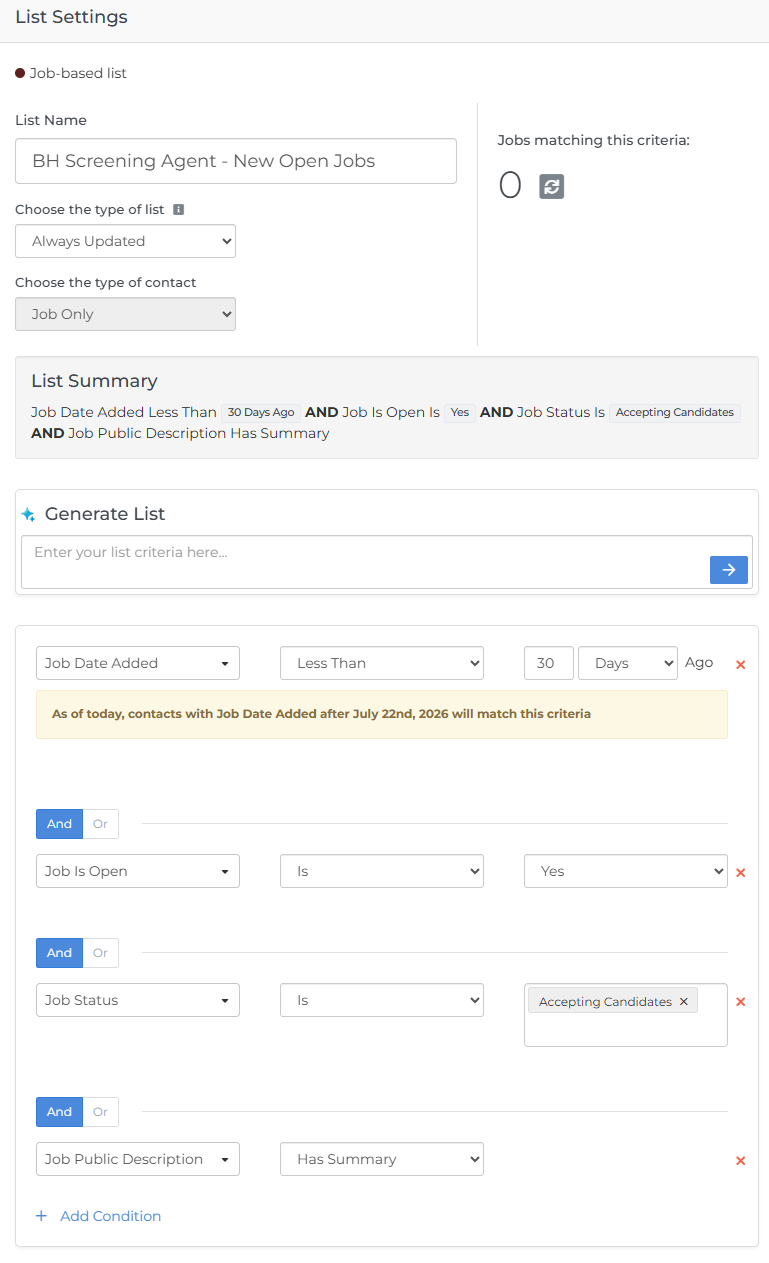
Set the list to Always Updated with a Contact type of Job Only. Add the following conditions:
- Job Date Added - Less Than 30 Days Ago. This keeps the automation focused on current, active roles. Adjust the window to suit your hiring cadence.
- Job Is Open - Is - Yes. Ensures only open jobs enter the automation.
- Job Status - Is - Accepting Candidates (or whichever status values your firm uses to indicate a job is actively accepting submissions).
- Job Public Description - Has Summary. This is important: Amplify generates screening questions from the public description, so jobs without one would produce vague or irrelevant questions. This condition prevents those jobs from entering the automation until a description is ready.
-
Jobs without a description are excluded automatically
Because the list uses the Job Public Description - Has Summary condition, any job without a populated public description will not enter the automation. Once a description is added to the job record, the list picks it up automatically on its next refresh with no manual intervention required.
- 3
Add an Add Screening Questions step
Configure the Number of Generated Questions, Default Questions, and Advanced Settings to match your screening process. For guidance on each option, see Add Questions Step.
- 4
Optional: add a Send Notification step
Notify job owners each time screening questions are generated for one of their roles. This gives recruiters a prompt to review the generated questions, confirm they're satisfied, and make any manual adjustments before candidates start screening.
- 5
Add an End step
Once a job has had questions generated, it exits the automation.
Settings checklist
Before activating the automation, confirm the following settings are configured:
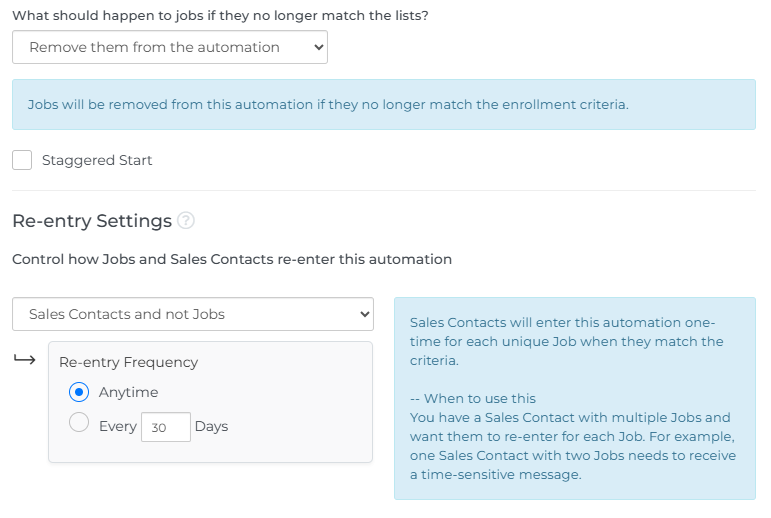
- What should happen to jobs if they no longer match the lists? — set to Remove them from the automation.
- Re-entry Settings — set to Sales Contacts and not Jobs, Anytime. This ensures that multiple jobs associated with the same sales contact can each enter the automation.
View generated questions
Once the automation runs, the generated questions are available on the job record's Screening Questions tab in Bullhorn ATS. From here you can review them and make any adjustments before candidates start screening, including reordering, rewriting, adding, or removing questions. For more information, see Managing Screening Questions in Bullhorn ATS.
Next steps
Now that your screening questions are being generated automatically, you can set up an automation to invite candidates to complete their screening. See Invite candidates to screen for steps.