Notify recruiters when a candidate is flagged
When a candidate's Verify Level changes to Flagged, this automation sends a near real-time notification to the candidate owner and secondary owners, so recruiters can act quickly on any signals that need attention.
How it runs
What you'll need
- Amplify Verify enabled on your account
Build it
Tip
To save time, you can use the Amplify Verify - Notify Candidate Owner When Candidate is Flagged blueprint instead of building this automation from scratch. See Using Automation Blueprints for details.
- 1
Create a candidate-based standard automation
In the Automations tab, click + Add Automation and select Blank Automation. Choose Candidate as the entity type and select Standard. Give the automation a name and save.
- 2
Build an enrollment list
Set the list to Always Updated with a Contact type of Candidates. Add the following conditions:
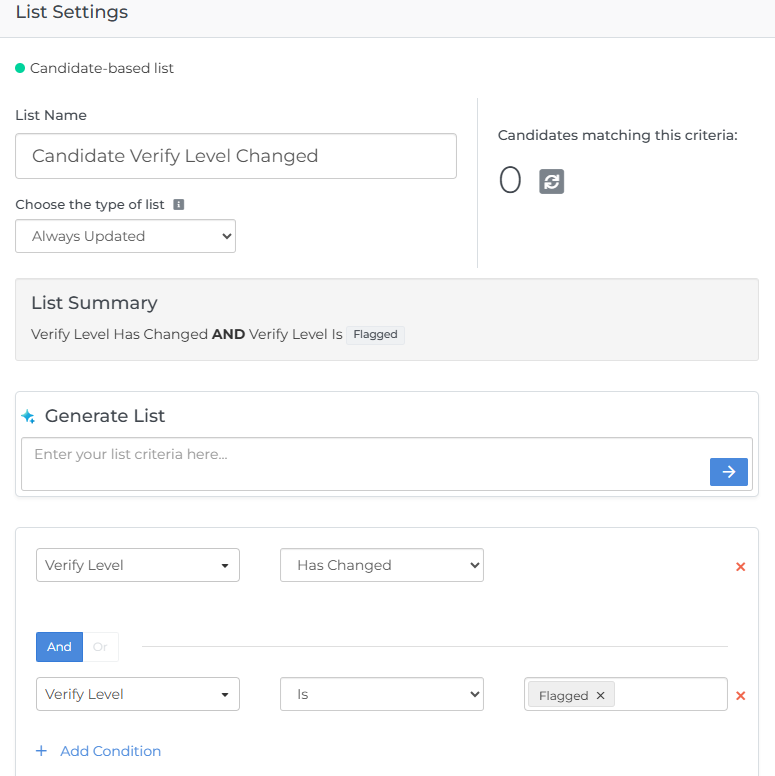
- Verify Level - Has Changed
- Verify Level - Is - Flagged
Note: To notify recruiters only when a candidate is cleared, use Clear instead of Flagged. To notify recruiters of any level change, select both Flagged and Clear.
- 3
Add a Send Notification step
Set the recipients to the Candidate Owner and Candidate Secondary Owners. The blueprint includes a pre-built notification template, but you can customize the content to include additional context, or build your own from scratch.
- 4
Add an End step
Once the notification has been sent, the candidate exits the automation. Because re-entry is allowed, they can re-enter if their Verify Level changes again in the future.
Settings checklist
Before activating the automation, confirm the following settings are configured.
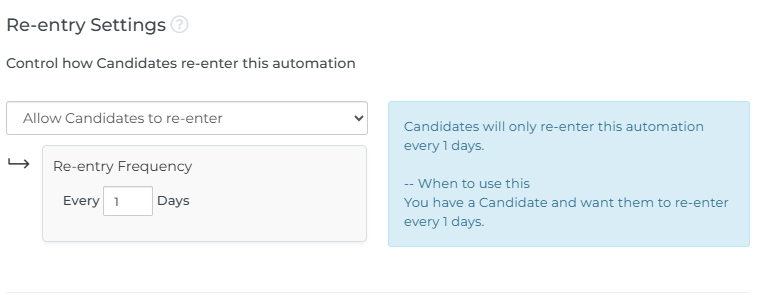
- Re-entry Settings: Set to Allow Candidates to Re-Enter, then set the frequency to "Every 1 Days". This ensures recruiters are notified each time a candidate's Verify Level changes, not just the first time.