Adding Filters
Filters help you target exactly the right candidates by combining multiple field criteria. Use them to narrow results by skills, work history, notes, or even empty fields, giving you full control over who appears in your search results.
You'll typically use filters when you want to:
- Refine an advanced search by location, skills, or work history.
- Combine multiple data points such as job title and candidate status in one search.
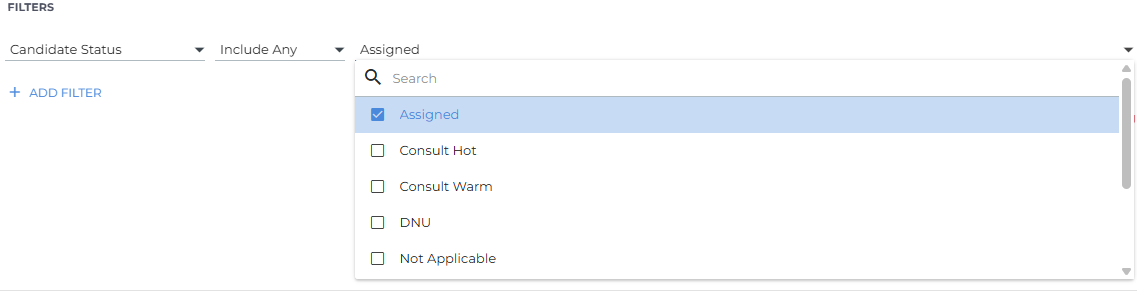
- Include or exclude candidates using operators like Include Any, Include All, Exclude, or Is Empty?.
- Identify incomplete records, such as candidates without phone numbers or email addresses.
Adding Filters in Advanced Search
Adding filters allows you to narrow results across many different parts of the Candidate record, including Notes and Custom Objects. This helps you focus only on candidates that meet your criteria.
- Open Advanced Search from Bullhorn Candidate Search.
- Click + Add Filter.
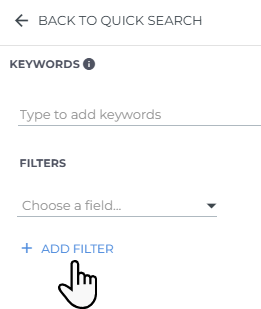
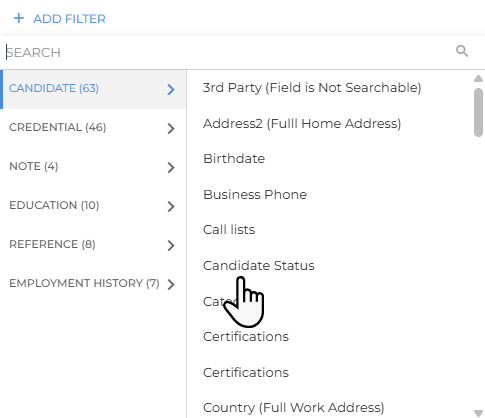
- Select the appropriate tab and choose a filter.
- Apply operators and values to define how each field should be matched.
- Continue adding filters as needed to create a multi-criteria search.
You can filter on:
- Standard Candidate fields (for example, Candidate Status, Email, Home City, Work City)
- Credentials
- Notes
- Education
- References
- Employment History
Location/Address Filters
Location filters help you find candidates in a specific region or radius.
A single field, Full Home Address, searches across all address components at once. This makes it easier to search by any part of an address (city, zip code, and so on).
If you prefer to filter for an individual address field, for example zip code, you can still do so for both primary and secondary address fields.
Filtering By Notes
Filtering by Notes lets you locate candidates based on activity, author, or timing, such as notes created by a specific recruiter or on a certain date.
- Click + Add Filter.
- Select the Note tab to access note-specific filters.
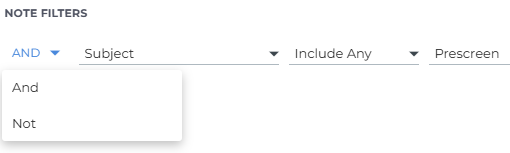
- Choose a field such as Subject (currently with limited functionality), Assigned to ID, Created Date, or Description.
By default, note filters use the AND operator, meaning the system returns candidates who have at least one note matching each criterion. You can change the operator to NOT from the dropdown to exclude candidates with those note types.
Using Filter Operators
Each field you add includes an operator that controls how the filter behaves. The available operators vary depending on the field type (for example, numeric or text). Understanding these helps you build more effective searches.
| Field Types | Supported Operators | Supported Values | Example Fields |
|---|---|---|---|
| ID |
|
Positive integer | ID |
| Text |
|
Text input converted to chips (type and press Enter to add a chip) | Name, Resume |
| Number |
|
Number | CustomInt, Desired Pay Rate |
| Date, DateTime |
|
Date, DateTime, Date Range |
|
| Picker |
|
Options list. Tip: You can also use free text to search for values that are not in the current options list.
|
Status, Categories |
| Boolean |
|
True, False | Willing to Relocate, Work Authorized, Custom Fields with a "Radio" edit type |
| Address |
|
Address 1, Address 2, City, State, Country, or Zip Code | Full Address |
Using the "Is Empty" Operator
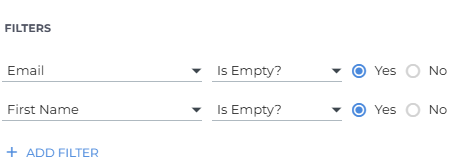
Sometimes, identifying missing data is just as important as finding matches. The Is Empty operator lets you search for records where a field has no value.
For example:
- To find candidates without an email address or first name, add the Email and First Name fields and select Is Empty.
- Once identified, you can update or archive these incomplete records to improve data quality.
Running periodic "Is Empty" searches helps you maintain a clean and complete candidate database.