Quick Search
This article covers the Quick Search feature in Bullhorn Search for Recruitment Cloud. Use Quick Search to instantly locate saved and recent searches. This helps you get to the right records faster and maintain your workflow momentum.
You'll typically use Quick Search when you want to:
- Re-run a search you used recently.
- Search by a keyword that matches a saved or recent search title.
What is Quick Search?
Quick Search gives you fast access to recent and saved candidate searches directly from Bullhorn Candidate Search. It's designed to help you quickly recall previous searches and find candidates without needing to dive into Advanced Search.
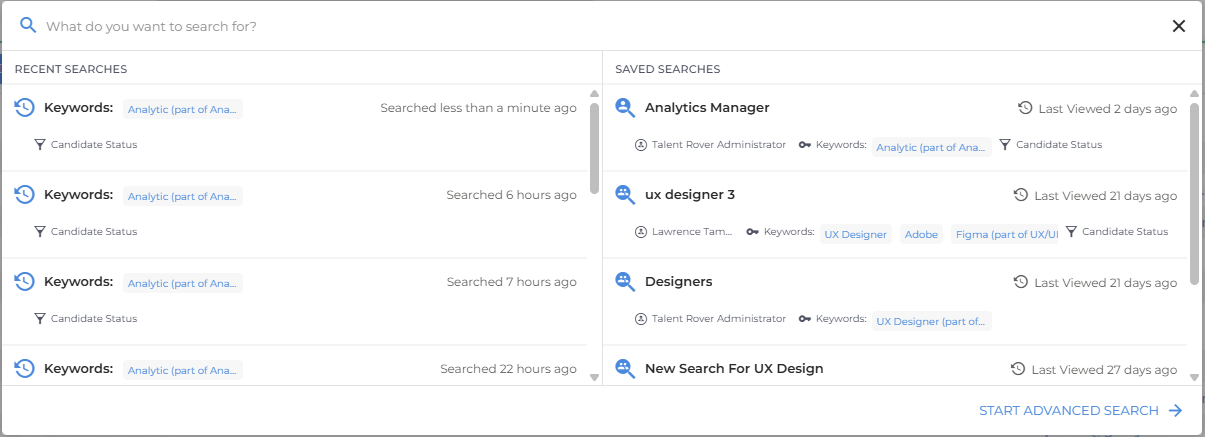
When you open Quick Search, you'll see:
- Recent Searches on the left: Your recently used search criteria.
- Saved Searches on the right: Any searches you've saved or that others have shared with you.
As you type in the Quick Search bar, the list filters automatically to show searches with names that include your typed keywords.
How to Use Quick Search
These steps show you how to open Quick Search and launch your saved or recent searches directly from Bullhorn Candidate Search.
- Go to Bullhorn Candidate Search.
- Click the Quick Search bar at the top of the list.

- You'll see Recent Searches on the left, and Saved Searches on the right.
-
Start typing in the bar to filter and find saved searches with matching keywords in the title.
- Start typing in the bar to filter and find saved searches with matching keywords in the title.
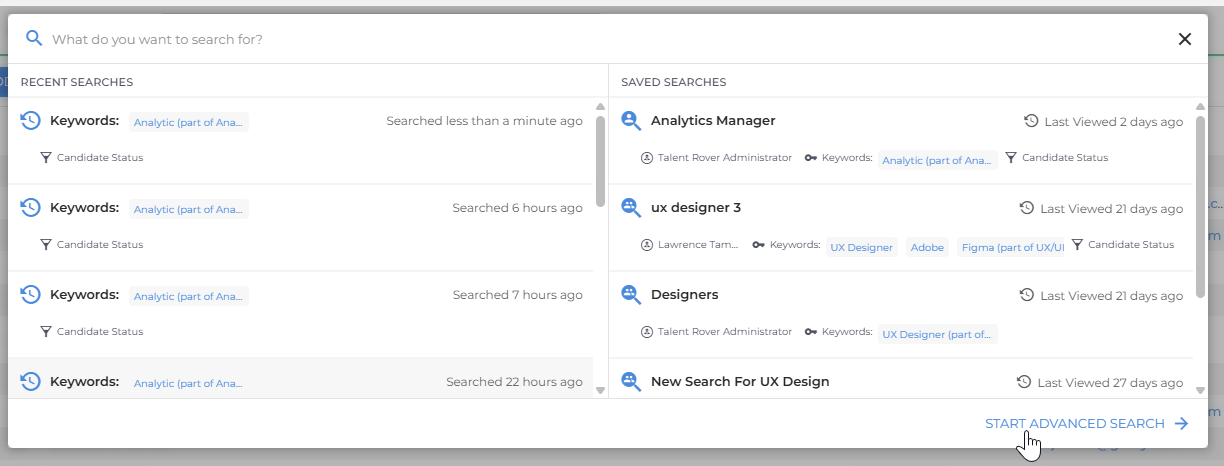
- Click any Recent or Saved search to launch Advanced Search with the same criteria pre-filled.
- To create a new search from scratch, click Start Advanced Search at the bottom of the Quick Search dropdown.
Use clear, descriptive titles when saving your searches so you can find them more easily through Quick Search later.