Quick Filters and Users Filter
Filtering options help you narrow results quickly and stay focused on the candidates that matter most. With Quick Filters, you can keep your preferred filters visible at all times, while the enhanced Users filter makes it easier to search by ownership or department group.
These filters let you:
- Quickly view only candidates you own or who belong to your department.
- Focus on candidates added or updated within a specific time period.
- Narrow results to candidates with a particular status or category.
- Adjust or clear filters on the fly while reviewing search results.
Using Quick Filters
Quick Filters help you keep key filters visible across the top of the Candidate List, so you can refine searches without opening Advanced Search.
- At the top of the Candidate List, click Add Filter +.
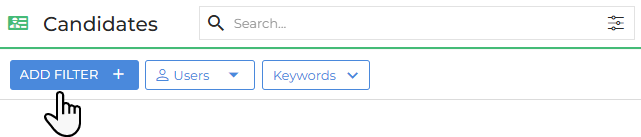
- Search for and select the field you want to filter on (for example, Owner, Status, or Category).
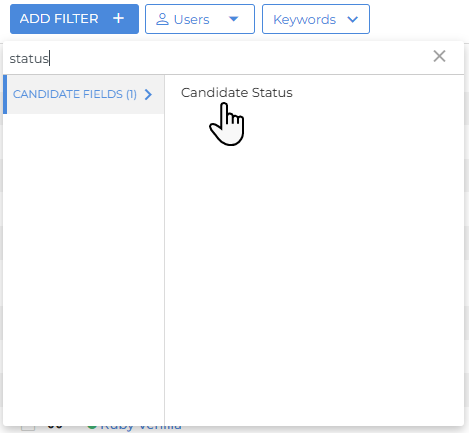
- Choose your criteria and click Apply.
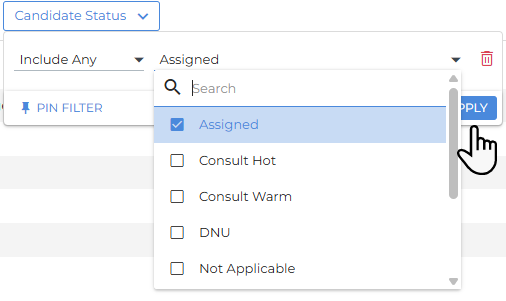
- The selected filters now appear across the top of the Candidate List.

Quick Filters sync automatically with Advanced Search, so changes you make in one view appear in the other. This keeps your searches consistent across different workflows.
You can adjust filters instantly without leaving the list. This is ideal when you're screening candidates and need to pivot between roles, stages, or ownership.
Using Column Filters
As an alternative to Quick Filters, you can apply a Column Filter. Column Filters are another way to refine searches without opening Advanced Search.
- Click the filter icon in the column header for the field you want to filter (for example, Category or Location).
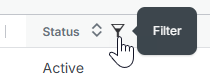
- The criteria panel opens at the top of the list.
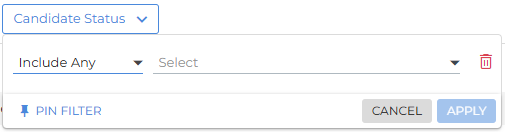
- Select your criteria and click Apply to narrow your results.
Like Quick Filters, Column Filters sync automatically with Advanced Search, so changes you make in one view appear in the other.
Using the Users Filter
The Users filter helps you view records based on candidate ownership or departmental grouping.
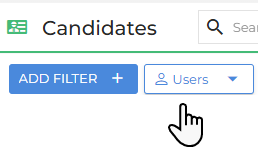
Departmental grouping is not yet supported.
You'll find the Users filter next to the + Add Filter button.
- Click the filter to open a layout showing both users and groups (departments).
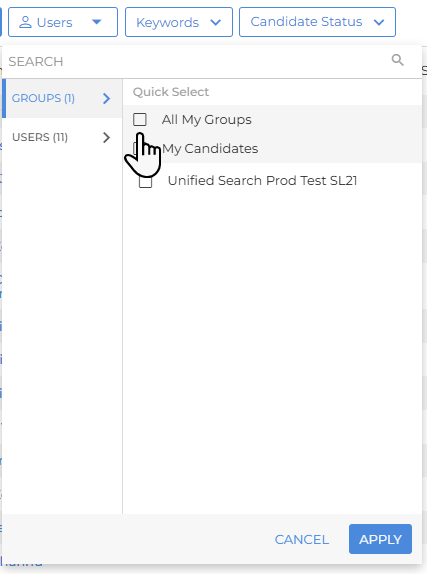
- Select one or more users or groups to display only the candidates owned or managed by them.
This filter makes it easy to collaborate or divide workload. For example, you can focus on candidates owned by your team or see all records from a specific branch.