Saved and Recent Searches
Saved and Recent Searches help you quickly return to your most useful or frequently run searches without recreating filters from scratch. This keeps your workflow efficient and makes it easy to find the right candidates.
Accessing Saved and Recent Searches
Use these steps to open your saved and recent searches directly from Bullhorn Candidate Search.
- Open Bullhorn Candidate Search.
- Click the Quick Search bar at the top.

- appear on the left.
- appear on the right.
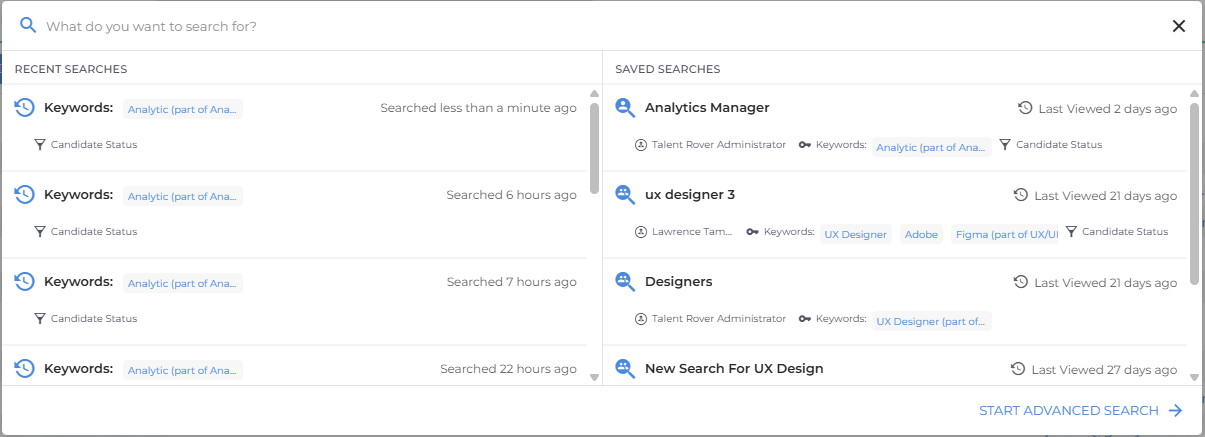
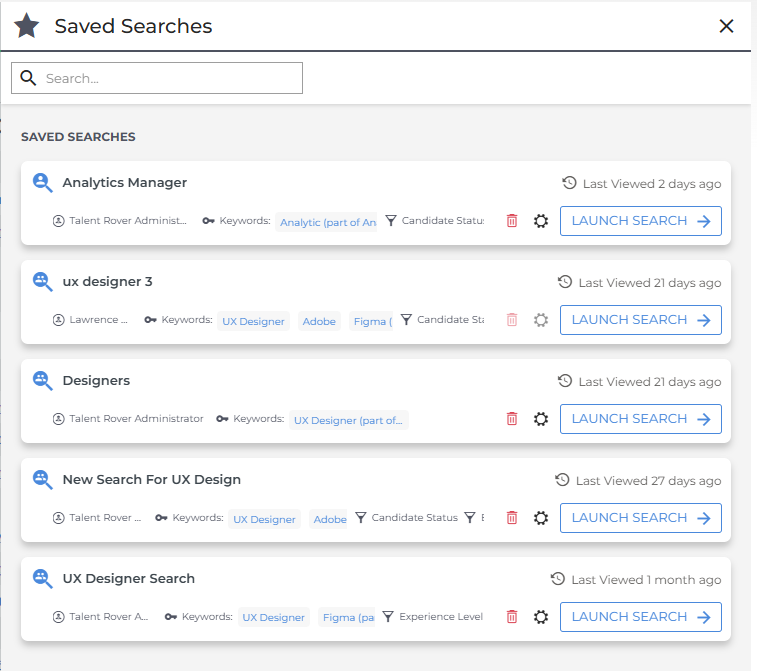
To view your full list of saved searches, you can also click the Saved button at the top of Bullhorn Candidate Search.
A side panel opens to display all your saved searches.
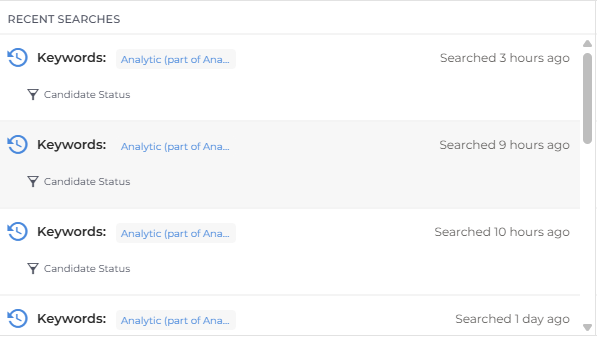
Recent Searches
Recent Searches show the search criteria you used previously and how long ago each search was run. This lets you quickly reopen prior results to continue where you left off.
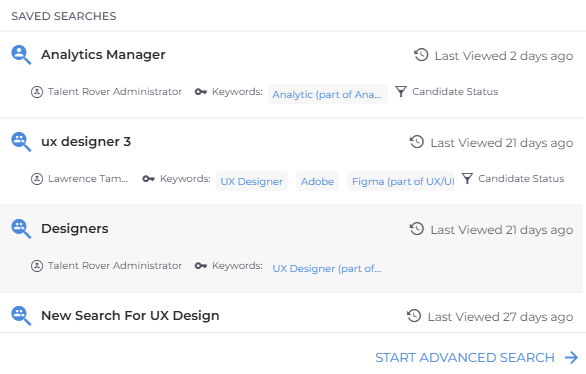
Saved Searches
Saved Searches let you preserve complex filters for reuse. They appear in order of creation, with the most recent listed first.
You'll also see any public saved searches created by other users in your corporation. Each search shows helpful context like who created it and which filters were used, so you can choose the right one quickly.
Editing a Saved Search
When you open a saved search, you can adjust filters or criteria to refine your results.
To update or save a modified version:
- With your saved search open, click Edit Search in the search bar.

- Make your filter or keyword changes.
- Click Save Search.
- Choose whether to update the existing search or save it as a new one.
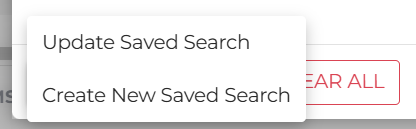
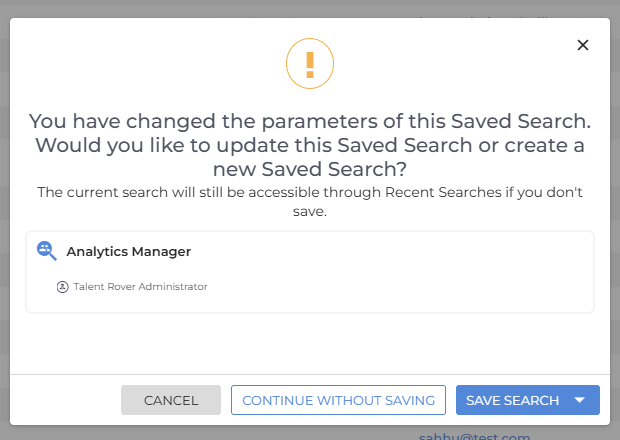
If you make changes and attempt to navigate away, Bullhorn Candidate Search prompts you to update the current saved search, save as new, or continue without saving.
You'll see this prompt if you:
- Click Clear All inside Advanced Search.
- Click Back to Quick Search and conduct a new search.
- Click into a different saved search.
- Remove the saved search from the search bar.
Public and Private Saved Searches
You can choose whether your saved search is visible to others:
- Public saved searches are visible to everyone in your corporation.
- Private saved searches are visible only to you.
Icons beside each saved search show its visibility status. You can change visibility at any time when updating a saved search you own.
-
 = Public
-
 = Private
You can change visibility at any time when updating a saved search you own.
Sharing a Saved Search with Specific Users or Groups
Groups are not yet supported.
If you want to share a saved search with select teammates or departments, you can do so directly from the Saved Search panel.
To share a saved search:
- Open the Saved Search panel.
- Click the Edit icon next to the search you want to share.

- From the Access dropdown, select Public.
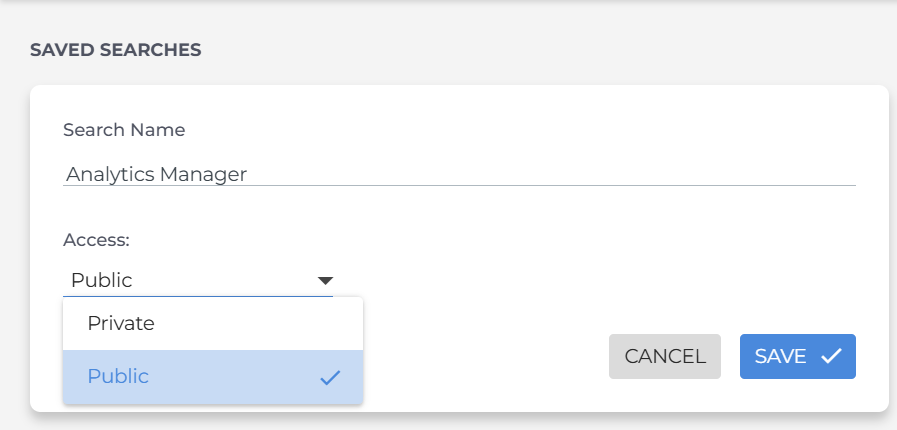
- Optional: Use the Share with field to limit sharing to specific users or groups.
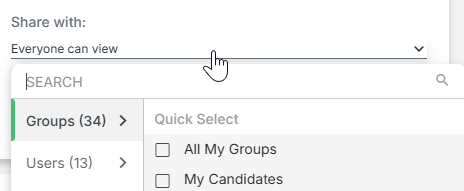
Public saved searches are visible to all users by default. The Share with option lets you limit visibility to specific individuals or groups instead.