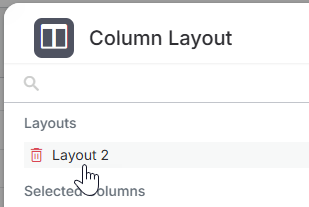
Column Layout
You fully control how information is displayed so you can focus on the data that matters most.
The Column Layout tool lets you:
- Display key candidate data like status, category, or ownership at a glance.
- Hide less relevant fields to simplify your view.
- Reorder columns to match how your team works.
- Save different layouts for specific workflows, such as sourcing, screening, or placement tracking.
- Restore your preferred setup after changing the column layout.
Modifying the Column Layout
Customizing your columns helps you tailor the Candidate List to your workflow. You can drag and drop columns directly in the list for quick adjustments, or use the Column Layout window to add, remove, and reorder fields in more detail.
Using Drag-and-Drop
You can reorder columns by clicking and dragging any column header to a new position. This lets you adjust your layout on the fly without opening the Column Layout window.
Using the Column Layout Window
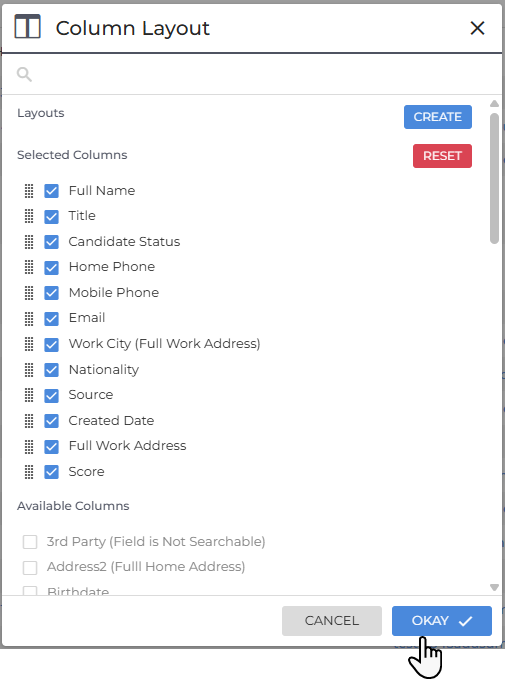
The Column Layout window provides a more detailed way to manage your columns. You can reorder, add, or remove columns and save your preferred layouts for later use.
- Open the Candidate List.
- Click Columns in the top-right corner of the list.

- In the Column Layout window:
- Check a field to include it.
- Uncheck a field to remove it.
- Click and drag the grid icon (
 )next to a field to move it within the Selected Columns list.
- When you're satisfied with your view, click Okay to save your changes.
If you frequently change columns for different tasks, consider saving separate layouts for each use case.
Saving and Managing Custom Layouts
Custom layouts let you quickly switch between different views. For example, you can create one layout focused on active candidates and another for those awaiting client feedback.
To create and save a layout:
- Click Columns to open the layout window.

- Select or arrange the columns as desired.
- In the Layouts section, click Create.
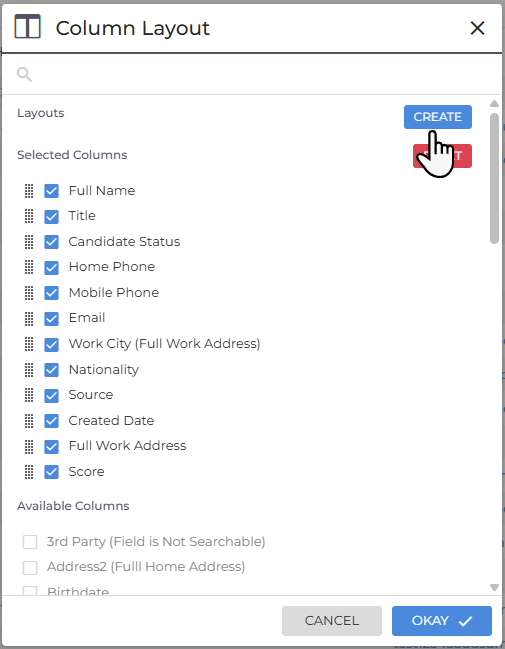
- Enter a name into the Layout Name field.

- Click Okay to save, or Cancel to discard your changes.
Your saved layouts appear in the Layouts menu. Select a layout anytime to switch views instantly.