Keyword Search
This article explains how to use Keyword Search in Bullhorn Recruitment Cloud to find candidates by specific skills, job titles, or experience, and how to control which candidates appear at the top of your results.
Use Keyword Search when you want to:
-
Find candidates with a specific skill, certification, or job title in their records.
-
Combine several terms (for example, Java and Spring) to narrow your results.
-
Rank candidates by the skills that matter most for the role.
-
Remove candidates with unrelated experience.
Adding Keywords to Your Search
Use keywords in Advanced Search to target candidates by relevant terms across multiple data points.
- Open Advanced Search.
- In the Keywords field, type a word or phrase that should appear in candidate records.
- Press Enter after each keyword to add it to your search.
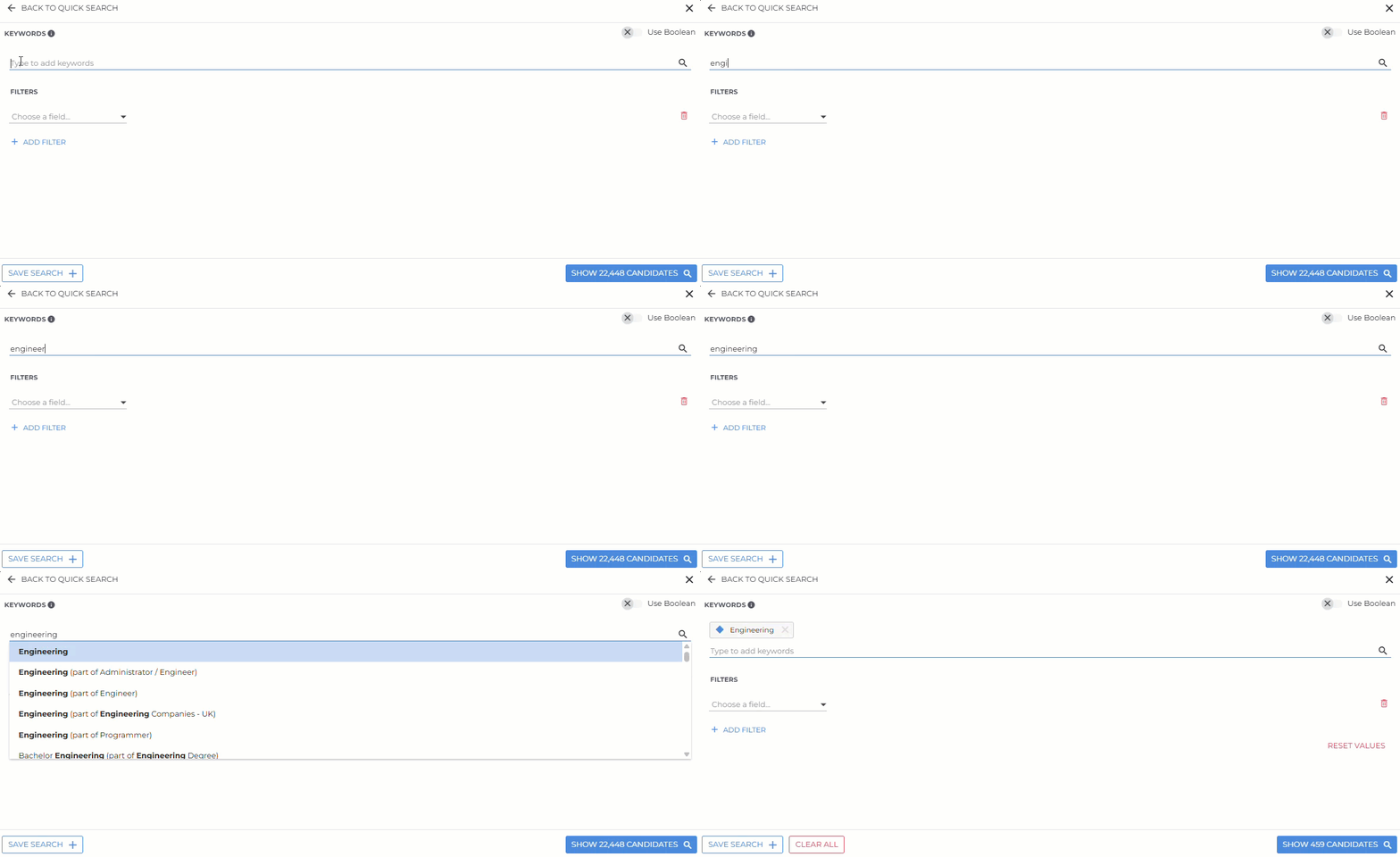
Keyword Search searches across these candidate fields and data points:
- Candidate Name
- Occupation
- Current Company
- Resume
- Work History
Matching terms appear highlighted in the resume preview so you can see exactly where each keyword was found.
Combining Keywords with AND and OR
You decide how keywords are combined, so your search returns exactly the right set of candidates.
Match All Keywords (AND)
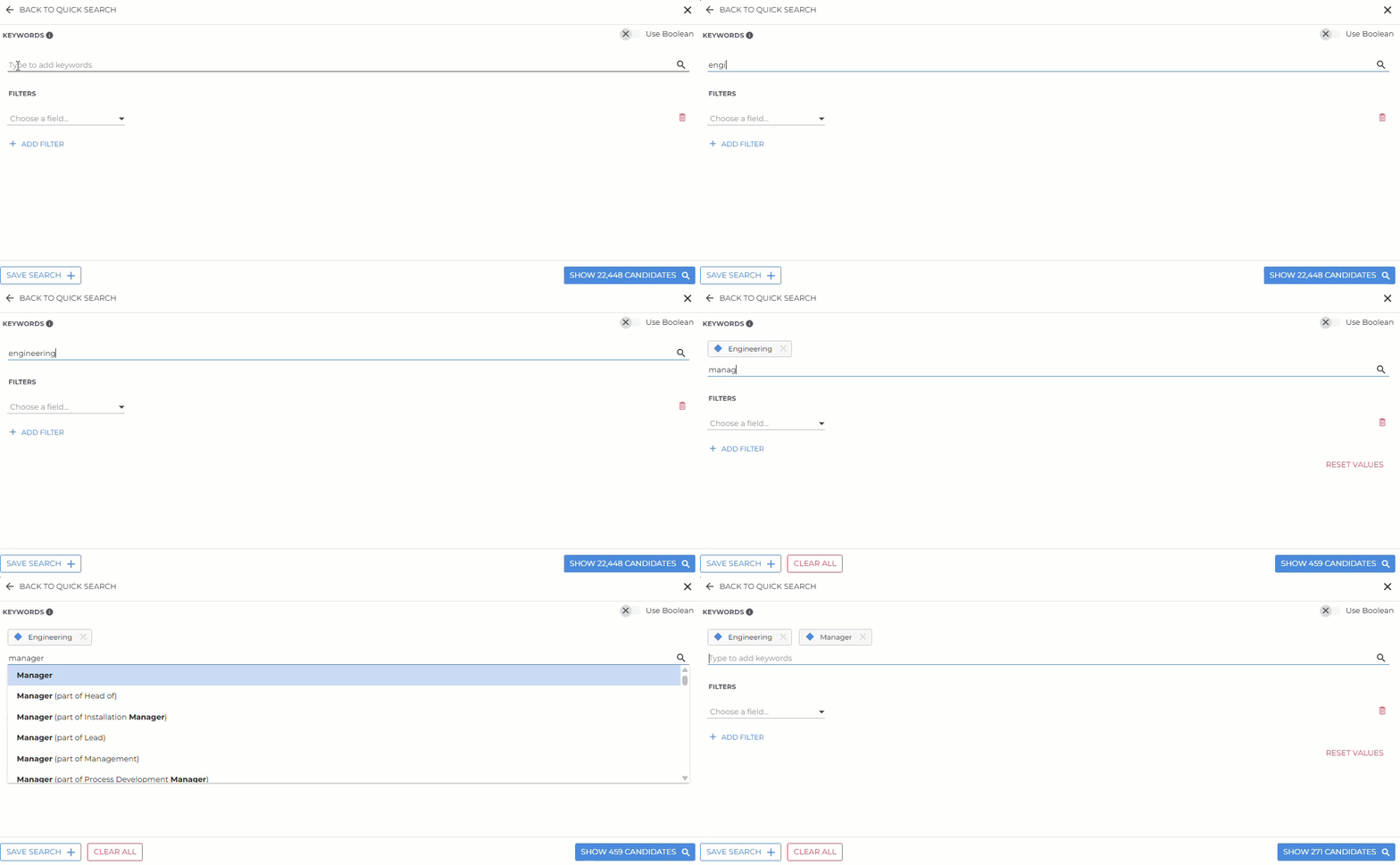
- By default, each new keyword you add is treated as an AND condition.
- Results include candidates who match all of the grouped terms.
Match Any of Several Keywords (OR)
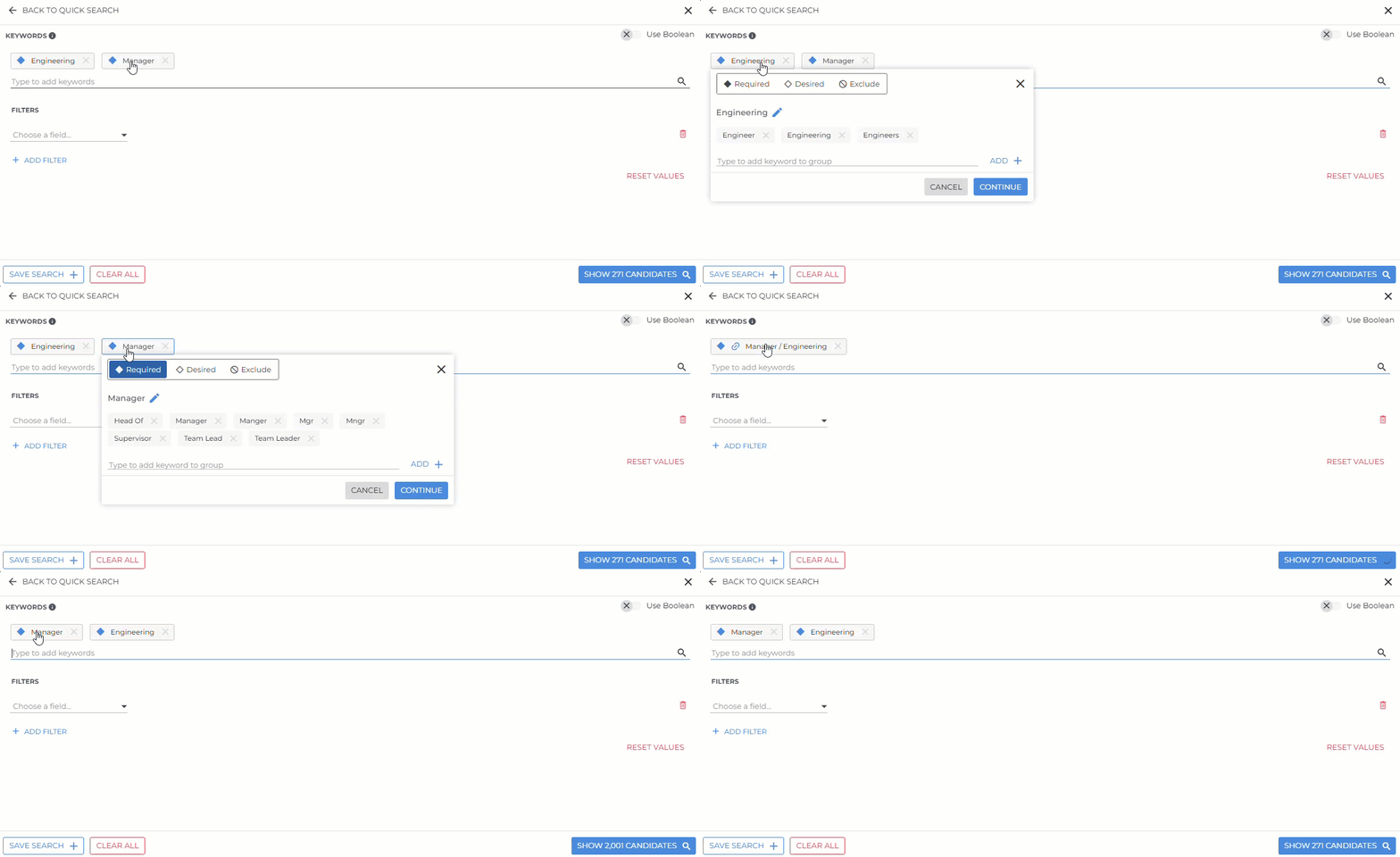
- Drag and drop multiple keywords together to create a group.
- The system treats grouped keywords as an OR condition.
-
Results include candidates who match any of the grouped terms.
-
Select Unmerge to separate the keywords back to an OR condition.
Using Keyword Expansion
Keyword expansion automatically adds related terms to each keyword, so you find candidates who describe the same skill in different words. For example, a search for UX Designer also looks for User Experience Designer, UX/Ui Designer, etc. Related terms are searched in the same candidate fields as your keyword.
To review or change the related terms:
- In the Keywords field, click a keyword you added. The related terms appear below the keyword name.
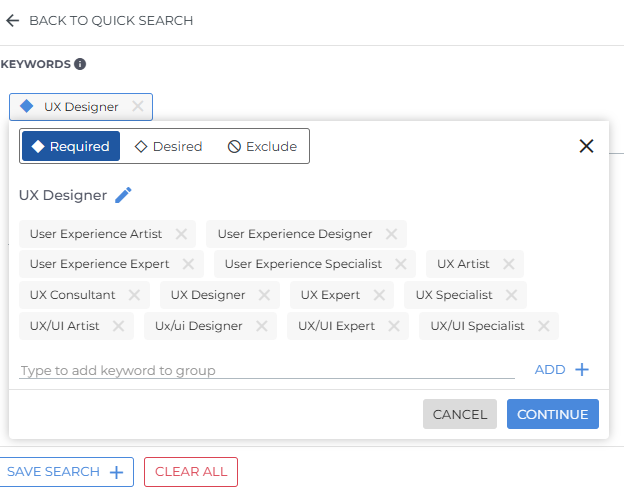
- To remove a related term, click the X next to it.
- To add a related term, type it in the Type to add keyword to group field and click Add.
These added terms - Click Continue. The keyword changes are saved.
Setting Keyword Priority
Set each keyword to Required, Desired, or Exclude to control how candidates are ranked and which candidates are removed.
- In the Keywords field, click a keyword you added.
- In the window that opens, select Required, Desired, or Exclude.
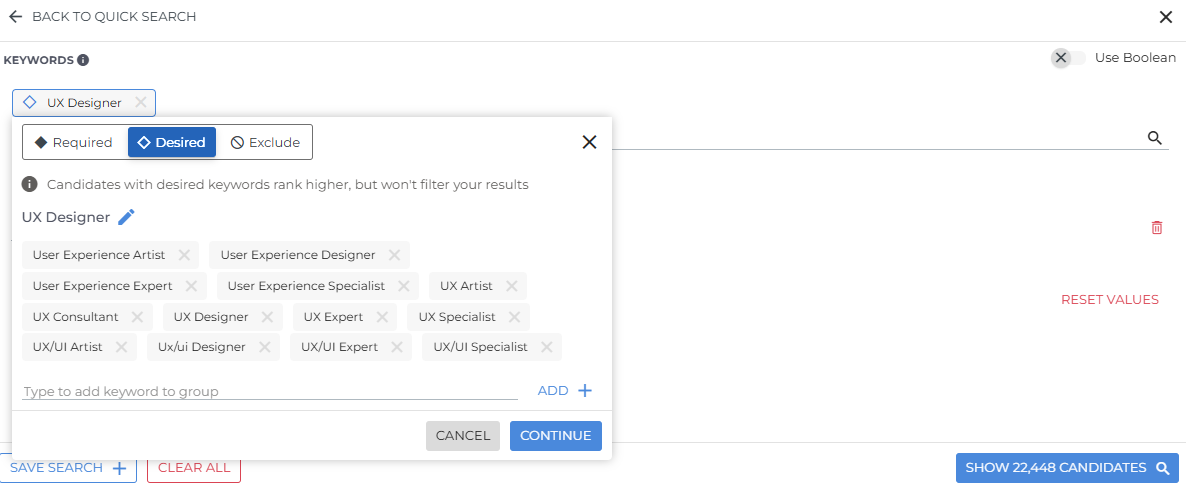
- Click Continue.
Each option works as follows:
- Required: The keyword group acts as a filter. Within a group, at least one of the terms needs to match. A filled diamond (
 )appears next to the keyword.
- Desired: Candidates matching any of the keywords in the group rank higher, but the keyword doesn't filter your results. An outlined diamond (
 )appears next to the keyword.
- Exclude: : Candidates with any of the keywords within the group are removed from your results. A red icon (
 ) appears next to the keyword.
You're hiring a Java developer who ideally has Spring experience. You set Java to Required and Spring to Desired. A candidate with Java experience and no Spring experience ranks above a candidate with Spring experience and no Java experience. If two candidates have the same Spring experience, the one with more Java experience ranks higher.
You add Java and Spring and set intern to Exclude. Your results show developers with both skills and remove candidates whose records mention internships.
Switching to Boolean Search
If you prefer writing your own Boolean logic, you can toggle on Use Boolean to take full control of your search.
When Boolean mode is enabled:
- You can type Boolean strings directly (for example, ("Java" OR "Python") AND "developer").
- Any keywords you added earlier are cleared. You'll see a confirmation message before switching.
- You can mix AND, OR, NOT, and parentheses for precise control of complex logic.