Taking Action on Search Results
You can take action on candidates from the Candidate List. Whether you're sending an email, adding to a tearsheet, or updating statuses in bulk, you can manage your workflows directly from search results.
You'll use these tools when you want to:
- Email multiple candidates from your search results.
- Add several candidates to a tearsheet or distribution list.
- Perform a quick status change or ownership update.
- Create tasks or submissions in bulk.
- Export a list of candidates for offline reporting.
Taking Bulk Action on Multiple Candidates
Bulk actions let you perform updates across many records at once, saving time on repetitive tasks.
To select candidates:
- To select multiple records, click the checkbox next to each candidate.
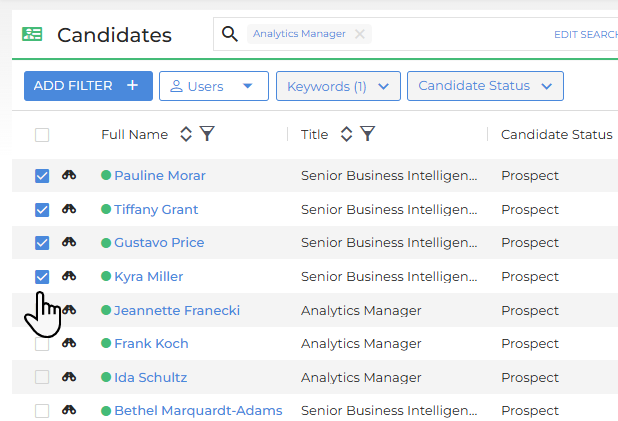
- To select all records on the current page, use the checkbox at the top of the list.
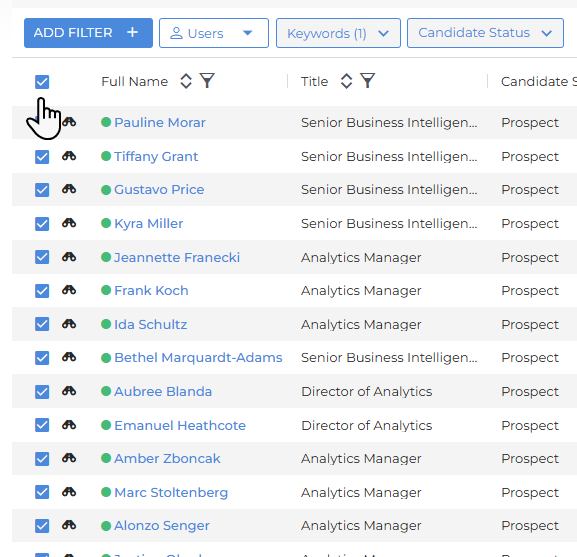
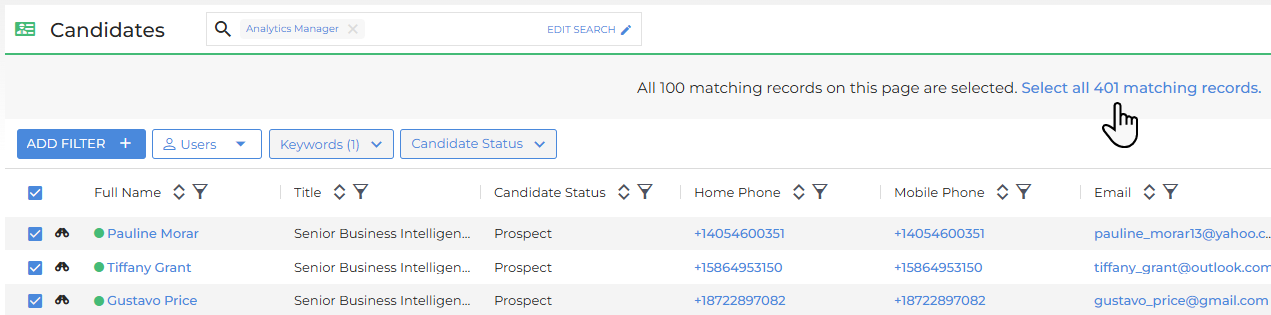
- To select all matching results (not just the current page), use the checkbox at the top of the list and then click the Select all matching records message that appears at the top.
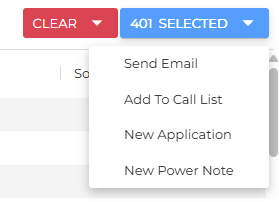
After you make your selection, click the [X] Selected button in the top-right corner to see available bulk actions.
Bulk Actions for All Matching Records
The available actions may be different depending on your account configuration. All actions are limited to a maximum of 2000.
Currently, you can take the following actions against all matching records:
- Send Email
- Add To Call List
- New Application
- New Power Note
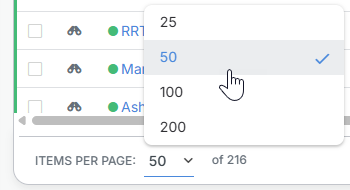
Managing Items Per Page
Pagination in the Candidate List replaces infinite scroll, giving you better control over how many candidates you see at once.
At the bottom of the list, you'll find:
- Page navigation controls (arrows and page numbers).

- An Items Per Page setting, where you can choose to display 25, 50, 100, or 200 candidates per page.
Sorting Results
To sort the candidate list, click the arrows icon next to any column header.

Click once to sort in ascending order. Click again to reverse the sort direction.