Fieldglass Submittals: Number Format Locale
VMS Sync Submittals allows you to submit a candidate for a job directly to the VMS from within Bullhorn ATS. Once you have submitted a candidate for a job, Bullhorn creates a submission/client submission record and updates the status based on VMS updates. For Fieldgalss Submittals, rate fields on the Fieldglass Submit to VMS form mirror the Number Format preference set in your Fieldglass account.
Input format must match the configured locale. Free-form entry in any format is not supported.
How It Works
The Bullhorn Submit to VMS form for Fieldglass is designed to align as closely as possible with what you would see when submitting directly in the Fieldglass UI. Rate field formatting (specifically the decimal separator) reflects the Number Format you have configured in your Fieldglass account settings.
-
US/standard locale: period as decimal separator (e.g., 1,700.00)
-
European locale: comma as decimal separator (e.g., 1.700,00)
Commas are only valid as decimal separators when Fieldglass's Number Format is set to European style. Using commas as thousands separators (e.g., 1,700.00) with European style selected in Fieldglass does not work. Fieldglass does not use or accept commas in that context. The submittal form does not support free-form input that does not match the Fieldglass Number Format.
How to Update Number Format in Fieldglass
If a user needs to change their Number Format preference (for example, to enable comma as decimal separator), follow these steps.
-
Log in to Fieldglass and go to the home page.
-
Click the circle icon with your initials in the top-right corner.
-
Click Settings in the popup menu.
-
Scroll down to the Language and Region section.
-
Click Edit in the top-right corner of that section.
-
Update the Number Format dropdown to the desired locale format (e.g., #.##9,99 (Example: 1.234.567,99)).

-
Click Update to save changes.
After saving, rate values in Fieldglass position details immediately reflect the new format.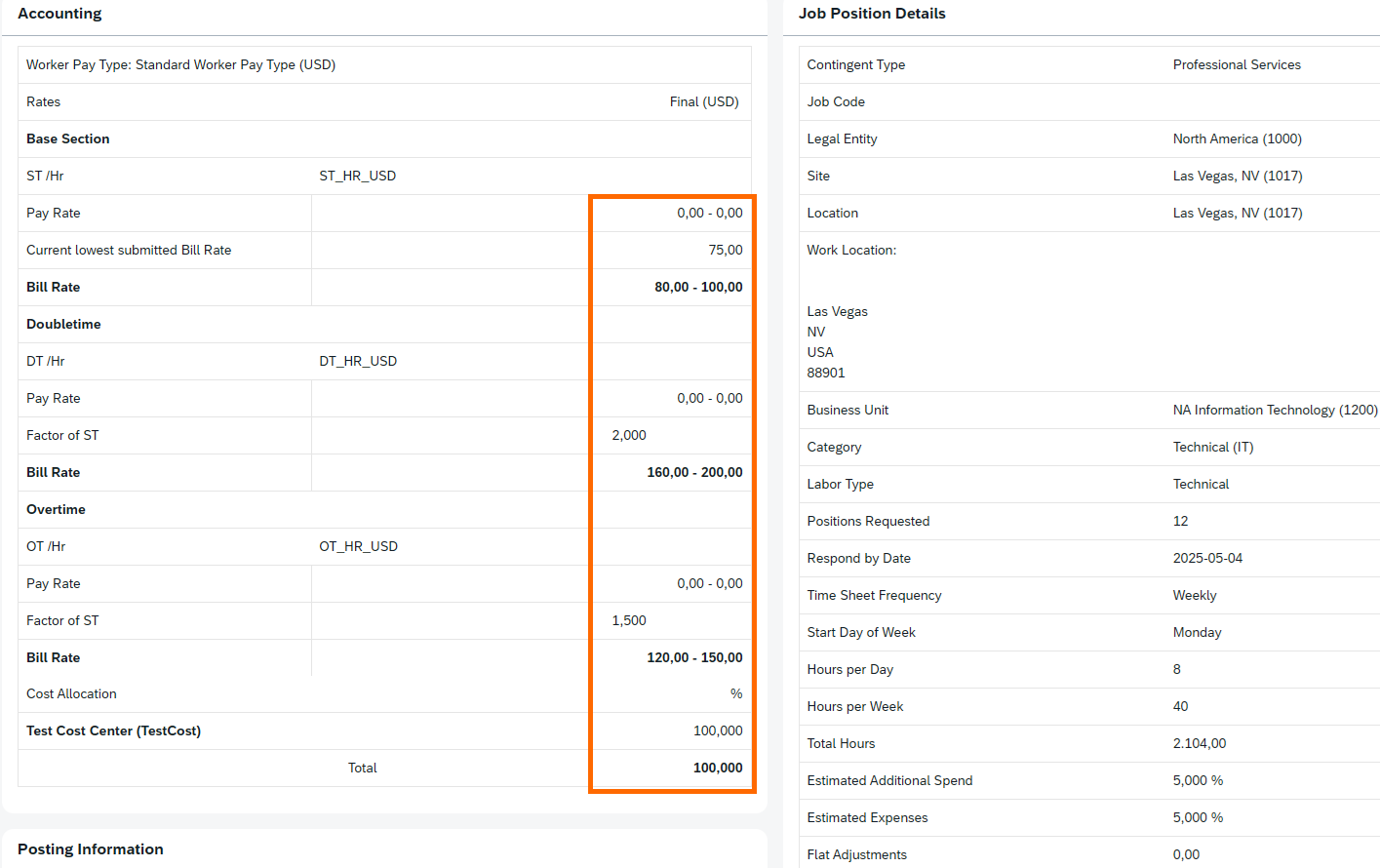
The number format preference is also visible in vmsRawData on synced positions in VMS Sync.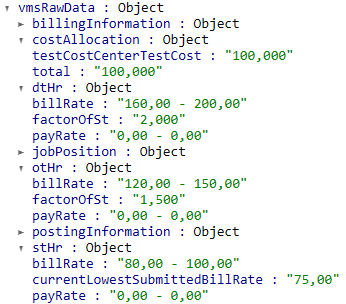
Refreshing the Submittal Form
After a Number Format change in Fieldglass, the submittal form must be refreshed to pick up the new format.
-
Use the Refresh button (upper-right corner of the submittal form) to reload the current number format.

-
For a full reload including default values and submittal mappings: close and reopen the submittal form after refreshing.
-
Switching between individual rate fields and a rate table also requires a form refresh.