Send Text Message to Candidate
Use these instructions to send text message to a Candidate.
The Candidate’s record must have the text message permissions set in order to use this workflow.
Text-Em-ALL is used as a default text partner to send a text message.
-
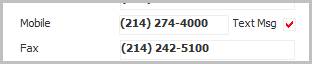
Verify the Text Msg permission is selected on the Candidate’s summary segment. If the option is not selected, edit the summary segment and select the option prior to starting the Send Text Message workflow.
-
Select Send Text Message from the Calls and Emails menu in the Activities drop-list. You will be redirected to the text vendor's messaging window.
The Text Vendor URL that you will be redirected to is the one you have set under Manage Partner Integrations.
If Text-Em-ALL integration is inactive, 'Please contact your Customer Success Manager for text messaging options' message is displayed when Send Text Message is clicked.
- Type in the message and click the Send icon to send the message.
Verify the Text Message entry is posted to the journal. The activity details will be saved and will be available for reporting purpose.