Send Letter to Candidate
Use these directions to send a candidate a general letter.
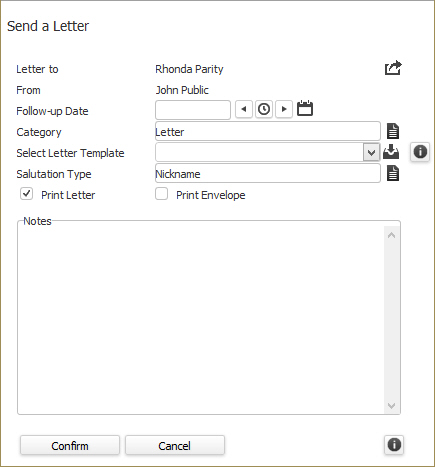
- Select Send a Letter from the Calls and Emails menu in the Activities drop-list.
- The Send a Letter workflow will open in a new window. While updating the form notice that fields marked in red are required to complete the workflow; and that by clicking on the buttons to the right of certain fields, a new window will open, allowing you to search and select options related to that specific field, or choose a date.
- On the Select Letter Templatefield, use the droplist to see a list of available templates. You can click
 to access the Template Picker. (See Custom Templates.) You can click
  to access a Word document displaying all merge fields that can be added to a template.
 - Enter notes as necessary; these notes are posted to the journal entry only.
-
Click Confirm to generate the letter.
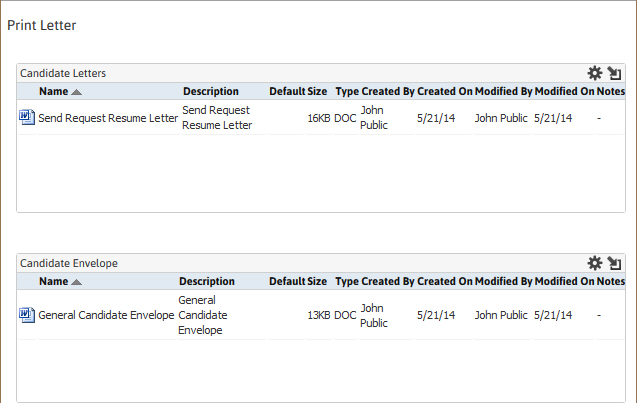
- If Print Letter AND Print Envelope were checked in the prior view, the document control window will open with both documents available for viewing and printing.
- Double clicking on the file names will open the documents in MS Word.
-
Click Close to close the document control window.
-
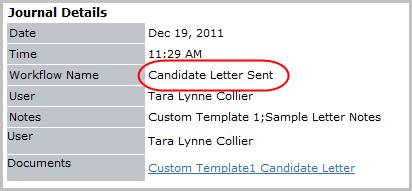
Verify the Candidate Letter Sent entry and notes from workflow posted to the journal.
Was this helpful?