Send Email to a Candidate
Use these instructions to email a candidate.
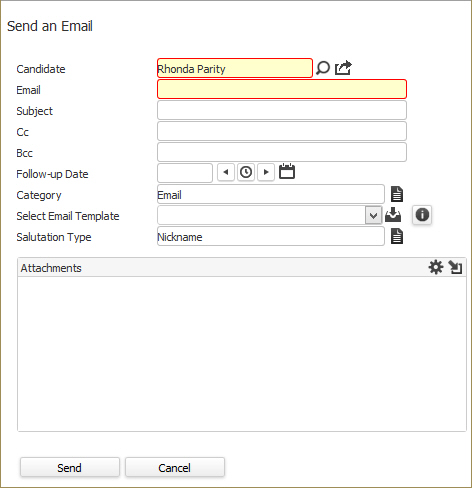
- Select Send an Email from the Calls and Emails menu in the Activities drop-list.
- The Send an Email workflow will open in a new window. While updating the form notice that fields marked in red are required to complete the workflow; and that by clicking on the buttons to the right of certain fields, a new window will open, allowing you to search and select options related to that specific field, or choose a date.
- Enter the Subject of the email, email addresses to copy on the email and schedule a Follow-up by entering the date.
- On the Select Email Template field, use the droplist to see a list of available templates. You can click
 to access the Template Picker. (See Custom Templates.) You can click
  to access a Word document displaying all merge fields that can be added to a template.
 - Attach an additional document as needed by clicking on the
 icon.
icon. -
Click Send to complete the Adapt workflow and launch an email from Outlook.
-
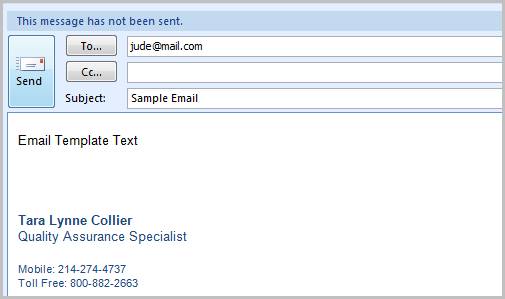
Once you select send, a new email from your integrated email application will open with the email body populated from the template chosen in the workflow. Your integrated email signature is also merged below the text.Edit the email as necessary and click send.
-
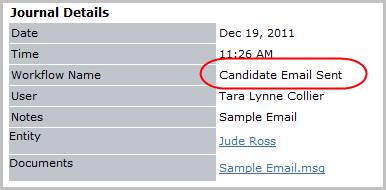
Verify the Candidate Email Sent entry, with the attached email, posted to the journal. The activity details will be saved and will be available for reporting purpose.
Was this helpful?