Accessing and Navigating Amplify Chat
You need Bullhorn Amplify Edition to use this feature.
Amplify Chat is a conversational AI interface that lets you query, analyze, and act on information across your entire Bullhorn environment.
Once enabled by your Amplify Admin, Amplify Chat can be accessed directly from within Bullhorn.
From here, you can open the chat interface, browse prompts, and start interacting with your Bullhorn data using natural language.
Accessing Amplify Chat
You can open Amplify Chat in two ways:
-
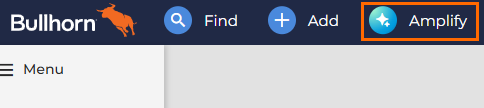
From the navigation bar (if enabled): Click the Amplify icon at the top of your Bullhorn screen.
-
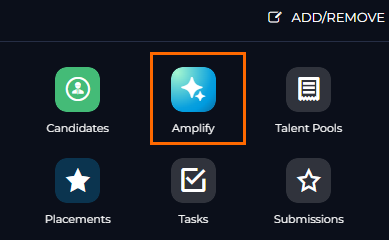
From the main menu: Open your main menu, then select Amplify.
Navigating the Amplify Chat Interface
When you open Amplify Chat, you’ll land on the Chat tab.
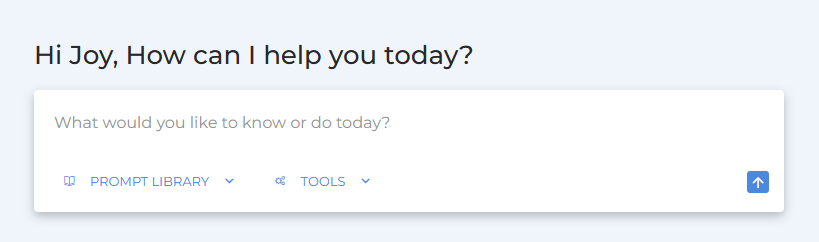
From here, you can type requests, browse prompts, or manage connected tools and data sources.
Key elements:
-
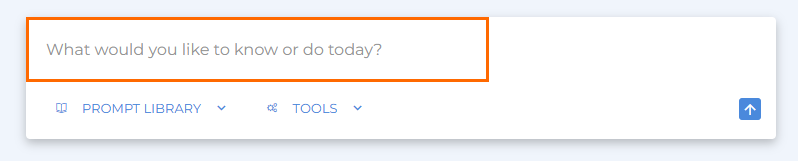
Chat Field: Where you enter your question or request. Amplify uses natural language processing to interpret and respond.
-
See Using Amplify Chat for a guide to asking questions and generating insights.
-
-
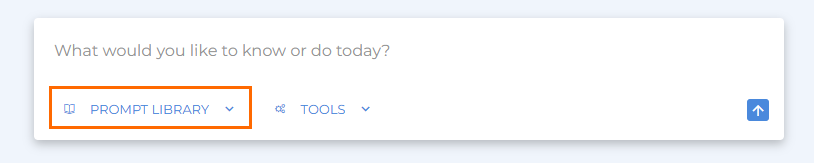
Prompt Library: Browse ready-made prompts for common actions such as generating outreach messages or analyzing records. (See section below.)

-
Tools Menu: Manage which data sources Amplify uses when generating responses. (See section below.)

-
New Chat: Starts a fresh conversation. This clears previous context so earlier messages do not influence your next query.

-
Chat History: Displays your recent conversations from the past 30 days. You can reopen any previous chat to continue where you left off.

Using the Prompt Library
The Prompt Library contains all available prompts for your company, including built-in default prompts and any custom prompts created by your admins in Prompt Studio.
Browsing and Searching Prompts
-
Click Prompt Library in the Amplify Chat interface to view available prompts.
-
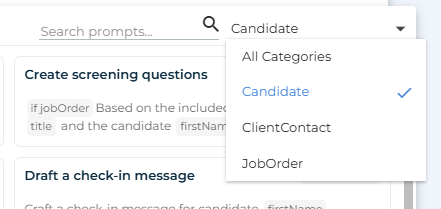
Use the Categories drop down to filter prompts by primary entity, such as Candidate or Job.
-
Use the Search bar to find prompts by keyword (for example, pitch or summary).
-
Running a Prompt
Click on any prompt in the library to run it.
Amplify will open the chat window, load the selected prompt, and guide you through the process of adding relevant context or data before generating results.
For detailed steps on using prompts and reviewing results, see Using Amplify Chat.
Favorite Prompts
If there are prompts you use frequently, click the Star icon to add them to your Favorites list.
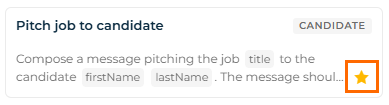
Access your favorites from the Favorites tab for quick reference.
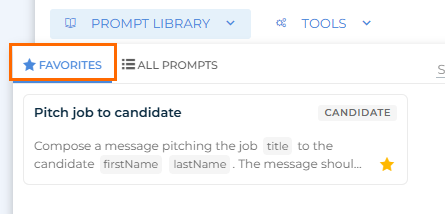
To remove a prompt from your favorites, click the Star icon again to deselect it.
My Prompts
The My Prompts tab contains all the prompts you’ve saved, as well as any prompts other users have saved and shared with you.
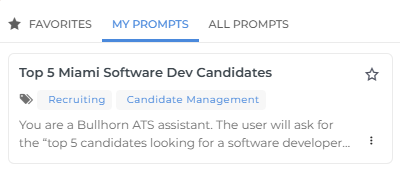
To learn more about saved prompts, see Saving Amplify Chat Prompts.
Managing Connected Tools
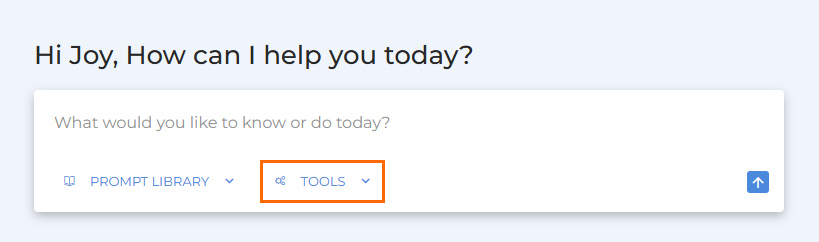
Amplify Chat uses different tools (data sources), to generate complete and accurate answers. Each tool contributes different types of information, and you can adjust which ones Amplify uses via the Tools menu.
-
Click Tools at the bottom of the chat field.
-
Use the toggles to manage access:

-
Toggle all tools on to allow access to all available sources for complete results.
-
Toggle specific tools off to limit responses to selected data sources (for example, turn off Web Search to use only internal Bullhorn data).
-
| Data Source | Description |
|---|---|
|
Bullhorn ATS |
Accesses Bullhorn ATS data and functionality. Amplify can only access the data available to you based on your user permissions. |
|
Bullhorn Analytics |
Pulls reports and insights from Bullhorn Analytics. |
|
Job Feed |
Searches active jobs posted across the web. |
|
Web Search |
Retrieves current information from the internet. |
For internal data queries or reports, you can disable Web Search to keep results focused on Bullhorn data only.
Next Steps
Once you’re familiar with the Amplify Chat interface, learn how to make the most of it:
-
Using Amplify Chat: Learn how to ask questions, generate results, and refine responses.
-
Amplify Chat Best Practices: Get guidance on writing better prompts and using Amplify effectively.