Using Amplify Chat
You need Bullhorn Amplify Edition to use this feature.
On October 16, 2026, Bullhorn is upgrading the language model that powers Amplify. After the upgrade, your prompts may produce slightly different results. See Amplify LLM Model Upgrade: October 2026 to learn how to test and adjust your prompts before then.
With Amplify Chat, you can ask natural-language questions to explore your Bullhorn data, generate insights, and perform actions across multiple records.
This article covers how to ask questions, how Amplify processes requests, and how to interpret your results and manage your chats.
Asking Questions
Type your question or request directly into the chat field, then press Enter or click the up arrow ( ) to send.
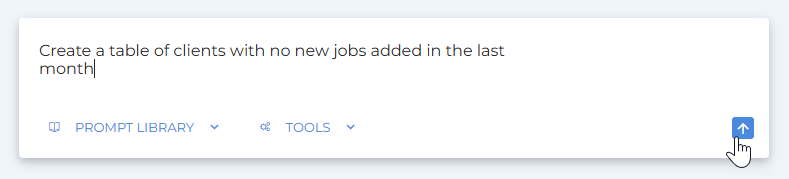
Amplify can interpret conversational phrasing and will automatically use connected data sources to return results.
Amplify Chat can help with:
-
Data analysis: “Create a table of clients with no new jobs added in the last month.”
-
Record summaries: “Give me a quick summary of [Company Name].”
-
Performance metrics: “Show me placement trends for Q4.”
-
Research: “Find news articles about [Company Name].”
-
Multi-record queries: Questions that span across multiple companies, contacts, or jobs. For example:
-
“List the oldest open jobs”
-
“Create a table of clients with no new jobs added in the last month”
-
“Show me my most recently added candidates.”
-
-
Workflow actions: “Create a note for this candidate,” “Add these records to a tearsheet,” or “Remind me to follow up tomorrow.”
Be as specific as possible. Adding details like date ranges helps Amplify return more accurate results.
How Amplify Processes Requests
For complex questions, Amplify:
-
Displays a thinking indicator ("Amplify is thinking") while processing your request.
-
Outlines its approach to solving your request.
-
May ask clarifying questions if something is ambiguous (e.g., “last calendar month” vs. “last 30 days”).
-
Retrieves data and displays the results once complete.
If Amplify asks a clarifying question, reply directly in the chat window. Your answer helps refine the result without starting over.
-
Amplify Chat queries usually take a little longer to process than record-level requests because they analyze information across multiple records and sources.
-
You cannot send another message while Amplify is processing your request. The message field is temporarily disabled to prevent overlapping requests. If you need to stop a request, click the cancel icon (
 ) in the bottom-right corner of the chat field.
Working with Results
After Amplify returns an answer, you can:
-
Ask follow-up questions to refine or expand results.
-
Request more details on a specific record
-
Combine tools for deeper analysis (e.g., “Summarize this company, then search the web for recent news about them.”)
-
Click any record link in the response to open it directly in Bullhorn and take immediate action.
-
Copy a response to your clipboard by clicking the Copy icon (
 ).
).
Providing Feedback
Help improve Amplify by rating each response:
-
 Thumbs Up - The answer was accurate, helpful, and met expectations.
 -
 Thumbs Down – The answer was incomplete, inaccurate, or not helpful.
If you give a Thumbs Down, you’ll be prompted to add a brief comment. Your feedback helps the Amplify team improve accuracy and performance.
Managing Chats
Start a New Chat
When you want to change topics or start a new query, click New Chat at the top of the Amplify window.

This clears the current conversation so previous context does not influence your next question.
Start a new chat when switching to a different topic or data set (for example, moving from candidate analysis to job performance).
View Chat History
Amplify automatically saves your recent conversations for 30 days.
To view your history:
-
Click Chat History at the top of the chat window.

-
Select a conversation to reopen it.
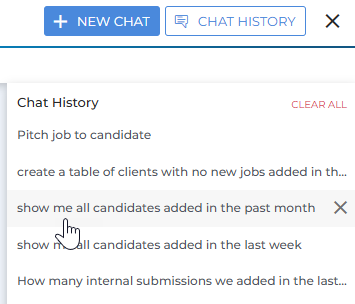
You can continue where you left off, copy results, or ask follow-up questions.
Chat history is stored per user and not shared across accounts.
Save a Prompt
If you've had a useful conversation with Amplify Chat, you can save it as a prompt and reuse it whenever you need to replicate the same outcome. This is ideal for tasks you perform on a recurring basis, such as generating a weekly activity report.
After a conversation, click Save Prompt to generate a reusable version of it.

Saved prompts are added to the Prompt Library, where you can find, edit, share, or favorite them.
For full steps, see Saving Amplify Chat Prompts.