| Edition: All Editions | Audience: All Users |
Track Interviews in Bullhorn Analytics
This article outlines how Interviews are tracked in Bullhorn Analytics.
Tracking Interviews from Appointments (Recommended)
The default and recommended way to track Interviews is to use the Appointments section in Bullhorn ATS. As long as the Interview type you select when creating the appointment is mapped into Bullhorn Analytics, it will be logged against the relevant metrics.
Steps
- Create an Appointment in Bullhorn ATS.
- When filling in the details, set the Type field to reflect the correct interview type, such as "1st Interview", "2nd Interview", etc.
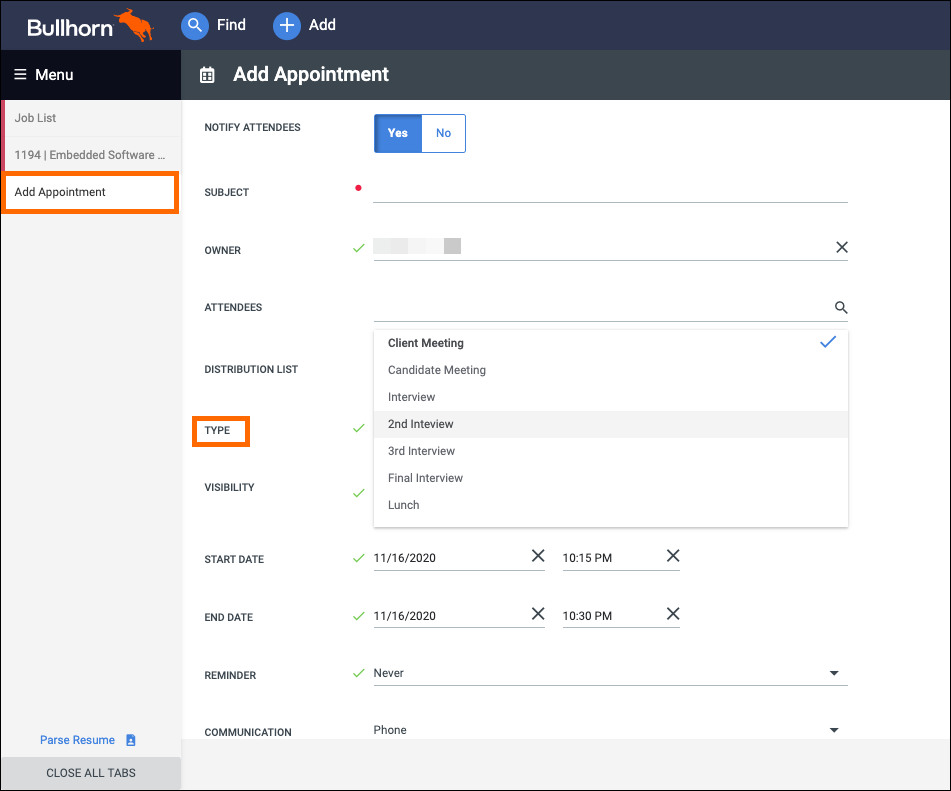
- After saving your Appointment, it will show against the relevant metrics in Bullhorn Analytics.
If you find that any Interview types are not showing in Analytics, or if you have would like to track additional Interview types or change which Interview types are shown against each metric, contact the Analytics Support team.
Tracking Interviews from the Shortlist Section (Not Recommended)
You can also track Interviews via the Shortlist section in Bullhorn ATS. This works by tracking certain Shortlist statuses, and having Bullhorn Analytics add an Interview record each time one of these Shortlist statuses is selected.
This method is not recommended because the Interviews will track with less information than if you use the Appointments section. For instance, it is not possible to track the Interview date using this method, which means you won't be able to see when the Interviews are taking place and will only be able to show metric data based on the creation date.
Benefits of Using Appointments:
- You can see when the Interviews are happening.
- It means an Appointment has been created, which will potentially send a calendar invite to the Client/Candidate.
- The majority (as in 99%) of our clients track Interviews via Appointments.
- It is hard to fudge data/influence numbers.
- You can use the Type field to separate different Interview types.
Benefits of Using Submissions
- It is on the first screen when changing a Candidate's Shortlist status.