Resume Parsing in Bullhorn ATS
Resume parsing automatically extracts candidate information from a resume or CV file and populates a candidate record in Bullhorn. Instead of entering candidate details manually, you can parse a resume to create or update a record in seconds.
We are upgrading our core parsing technology for all Bullhorn ATS customers throughout Q1 and Q2 of 2026. For details on what's changing, rollout timelines, and FAQs, see Updates to Resume/CV Parsing in Bullhorn ATS.
Bullhorn supports the following methods of resume parsing:
-
Drag-and-drop parsing
-
Automatic resume parsing via email
-
Parsing via REST API
Drag-and-Drop Parsing
Drag-and-drop parsing lets you parse a resume directly from your computer to create a new candidate record or update an existing one. This is the most common method for adding individual candidates to Bullhorn.
Creating a New Candidate Record by Parsing a Resume
-
From the +Add drop-down, select Candidate.
-
Do one of the following to parse the resume:
-
Drag and drop a resume file from your computer into the blank candidate record.
-
Copy and paste the text content of a resume into the Resume field.
-
-
When prompted, click Yes to have Bullhorn automatically populate the candidate record fields from the resume.
-
If Bullhorn finds potential duplicate records, it will prompt you to review them before creating the new record. For more information, see Understanding Bullhorn Record Duplicate Checking.
-
-
Click Save.
Parsing a Resume from the Left Sidebar
You can also parse a resume without opening the Add Candidate workflow. From anywhere in Bullhorn, do one of the following:
-
Drag and drop a resume file onto the Parse Resume area in the left sidebar.
-
Click Parse Resume in the left sidebar to open a file browser and select a resume file from your computer.
Bullhorn will parse the resume and either create a new candidate record or update an existing one if a matching email address is found in your database.
Automatic Resume Parsing via Email
The Automatic Resume Parser processes resumes sent to a dedicated Bullhorn inbox, creating or updating candidate records in real time without any manual steps. This method is well suited to high-volume sourcing workflows, job board applications, and any scenario where resumes arrive by email.
For full details on setting up and using the Automatic Resume Parser, including field extraction logic, parsing limits by edition, and how to access parsing results, see Automatic Resume Parser.
Parsing via REST API
Bullhorn's REST API includes a POST /resume/parseToCandidate endpoint that lets developers parse a resume file programmatically and create or update a candidate record. This method is typically used by integration developers building custom workflows or automations that sit outside the standard Bullhorn interface.
Parsing via REST API requires developer access and familiarity with Bullhorn's REST API authentication flow. It is not intended for everyday use by recruiters or administrators. For most use cases, drag-and-drop parsing or the Automatic Resume Parser is the right choice.
For full technical details on the parseToCandidate endpoint, see the Bullhorn REST API Reference.
Supported File Types
Bullhorn's resume parser supports the following file types:
- Microsoft Word (.doc, .docx)
- Rich Text Format (.rtf)
- Plain text (.txt)
- HTML
The updated parser also supports image-based and scanned documents. If you are not yet on the updated parser, scanned or image-based resumes may require manual data entry.
How Parsing Affects Existing Records
When a resume is parsed for a candidate who already exists in Bullhorn (identified by email address), the parser either creates a new record or updates the existing one, depending on your corporation settings.
Re-Parse an Existing Resume
You can manually apply the parser to a resume already attached to a candidate record:
-
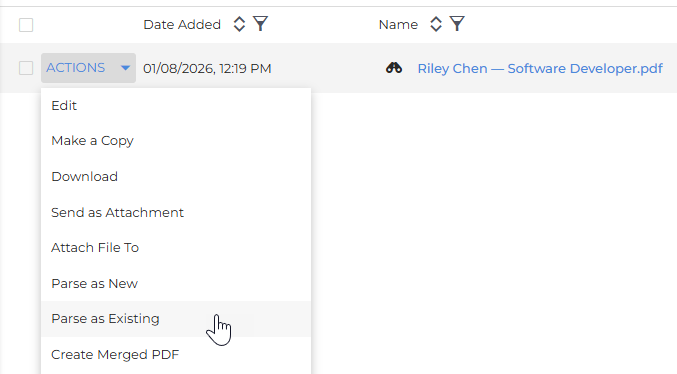
From the Files tab on the Candidate record, click the Actions menu next to the resume file you want to re-parse.
-
Select Parse as Existing.
-
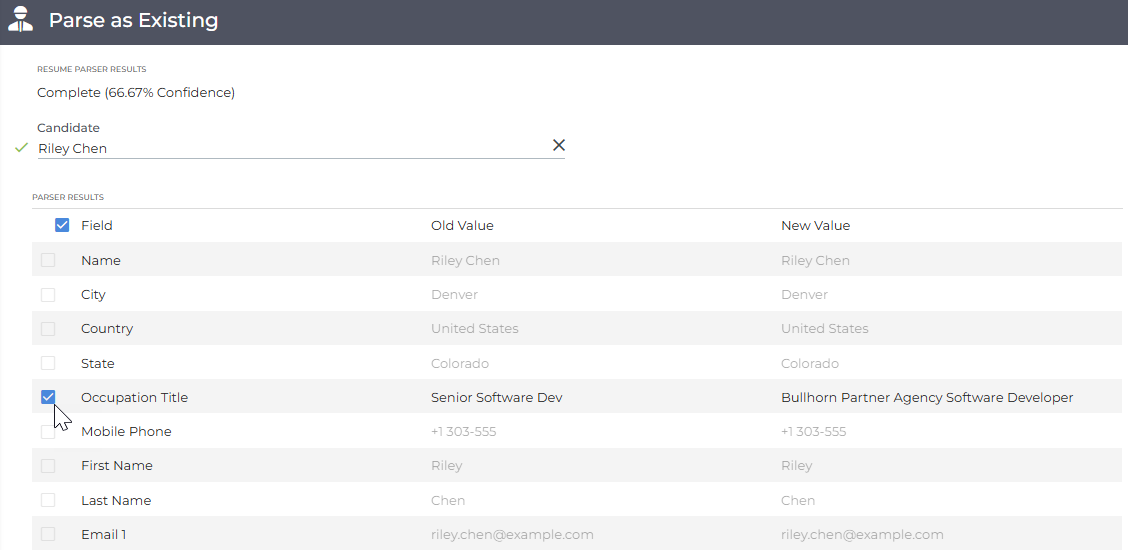
Review the preview, which shows each field that will be updated alongside the current and new values. Uncheck any fields you do not want to update.
-
Click Save.
Parse Certifications to the Education tab
The Parse Certifications and Licenses to Education Tab corporation setting controls whether certification and license data is parsed into the Education tab. This setting is managed by Bullhorn Support and can be adjusted on request. It is enabled by default.
When enabled, the parser adds parsed certification and license data to the Certification field on the candidate's Education tab. For the data to appear, the Certification field must be unhidden under Admin > Field Maps > Education. If this field is hidden, an empty row is created for each certification parsed instead of displaying the data.
If you're seeing unexpected empty rows in the Education tab after parsing, you can resolve this in one of two ways:
-
Unhide the Certification field under Field Maps > Education, or
-
Contact Bullhorn Support to disable the Parse Certifications and Licenses to Education Tab corporation setting.
When the setting is disabled, certification and license data is not parsed into the Education tab.