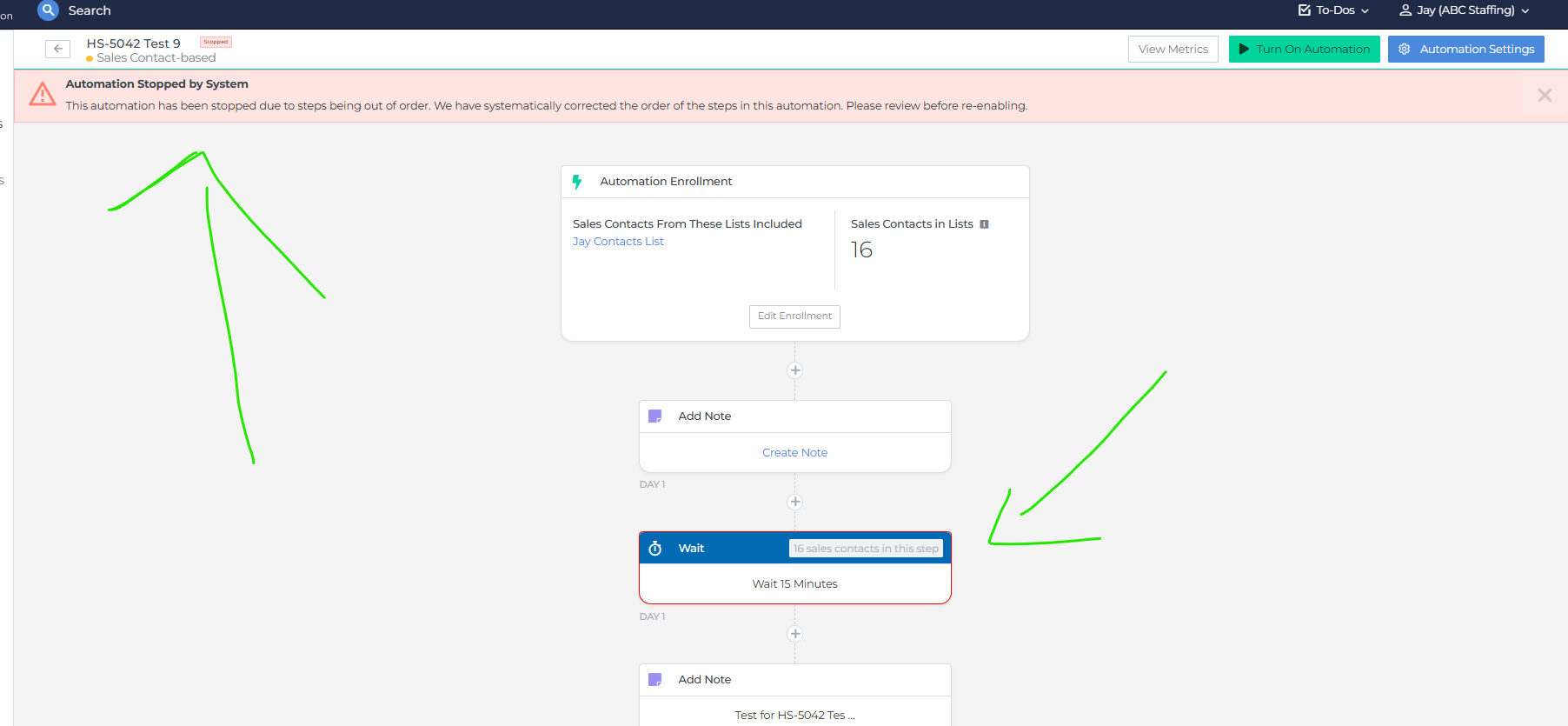
Automation Stopped by System: Failure and Pause Alerts
This article describes all system-generated alerts available in Bullhorn Automation. Use these features to stay informed when automations encounter errors, fail repeatedly, or are paused automatically due to configuration issues.
Step Failure Alerts
Several automation steps include an On Failed Request setting that sends an email alert when that step's integration request fails. You can configure the notification to go to a specific user or to the record owner, such as the candidate or contact owner in your ATS. The email includes failure details to help you diagnose and resolve the issue.
To configure the setting, open any supported step and locate the On Failed Request dropdown. Select Notify owner to alert the record owner, or Notify specific user to route the alert to a designated user.
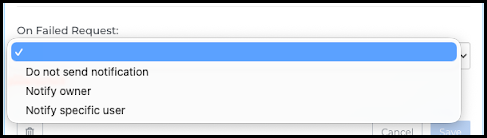
After selecting a notification option, a Send Notification To field appears where you specify the recipient.
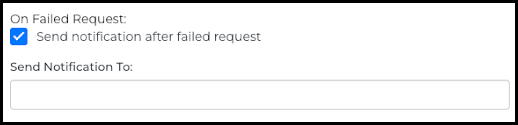
The following steps support the On Failed Request setting:
- Talent Platform: Notifies on failed Talent Platform workflow integration calls.
- Onboarding365: Notifies on failed Onboarding365 workflow integration calls.
- Add Billable Charge: Notifies on failed billing system requests.
- Webhook: Notifies on failed custom webhook or API calls.
- Generate File: Notifies on failed Amplify Present integration calls.
- Enrich Record: Notifies on failed Amplify Prompt Studio integration calls.
- Enrich from Note: Notifies on failed Amplify Enrich from Note service calls.
Automatic Pausing for Bulk Failures
When a single automation step fails more than 25 times within a 15-minute window, Bullhorn Automation automatically sets the automation status to Stopped and sends an email alert to all customer admin users explaining that the automation was paused and why.
In the application, the stopped automation appears at the top of the Automations list. When you open the automation, a banner at the top of the edit view reads: Automation Stopped by System. This automation has been stopped due to an error in the system. Please contact Support if the issue continues.

When an automation is stopped, no new records enter and no steps advance until the issue is resolved and the automation is manually restarted.
Automatic Stopping for Permission Errors
When an automation step repeatedly fails due to a permissions issue and exceeds the failure threshold, Bullhorn Automation automatically stops the automation and alerts all customer admin users.
In the application, a banner appears on the automation reading Automation Stopped by System, along with the specific Bullhorn error details. Unlike the generic bulk failure message, this banner includes the exact entitlement error so you can identify and resolve the issue without contacting Support.
Admins simultaneously receive an email with the subject line: Action Required: Automation Stopped Due to Entitlement Error. The email contains the relevant error information to help pinpoint the permission issue.
When an automation is stopped for a permission error, no new records enter and no steps advance until the underlying permission issue is resolved and the automation is manually restarted.
Resume an Automation Stopped for a Permission Error
- Resolve the underlying permission issue in Bullhorn.
- Return to the stopped automation and click Turn On Automation.
The banner clears and the automation returns to Active status. No additional configuration is required.
Automatic Pausing for Configuration Issues
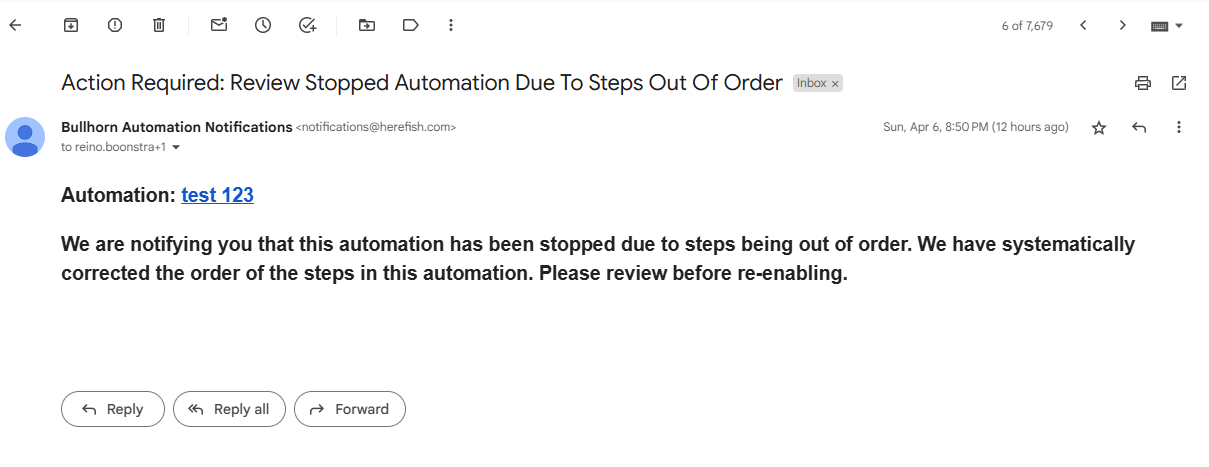
When an automation contains steps in an illogical order, such as a wait step placed after an End step, Bullhorn Automation automatically pauses the automation and attempts to reorder those steps into the correct sequence. The automation status is set to Stopped and an email is sent to all customer admin users.
The email subject reads: Action Required: Review Stopped Automation Due To Steps Out Of Order. The body explains that the automation has been stopped due to steps being out of order, that the system has corrected the step order, and asks admins to review the automation before re-enabling it to confirm it still reflects the intended workflow.
In the application, the stopped automation appears at the top of the Automations list with a Stopped status badge. When you open the automation, a banner at the top of the edit view restates the issue, and the steps that were adjusted are outlined in red for easy reference.

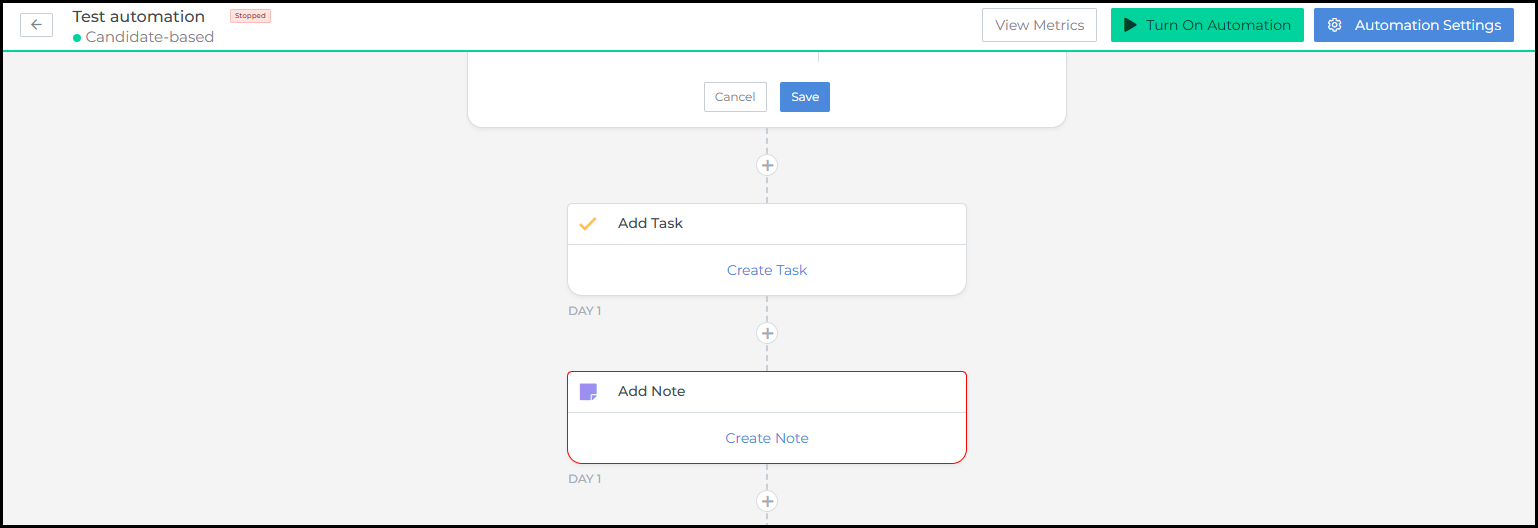
The banner identifies which steps were adjusted, and those steps are outlined in red in the edit view for easy reference.