Submitting & Approving Timesheets in ATS
This is Time & Labor functionality. To have Time & Labor enabled, contact your Account Manager.
's Timesheet Approval feature allows users to approve timesheets directly within Bullhorn ATS through the Timesheet Adjustments workflow. Users with the appropriate entitlements can edit and approve time entries, ensuring timely processing without needing to access separately. Follow the steps below to edit, submit, and approve a timesheet in ATS.
For information in Adjusting Timesheets without approval, see Adjusting Timesheets.
The Submit and Approve option is only available upon Submitting an edited Timesheet in ATS. You must have the appropriate entitlements to access Submit and Approve. Contact Support to update your access.
-
From the Bullhorn Menu, navigate to .
-
Click on the Timesheet ID number to open the record or choose the slideout on the list view.
-
From the Time tab, click Edit.
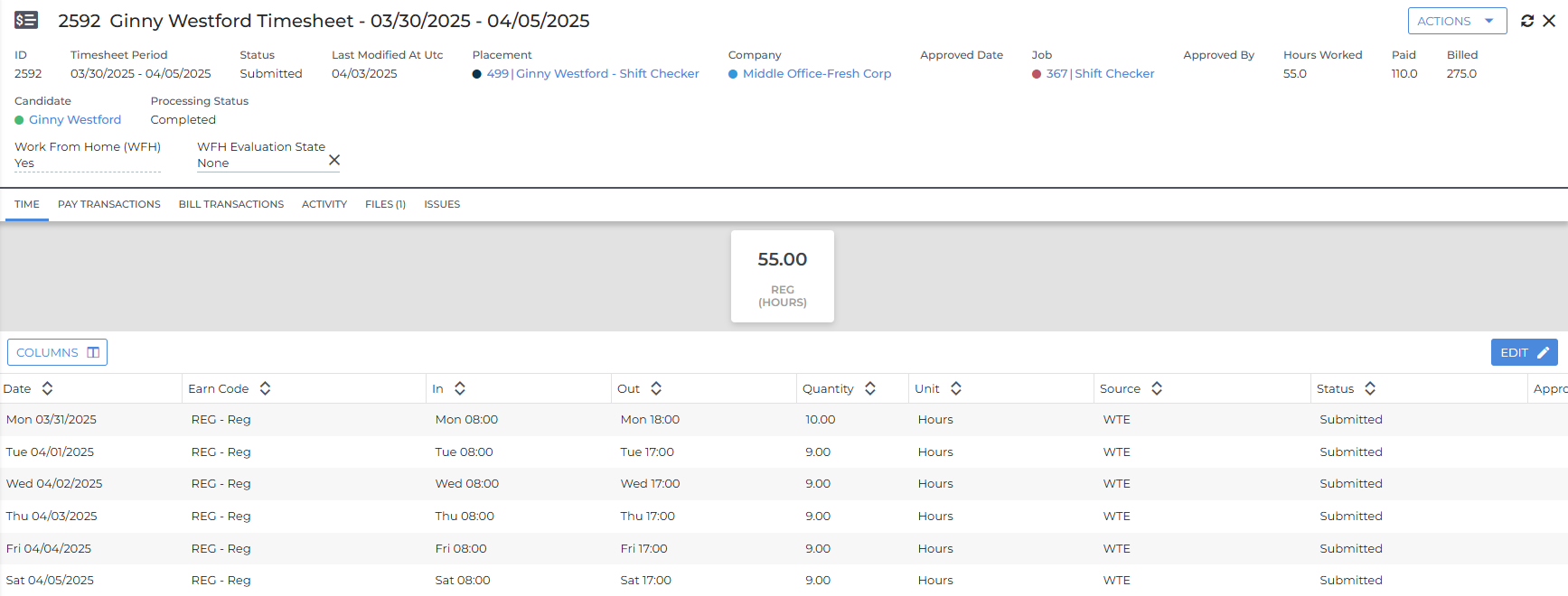
-
You're now in Edit mode. Any required fields have a check mark and any edited fields will turn blue. You can complete the following actions:
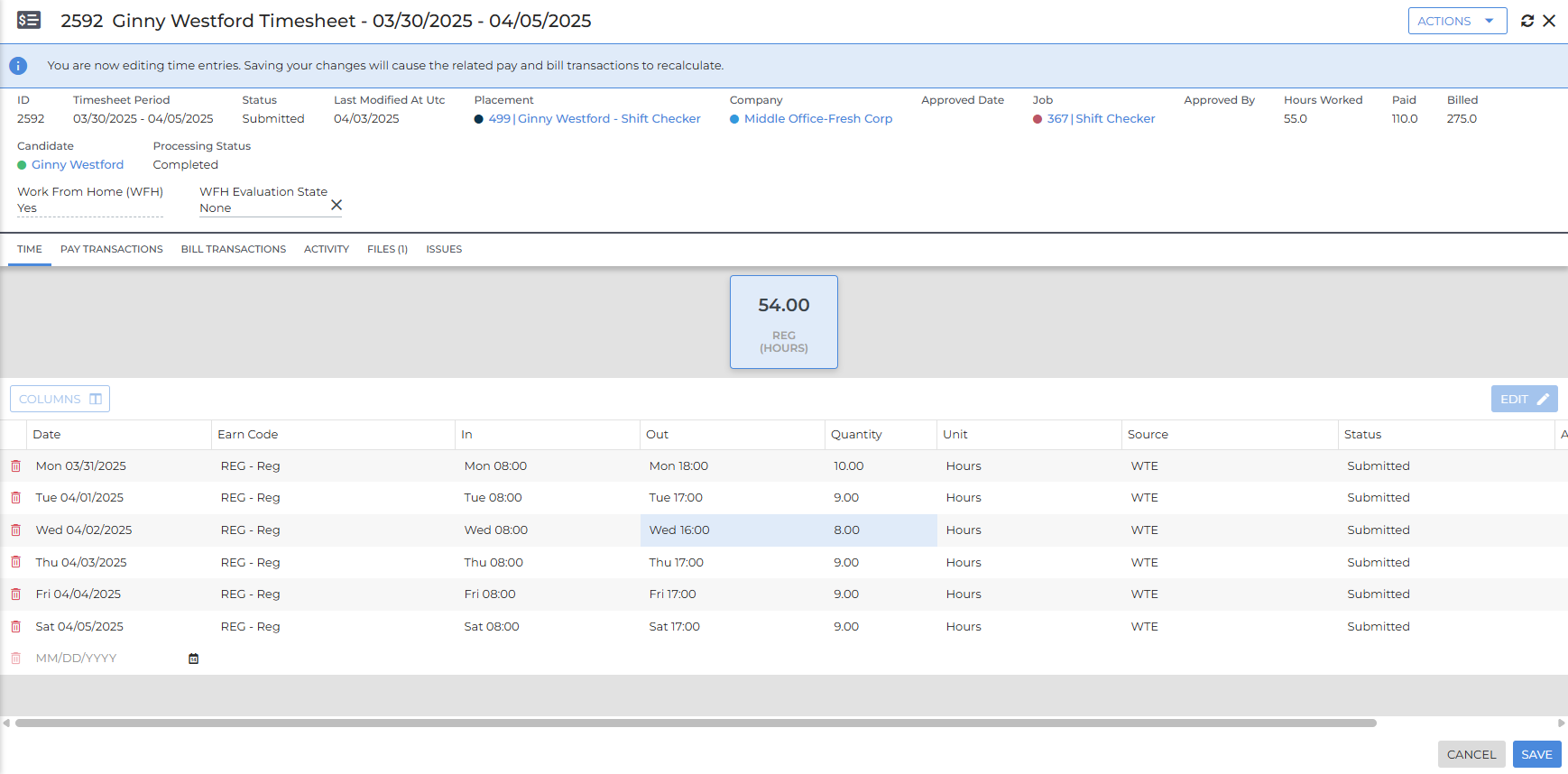
Any transaction lines with a Status of "Open Dispute" can not be edited. The dispute must be resolved in BTE. See Resolving Open Disputes on ATS Timesheets for more information.
-
Edit a Transaction: Click into the cell you need to adjust. You can update the following elements:
-
Date: The date worked. This is limited to the days within the existing timesheet cycle.
-
Earn Code: The Earn Code associated with the worked time. Only Earn Codes that are active on the Rate Card and are the same type as the original code are available for selection.
-
In and Out Times: Clock in and clock out time stamps. If you are editing In and Out times, Quantity will calculate automatically.
-
In times are limited to the date of the entry.
-
Out times are limited to the date of the entry plus the following day.
-
-
Quantity: Total number of hours. If you are editing Quantity, In and Out times are not available to add/edit.
-
-
Add a New Transaction: Click Add New to add a completely new transaction line.
Negative or Zero time entries are not permitted. Best Practice is always to adjust an existing transaction or delete a transaction and add a new one.
-
Delete a Transaction: Click the red Trash Can icon next to the transaction line you want to delete.
-
-
When you have finished your adjustments click Submit.
-
On the pop up modal, click Submit and Approve.
The Submit and Approve option approves all transactions on the timesheet, not just the changes you made during your current edit session.
A modal will pop up letting you know the Timesheet is recaluclating. This means the edits you made are being shared to BTE and the timesheet is running through any backend evaluation steps before being marked as Approved.