Assign Candidate
Use this workflow to assign one or more Candidates to a Contract Job Order.
-
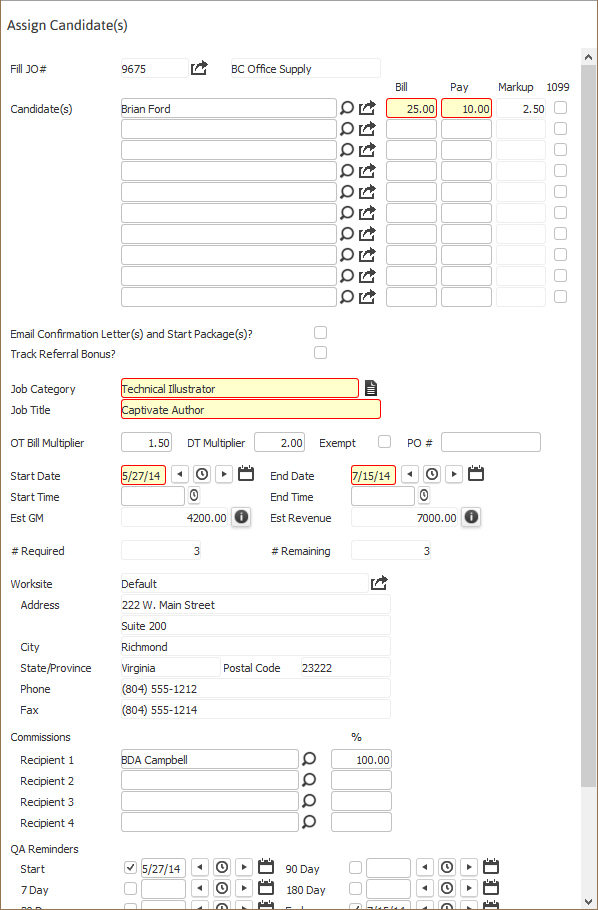
Select Assign Candidate(s) in the Assignment Activities menu from the Activities drop-list.
You must select at least one Candidate to assign from the Submittal Tracking segment prior to starting the workflow.
-
The Assign Candidate(s) workflow will open in a new window. Update the fields with necessary information; fields marked in red are required to complete the workflow. By clicking on the buttons to the right of certain fields, a new window will appear that will let you search and find information for that specific field.

- The Bill and Pay rates are auto-populated from the Submittal Record first; if no submittal record exists they come from the Job Order. The pay and bill rates defaults from the 'low' fields to the Assign Candidate workflow, if none already exist on the submittal(s).
-
If the candidate has the 1099 option selected on the payroll segment of the candidate record the 1099 option will be selected in the Assign Candidate workflow; the candidate must have a valid SSN or EIN in order to assign them as a 1099 employee.
An assignment can not be flagged as 1099 after it is created; you must flag the candidate as 1099 during this workflow to have the assignment flagged 1099.

- Select the Email Confirmation Letter(s) To Contact and/or To Candidate checkbox to send email confirmation letter to selected recipient(s).
-
Select the Email Start Package(s) To Contact and/or To Candidate checkbox to generate email with Start Package attached, to the Contact and/or Candidate.
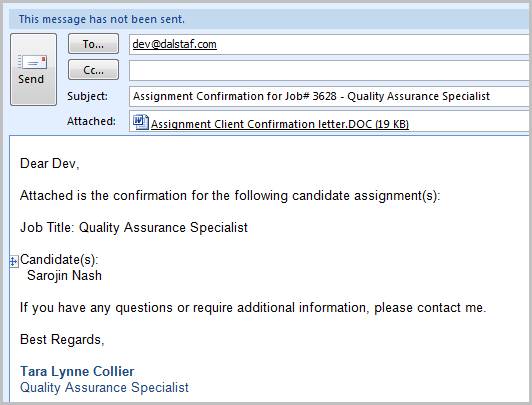
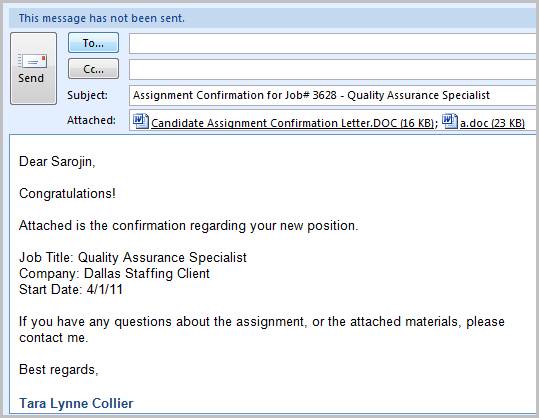
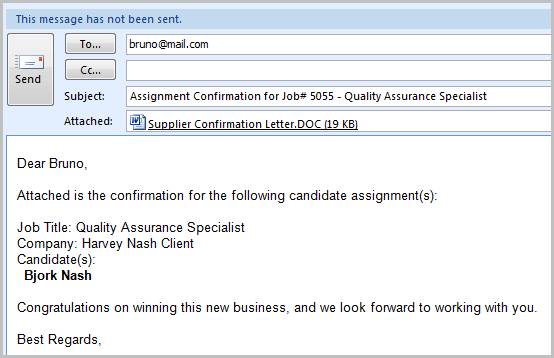
The Start Package and Confirmation Letter should be available in the Client’s Document Library to be pulled as an attachment to the email.Based on the checkbox selected for Candidate and/or Contact in Step 5 and 6 above, an email preview window (one each for Candidate and Contact) with the attachment is displayed.
-
Select the Track Referral Bonus? to track when to pay a Candidate referral fee.
This option is not valid when assigning a Supplier Candidate.

-
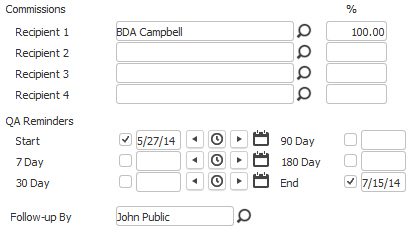
Select Commissions and QA Reminders to generate Commission Tracking and Follow-up Task reminders.
-
Click Confirm to complete the workflow.
If the Job Order is associated with the state of Pennsylvania, but the Candidate has not been coded to the School District, the assignment is not saved (but a submittal is created if one does not already exist). A message will display reminding the user to code the Candidate to the school district level before proceeding with the assignment.
-
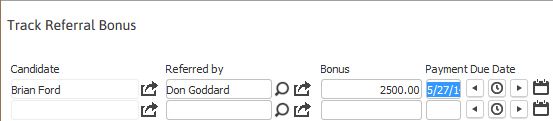
The Track Referral Bonus window will open if the candidate has the "Referred By" field populated; enter the Referred by name and bonus amount.
Supplier Candidates are not eligible to receive referral bonuses.
-
After clicking confirm the Email Confirmation windows will open Click send to process the email to the Client and Candidate.
-
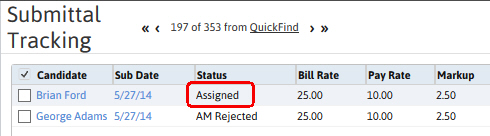
The Candidate's submittal status will be updated to Assigned.
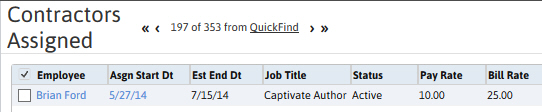
- View the Contract Assignment via the Contractors Assigned segment from the Job Order's Control Panel.
-
Click the link under the Start Date to view the Contract Assignment.
- Check the journal to confirm the Contract Assignment Created and Contract Assignment -Candidate Assigned Details entry were created.
-
After clicking the date link, the Adapt screen will display the Summary Segment of the Contract Assignment.
This workflow may take a few minutes, for each assignment, the system will do the following:
- Create/Update the Candidate's Submittal Record
- Create a new Assignment record
- Update the Candidate's Status and Availability
- Update the Candidate's Availability Calendar
- Create Candidate and Client Confirmation Letters/Emails
- Create Journal Postings (User, Candidate, Contact, Client, Job Order and Assignment)
- Create Follow-Up Tasks
- Update Referral Bonus Information (if applicable)