Submit Internally for Assignment
Use this workflow to alert the Job Order's Account Manager of a potential Candidate to fill the order.
-
Select Submit Internally in the Assignment Activities menu from the Activities drop-list.
You must select a Candidate from the Submittal Tracking segment to submit prior to starting the workflow.
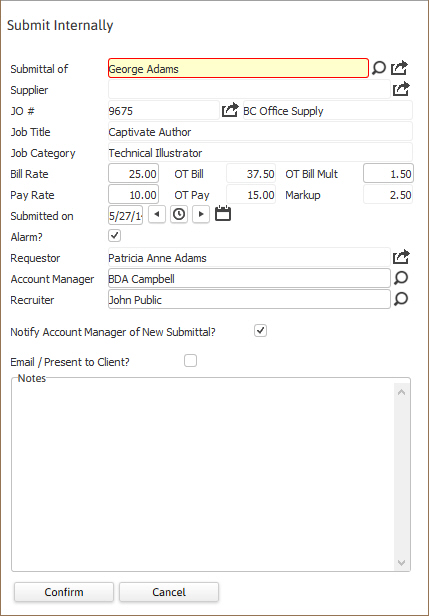
- The Submit Internally workflow will open in a new window. While updating the form notice that fields marked in red are required to complete the workflow; and that by clicking on the buttons to the right of certain fields, a new window will open, allowing you to search and select options related to that specific field, or choose a date.
-
The Bill and Pay Rates are populated from the job order; the change in rates does not affect the job order and will be reflected in the submittal record for this candidate only. You can enter up to 4 digits to the right of the decimal for the OT Bill multiplier and the Markup.

-
A follow-up task is created for the Account Manager or Recruiter of the submittal if the date is set for a future date; select the Alarm? option to create a pop-up notification of the follow-up.
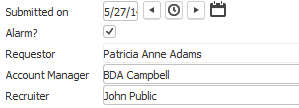
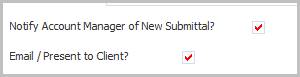
- Selecting the Notify AM of New Submittal? option will generate an email for the Account Manager.
-
Selecting the Email/Present to Client? option will generate an email to be sent to the Client presenting the potential Candidate.
If this option is chosen it will update the submittal status to Presented after the Submit Internally workflow is complete.
-
Enter notes, as needed, and click Confirm to continue process.
- If the notification to the account manager was selected in the workflow,a new email from your integrated email application will open with the email body populated from the Submit Candidate template. Your integrated email signature is also merged below the text.Edit the email as necessary and click send.
- If the present to client option was selected in the workflow, a new workflow window will open requesting you choose which resume to attach to the client email. After that workflow window is confirmed,a new email from your integrated email application will open with the email body populated from the Present Candidate template. Your integrated email signature is also merged below the text.Edit the email as necessary and click send.
-
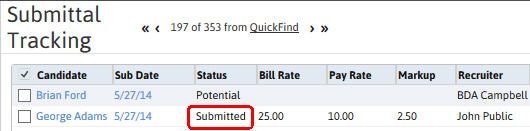
The Submittal Tracking segment will refresh with the submittal status updated to Submitted.
-
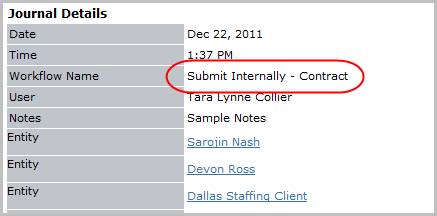
Verify the Submitted Internally entry and notes from workflow are posted to the journal. The activity details will be saved and will be available for reporting purpose.