Reject/Withdraw Candidate(s) from Assignment
Use this workflow to indicate the Candidate declined the Job or was rejected by either the Account Manager or Client.
-
Select Reject / Withdraw Candidate(s) from the Assignment Activities menu of the Activities drop-list.
You must select at least one Candidate to reject or withdraw from the Submittal Tracking segment prior to starting the workflow.
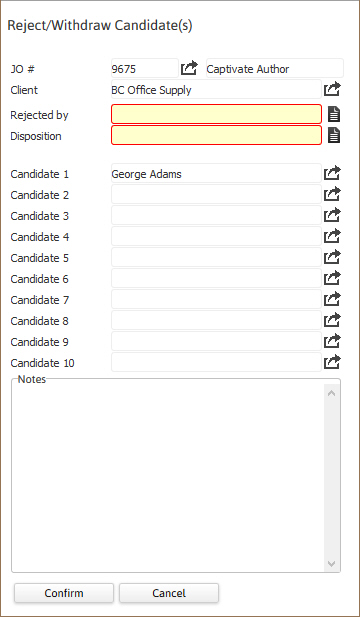
- The Reject/Withdraw Candidate(s) workflow will open in a new window. Update necessary information; fields marked in red are required to complete workflow.
- By clicking on the buttons to the right of certain fields, a new window will appear that will let you search and find information for that specific field.
-
Click Confirm to complete the workflow.
-
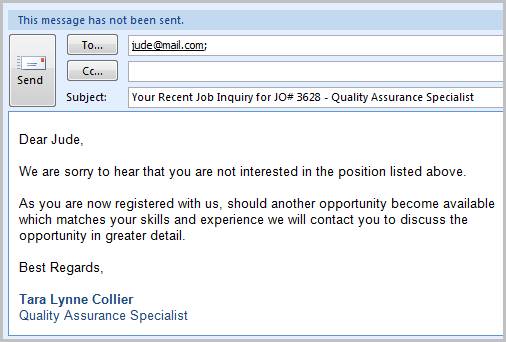
After clicking confirm, a pre-formatted email will open ready to send to the Candidate. The body text of the email will change depending on who rejected the Candidate's application for the Job Order.
- The body text of the email will change depending on who rejected the Candidate’s application for the Job Order.
- If any of the candidates in the workflow do not have an email address, no email will generate.
- If the selected record is a Supplier Candidate the email generated will be addressed and emailed to the Supplier Contact.
-
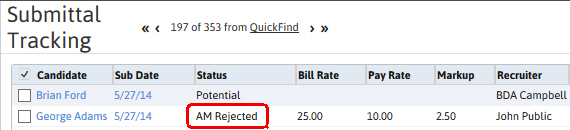
The Candidate's submittal status will be updated to Rejected and by whom.
-
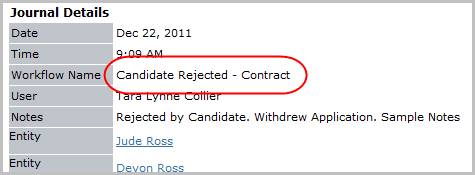
Check the journal to confirm the Candidate Rejected - Contract entries were posted.