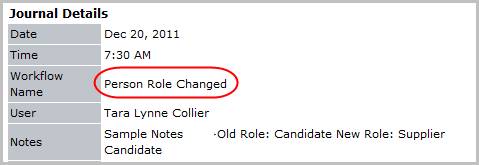
Change Candidate/Contact Role
Use these instructions to change the role of a candidate/contact to another person role. You can perform this action from various people records. The steps below refer to changing the role of a candidate, but the steps for other people records are similar.
-
From the candidate’s summary segment, click on the workflow button beside the Role field, at the very bottom of the page.
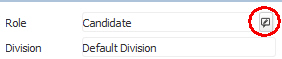
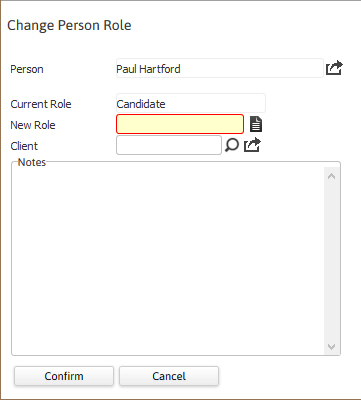
- The Change Person Role workflow will open in a new window.
- Update the form with the necessary information; fields marked in red are required to complete the workflow.
- By clicking on the buttons to the right of certain fields, a new window will open, allowing you to search and select options related to that specific field.
-
Click Confirm to complete the workflow.
-
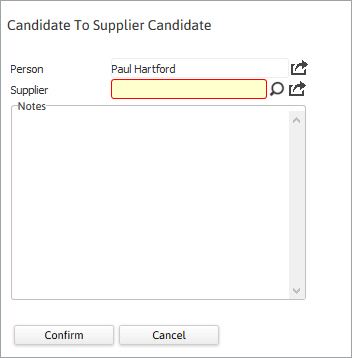
If changing to a Contact, Supplier Contact or Supplier Candidate you are required to enter a Client name associated to the record.
-
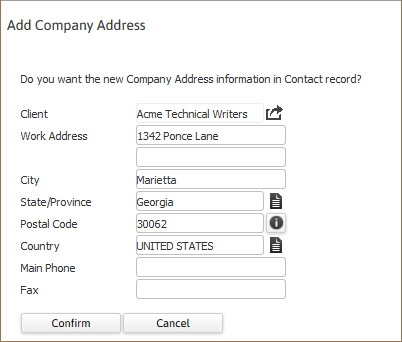
If choosing a Contact role the Add Company Address will open to allow you to update the Contact’s record with the company address from the client chosen. Click Confirm to accept the company’s address information.
-
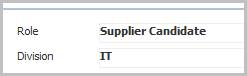
After the workflow is complete, Adapt will refresh to display the summary segment of the new person type; with the role field updated.
-
Verify the Person Role Changed entry and notes from workflow posted to the journal.