Candidate Summary
Use these instructions for viewing and modifying the Summary Segment of a Candidate.
- Select Summary in the segments drop-list at the top of the record.
-
The Summary segment is divided into sections.
-
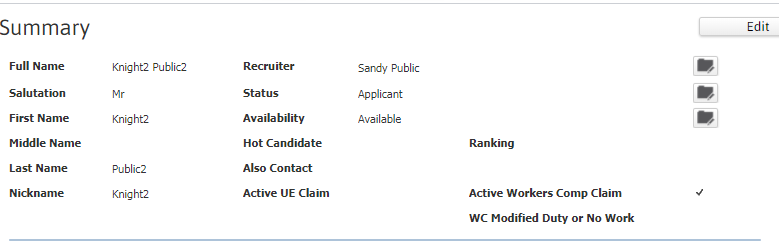
The top section displays information regarding the Candidate’s name, recruiter, status, availability, and UE Claim and WC Claim status.
-
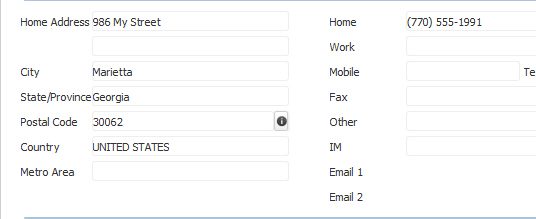
The next section displays information regarding the address, numbers, and email addresses.
-
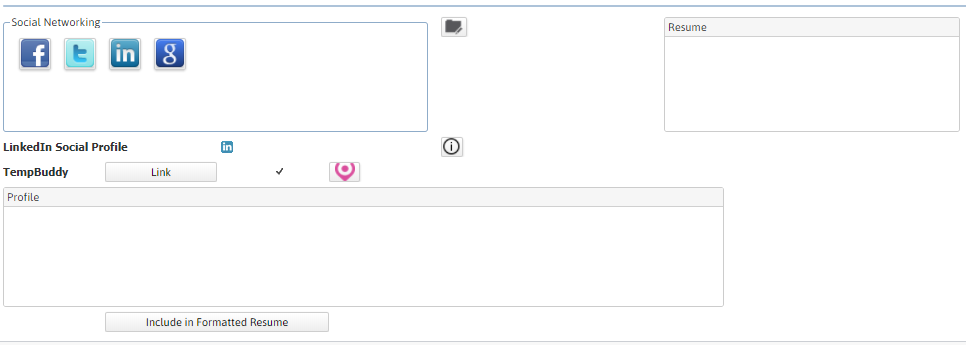
The next section displays information on the Candidate’s Social Network Profiles, TempBuddy linkage status and Resume. A check flag next to the Link button indicates that the Candidate is linked to TempBuddy.
-
The document control for resume displays the most recent Original Resume document, based on modification date. You can see the Original Resume documents and the modification date on the Resume segment.
Select the Include in Formatted Resume option to add the profile text to the Adapt generated resume.
-
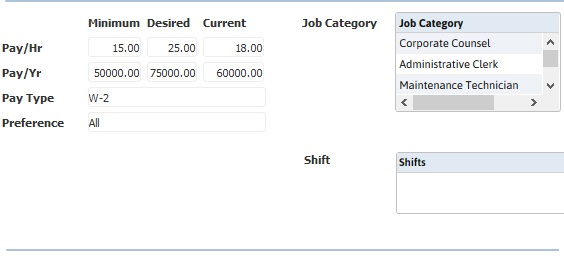
The next section displays information on the pay rates, job category and shift.
-
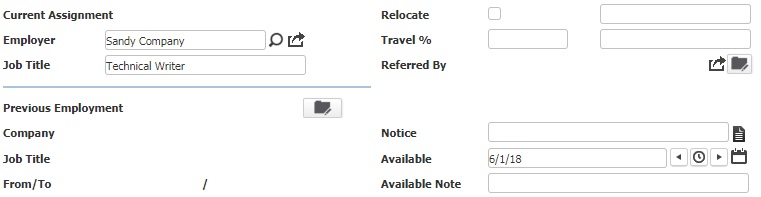
The next section displays employment information; presents information from the most recent active Assignment and the most recent previous employment.
-
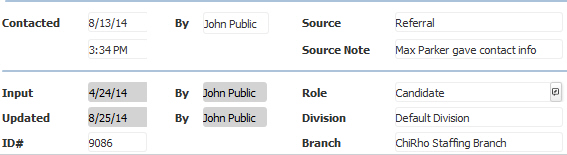
The last two sections record the last time this record was updated or contact made with the person and vital statistics.
-
-
Click on the Edit button to modify the Candidate’s Summary information.

-
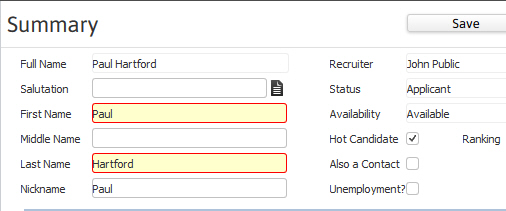
Fields with icons are modified via specific workflows and fields marked in red are required to save changes to the segment.
-
Click Save to keep changes or Cancel to discard.
