Update Social Networks
Use these instructions to add or update the social network profiles. It also allows you to access the LinkedIn Social Profile.
- Click on the edit icon at the top of the Social Networking list box.
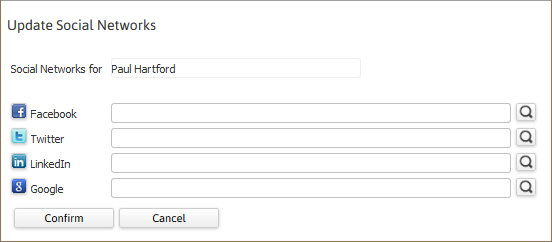
- The Update Social Networks workflow will open in a new window; with the record name populated.
-
Click on the icon next to the social network field; the search will look for profiles that match the person’s name.
-
A new internet window will open to display the results of the search; copy the link (ex:http://www.linkedin.com/in/judeross) of the desired profile and return to the Adapt workflow window.
Be sure that you are copying the link to view the person’s profile; in the example given you will see the person’s name is part of the url. If you are not able to view the link you can right click on the page, select properties and copy the url from the properties dialog box.
- After pasting the link into the correct field click Confirm to close the workflow window.
-
After the links are saved you can access the contact’s profile by clicking on the social network icon from the summary segment.
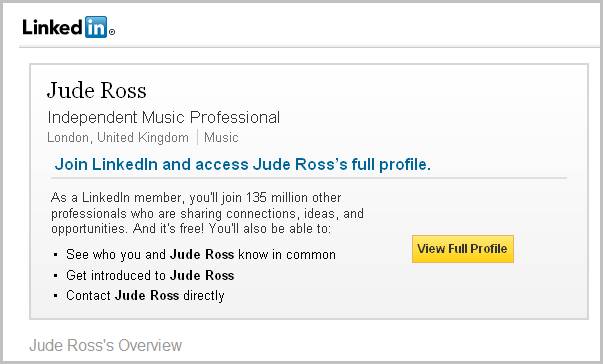
The LinkedIn Social Profile
The LinkedIn Social Profile allows you (as long as you have a LinkedIn Recruiter License) to automatically search and link the record to your existing LinkedIn Profile. If you do not have a LinkedIn Recruiter License, you may choose to add the LinkedIn URL information for the record within the Social Networking workflow.
By hovering over  a flyout window displays your LinkedIn profile. If no link exists, a LinkedIn search is presented instead. If you enter the LinkedIn profile via the LinkedIn search, the link to the LinkedIn profile is captured and linked back into Adapt. If you clear the link from the Social Network workflow, the LinkedIn link will also be cleared.