Amplify Transcribe Live
Amplify Transcribe Live is currently in Early Access.
Transcribe Live adds a real-time AI layer to your calls. As the conversation happens, Amplify detects answers to your prep sheet questions and fills them in automatically, capturing action items, key points, and decisions in a Live Insights tab. This means you can stay focused on the conversation, knowing what’s been covered and what’s still outstanding.
Transcribe Live works with both recording methods, so you can use it when the Transcribe bot joins your meeting or when you record without a bot. For more information about the two methods, see Using Amplify Transcribe.
Transcribe Live must be enabled by an administrator. If Transcribe Live isn’t enabled for your organization, you’ll still receive a summary, prep sheet, and full transcript once the call has finished.
Availability
Transcribe Live is enabled by an administrator, separately for calls recorded with the Transcribe bot and calls recorded without a bot. When it’s enabled, it applies to all users with access to Transcribe and to every call recorded that way. It can’t currently be turned on or off for individual calls. For more information, see Configuring Amplify Transcribe.
If you don’t see the Live Insights tab during a call, your administrator may not have enabled Transcribe Live.
During the Call
As the call progresses, you’ll see two tabs on the meeting screen: Prep Sheet and Live Insights. The Prep Sheet tab shows your prep sheet questions and Amplify’s real-time answers. The Live Insights tab displays action items, key points, and decisions detected from the conversation. You can switch between them at any time during the call.
Prep Sheet
Here you’ll see the prep sheet configured for this call type. As the conversation progresses, Amplify detects answers to the questions on your prep sheet and fills them in automatically.
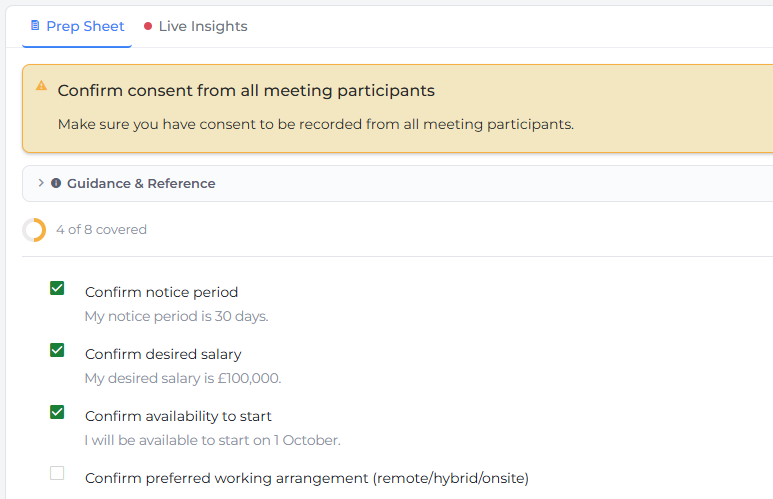
Not every question can be answered automatically. More complex or open-ended questions that Amplify can’t reliably answer automatically still appear on your prep sheet, but you’ll need to type in the answers yourself.
You can also:
-
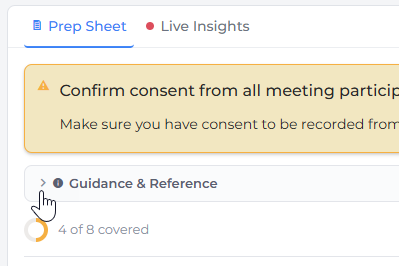
Expand the Guidance & Reference section to view any call guidance included in the prep sheet.
-
Click Add Question to add a question to the prep sheet.
-
Click any individual question or answer to type a manual note directly into it.
-
Click Add Note to open a text box for longer or free-form notes.
-
Toggle on Hide answered questions to keep the prep sheet clean while on the call. Answered questions will be hidden from view when answered but included in the final summary.

Live Insights Tab
Click the Live Insights tab to view insights captured during the call. These are organized into three categories: Action Items, Key Points, and Decisions.
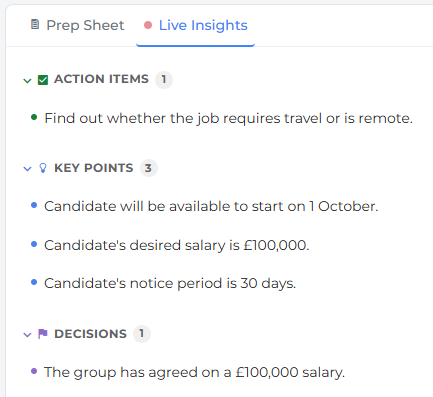
Transcribe Live processes the transcript at intervals during the call, so live answers and insights may not always reflect the full context of the conversation. Once you end the call, Amplify processes the complete transcript and updates answers and insights accordingly. Treat live answers as a working guide, not a final record.
Other Options During the Call
You also have these tools available during the call:
-
Click the Amplify button to open the Amplify slideout and ask questions. Amplify answers based on the associated records and the live transcript so far.

-
Click the binoculars icon (
 ) next to an associated record to open a record preview slideout. You can view the record summary, key fields, and any attached files without leaving the meeting screen.
After the Call
When the call has finished, Amplify processes the complete transcript and updates your prep sheet answers and insights. The meeting then appears in the Needs Review section on the Meetings tab.
For more information about reviewing the meeting, saving a note, and updating records, see Reviewing and Saving a Meeting.