Recording a Call with the Bot
Learn how to have the Amplify Transcribe bot join and record your meetings on Zoom, Microsoft Teams, or Google Meet. The bot can join your scheduled calendar meetings automatically, or you can send it to a meeting that isn’t in your calendar.
Bot recording is the best option for scheduled video meetings. For impromptu calls, phone calls, and in-person meetings, see Recording a Call Without a Bot. For an overview of both methods, see Using Amplify Transcribe.
If your administrator has enabled Transcribe Live for bot meetings, Amplify also fills in your prep sheet and captures key points as the call happens. See Amplify Transcribe Live for more information.
Scheduled Meetings
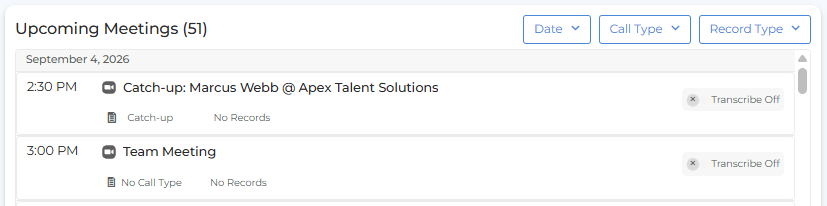
When your calendar is connected, your upcoming meetings appear under Upcoming Meetings on the Meetings tab. For instructions on connecting your calendar, see Using Amplify Transcribe.
Before the Call
Call Type and Associated Record
Transcribe automatically identifies and displays the call type and associated Bullhorn records (candidates, contacts, or leads) based on the meeting title, description, and attendee email addresses. You can review and adjust the Call Type and Associated Record directly in the Upcoming Meetings list, or open the meeting to amend them there. The Call Type determines which prep sheet you're shown and how the call is summarized afterward.
Prep Sheet
Once the call type is set, your prep sheet appears. This is a checklist of items to cover during the call, configured by your admin. Review it before you join the meeting and add any notes or comments ahead of time. You can also take manual notes on this screen during the call.
Turn Transcription On or Off
The bot only joins meetings that have transcription turned on. To change this for a meeting, locate it under Upcoming Meetings (or the Next Meeting card) and toggle Transcribe on or off.
Depending on your organization’s settings, meetings with external attendees may already be selected for you. If you don’t want the bot to join one of these meetings, toggle Transcribe off before the call starts.
If two users at the same company are attending the same meeting and both have Transcribe enabled, the call will only log against one user. To avoid issues, one attendee should disable Transcribe for that meeting before it starts.
During the Call
When your scheduled meeting starts, the Transcribe bot joins automatically based on your organization's recording settings. A Current Meeting tile appears at the top of the Meetings tab to show the call is active.
If the meeting has a waiting room, the host needs to admit the bot. If the bot isn’t admitted within the time your admin has set, it leaves the meeting and the call appears in Saved Meetings as a failed meeting.
During the call, you have access to:
-
Prep Sheet: Stays visible throughout the call so you can refer to it as the conversation progresses.
-
Comments: Add your own notes at any point during the call using this field.
If your administrator has enabled Transcribe Live for bot meetings, your prep sheet answers and insights are also filled in as the conversation progresses.
What Attendees See
Other attendees can see the bot in the participant list. Your organization’s settings control how it identifies itself:
-
Bot name: The bot joins using the name set by your administrator. You can change it for your own meetings in your personal settings. For more information, see Using Amplify Transcribe.
-
Entry message: When the bot joins, an introductory message lets attendees know the meeting is being recorded.
-
Audio disclosure for phone participants: If your administrator has enabled it, a brief audio message plays at the start of the meeting to inform phone participants that the meeting is being recorded.
If you need to change any of these, contact your administrator.
Add an Unscheduled Meeting
If you need the Transcribe bot to join a meeting that isn’t in your calendar (for example, an ad-hoc call that’s already started), click Add Meeting in the top right of the Meetings tab and fill in the following:

-
Meeting Name: A name to identify the meeting.
-
Meeting URL: The link to the meeting.
-
Link to a Candidate or Contact (optional): Associates the meeting with a Bullhorn record.
Click Start Meeting and the Transcribe bot will join immediately and begin recording.
Add Meeting sends the bot to a meeting link. To record a call that doesn’t have a meeting link, such as a phone call or an in-person meeting, see Recording a Call Without a Bot.
After the Call
When the call ends, Transcribe processes the recording and the meeting appears in the Needs Review section on the Meetings tab.
Click Review Meeting Now to open the post-meeting screen. For more information about reviewing the summary, saving a note, and updating records, see Reviewing and Saving a Meeting.