Reviewing and Saving a Meeting
Learn how to review the results of a call recorded with Amplify Transcribe, save a note to the associated Bullhorn record, and apply suggested record updates. The review process is the same whether the call was recorded by the Transcribe bot or without a bot, and whether or not Transcribe Live is enabled for your organization.
Open a Meeting for Review
Once a call has ended and Transcribe has finished processing it, the meeting appears in the Needs Review section at the top of the Meetings tab. While a call is still being processed, it shows a Processing indicator.
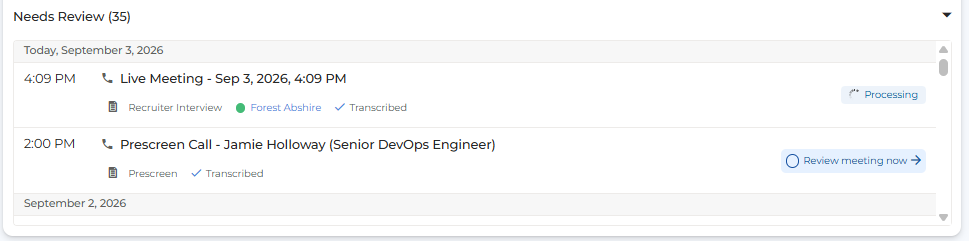
This acts as a task list so that meetings requiring action are easy to find. Click Review Meeting Now to open the post-meeting screen, where you can save a note, review the summary and transcript, ask Amplify questions, and accept or dismiss any suggested field updates.
The Post-Meeting Screen
The post-meeting screen has the same tabs for every call, whichever recording method you used:
-
Overview: A preview of the note that will be saved to the associated Bullhorn record. It updates as you add or remove content from other tabs.
-
Summary: A structured summary generated based on the processing prompt for the selected call type. This is included in the note by default.
The content of the summary is subject to your organization’s Compliance Prompt settings, which are configured by an admin. Certain information may be redacted or adjusted based on this prompt.
-
Prep Sheet: Your prep sheet questions and answers. If Transcribe Live was enabled for the call, this includes the answers Amplify filled in during the call, along with any you added manually.
-
Insights: The action items, key points, and decisions captured during the call. This tab appears for calls where Transcribe Live was enabled. For more information, see Amplify Transcribe Live.
-
Transcript: A full transcript of the call.
You can also use:
-
Ask Amplify: Click the Amplify button to ask questions about the meeting and get quick answers from the transcript.

-
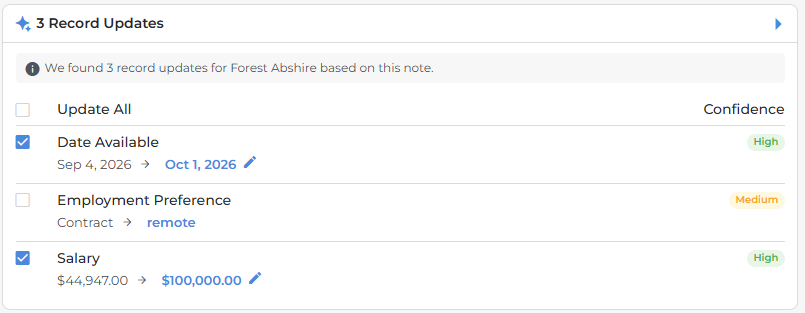
Record Updates: Highlights details mentioned during the call that can be used to update fields on the associated Bullhorn record. This works the same way as Bullhorn’s Enrich Records from Notes feature, using the fields configured in Amplify Admin.
Change the Call Type
If the call type wasn’t identified correctly, you can change it after the call. Transcribe reprocesses the transcript with the processing prompt for the new call type, which updates the summary.
Save a Note
To save a note to the associated Bullhorn record, tick Add Note. The Overview tab shows exactly what will be included in the note. If your administrator has enabled Auto-Save Summary Notes, a note is saved automatically once processing is complete, but you can still review and edit it after it has been saved.
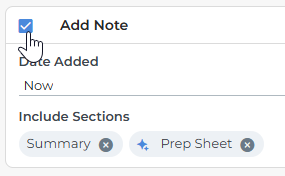
By default, the note includes the Summary. To change what’s included:
-
Go to the tab you want to add or remove: Summary, Prep Sheet, Insights, or Transcript.
-
Click Add Content to include it in the note, or Remove From Note to exclude it.
-
Return to the Overview tab to check the final note.
You can also set the date on the note using the Date Added field: Select whether the note date is set to the current date and time, or the date and time the meeting took place.
The note and any other record updates will be saved when you select Mark as Reviewed and Save Actions.
