Recording a Call Without a Bot
Learn how to record a call directly from your computer without the Transcribe bot. When you record without a bot, Amplify captures the audio from your computer’s microphone and speakers, so you can start recording at any time without a meeting link or a calendar invite.
Botless recording must be enabled by an administrator.
Botless recording is the best option for impromptu phone calls, face-to-face conversations, or any call where audio is coming through your device. For scheduled video meetings, see Recording a Call with the Bot. For an overview of both methods, see Using Amplify Transcribe.
If your administrator has enabled Transcribe Live for bot meetings, Amplify also fills in your prep sheet and captures key points as the call happens. See Amplify Transcribe Live for more information.
Before You Start
Make sure you have consent to record from all participants before starting a recording. Unlike the Transcribe bot, botless recording doesn’t announce itself to other attendees.
Your browser will also ask for permission to use your microphone the first time you record. Select Allow to continue.
Start a Recording
-
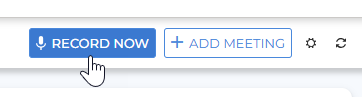
Click Record Now at the top of the screen. You can do this from the Meetings tab or, if your administrator has enabled it, directly from a candidate or contact record.
-
Meetings tab:
-
Candidate or contact record:

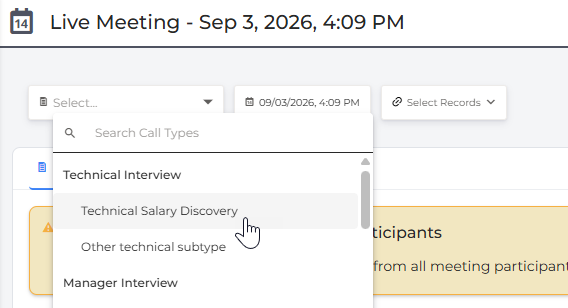
The Live Meeting screen opens and the recording starts automatically.
-
-
Select a call type and any associated records. If you started from a candidate or contact record, that record is automatically selected as an associated record. The Call Type determines which prep sheet you’re shown and how the call is summarized afterward.
-
If a prep sheet is configured for the selected call type, it appears on screen automatically.
During the Recording
The recording controls at the top of the screen show the elapsed recording time, a microphone selector, and a Pause button to temporarily pause and resume transcription without stopping the recording.

A Recording indicator appears at the top of your screen while a recording is in progress. You can navigate away from the meeting page without stopping the recording. Click the indicator to return to the Live Meeting screen.

During the recording, you have access to:
-
Prep Sheet: Stays visible so you can refer to it as the conversation progresses. You can add your own answers and notes at any point.
-
Amplify: Click the Amplify button to open the Amplify slideout and ask questions about the associated records.
If your administrator has enabled Transcribe Live for browser meetings, your prep sheet answers and insights are also filled in as the conversation progresses. For more information, see Amplify Transcribe Live.
End the Recording
When the call is finished, click Stop and Process.

The meeting appears in the Needs Review section on the main Meetings page with a Processing indicator.

Once processing is complete, click Review Meeting Now to open the post-meeting screen. For more information about reviewing the summary, saving a note, and updating records, see Reviewing and Saving a Meeting.