Using “Get Engagement Link” for Amplify Screen
Learn how to use the Get Engagement Link API to generate direct links to the Amplify screener and deliver them to candidates at the moment of application.
Once configured, the API lets you integrate the Amplify screener directly into your job board application flow, so candidates can start screening immediately.
What is “Get Engagement Link”?
The Get Engagement Link API lets external services generate a direct link to a Bullhorn Automation engagement such as a survey, chatbot, or Amplify screener. The most common use case is job board integrations, where candidates are invited to complete an AI screening as part of the application process.
Why Use “Get Engagement Link” for Screenings?
Active candidates are more likely to complete a screening when they can start immediately. Presenting the link while the candidate is still on-screen removes the delay of a follow-up message and reduces drop-off before the screening is complete.
How it Works
When the Get Engagement Link endpoint is called, it generates a link to the engagement selected in your API settings. The link redirects the candidate to your website, where they complete the screening. It’s the same experience they’d have if the link had been sent via email or text through an “Invite to Screen” automation.
If the candidate or submission doesn’t yet exist in Bullhorn Automation when the endpoint is called, the system retrieves the records from the ATS and syncs them into Automation to generate the link.
Example workflow for Amplify Screen:
-
A candidate applies to a job on your job board (or a job board managed on your behalf by a Marketplace partner).
-
The job board integration creates a submission in the ATS.
-
The integration calls the Get Engagement Link endpoint to generate a screening link.
-
The link is presented to the candidate on-screen, typically as a call-to-action to continue to the AI screener for the job they applied to.
-
The candidate clicks the link and is redirected to your website to begin the screening engagement.
From the candidate’s perspective, this experience is identical to clicking a screening link received via text or email. The integration simply delivers it earlier, at the moment they’re most engaged.
API Configuration
The API configuration is in Bullhorn Automation under Settings > API. Before you can call the endpoint, you must select and save a default engagement.
The Get Engagement Link section includes:
-
Select Default Engagement (required): Select the engagement the API will generate a link for by default. The engagement you select determines whether the endpoint expects a candidate ATS ID or a submission ATS ID in the query parameter.
-
Endpoint Documentation (informational): Displays the HTTP method, request structure, and query parameters for reference.
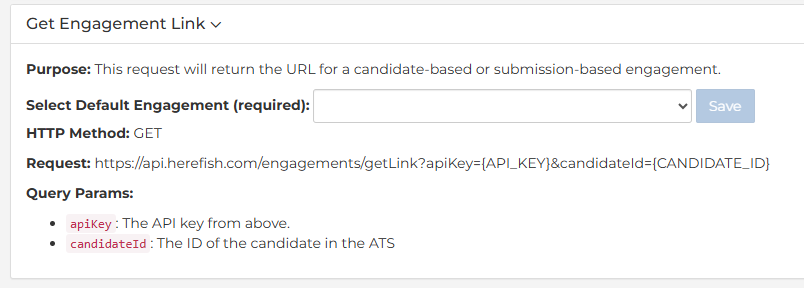
Query Parameters
-
apiKey: The API key from your API settings page.
-
candidateAtsId: The ID of the candidate in the ATS. Required when the selected default engagement is candidate-based.
-
submissionAtsId: The ID of the submission in the ATS. Required when the selected default engagement is submission-based.
-
engagementId: An optional parameter that specifies a particular engagement to generate the link for. This lets integrations work with multiple engagements by passing the ID of the engagement needed, rather than always using the default.
When engagementId is provided and valid, the endpoint generates the link for that specific engagement. When it’s omitted or invalid, the endpoint uses the default engagement.
Best Practices for Screener Integrations
-
Use submission-based engagements when possible. If your integration creates an ATS submission during the application, a submission-based screener ensures candidates are screened for the specific job they applied to, rather than a general screening.
-
Avoid duplicate questions. If your application process includes knockout questions (for example, “Are you over 18?”), make sure the screener engagement doesn’t repeat them.
-
Coordinate on link presentation. Work with your job board partner to set clear expectations for the candidate. When the candidate clicks the link, they’ll be redirected to a separate page where a chatbot will load and guide them through the screening. Communicating this upfront reduces confusion from the redirect and lowers the chance of candidates abandoning the process.
FAQ
Does the “Get Engagement Link” endpoint only work for Amplify screenings?
No. The endpoint generates a link to whatever engagement is configured as the default in your API settings. This can be a survey, chatbot, or Amplify screening engagement.
Is “Get Engagement Link” available for all ATS platforms?
This feature is currently available for Bullhorn ATS only.
What’s the difference between the link generated by the “Get Engagement Link” endpoint and the link sent via text or email?
There’s no difference in the link itself — the engagement experience is identical. The only difference is delivery: this endpoint lets an integration retrieve the link programmatically and present it in real time, rather than waiting for a follow-up message.
Can I use the “Get Engagement Link” endpoint without a job board integration?
Yes. The Get Engagement Link endpoint is available to any integration that can make an authenticated GET request. While the primary use case is job board integrations, any third-party system that works with candidate or submission records in the ATS can call this endpoint.
Does “Get Engagement Link” work with LinkedIn or Indeed?
The Get Engagement Link endpoint is technically capable of generating a link for any integration that can call it. However, platforms like LinkedIn and Indeed don’t offer custom development on behalf of individual customers. This endpoint is designed for customer-owned job boards or job boards managed by a Bullhorn Marketplace partner, where you or your partner controls the application experience and can embed the link.
What happens if the candidate doesn’t click the link?
Nothing changes from the existing workflow. If the candidate doesn’t complete the engagement through the integration link, they can still receive the standard text or email invitation through the automation, as long as one is configured.
What happens if the wrong ID type is passed?
If your default engagement is candidate-based but you pass a submission ATS ID instead of a candidate ATS ID (or vice versa), the endpoint returns an error. Make sure the ID type in your request matches the engagement type configured in your API settings.